
How to Use the Free Lead Magnet Opt-in Page Pack to Grow Your Email List
We may earn a commission from affiliate links in this post. Disclosure policy
Are you searching for lead magnet ideas to grow your email list and boost engagement?
We’ve discovered one of the best resources available, the Free Lead Magnet Opt-in Page Pack from Divi Lover. This pack is completely free when you subscribe to their newsletter.
What makes it even better is that it’s not just a single layout, it’s a pre-made bundle of modules and layouts that you can use across your Divi website. You get access to multiple professionally designed modules, not just the Free Lead Magnet Opt-in Page Pack, all at no cost.
In this tutorial, we’ll guide you step by step on how to download, import, and use this pack to grow your email list effortlessly.
Let’s dive in!
What is a lead magnet?
A lead magnet also known as an opt-in freebie is a valuable resource you offer in exchange for someone’s email address. This freebie can be an eBook, checklist, template, mini-course, or guide that solves a specific problem for your audience.
Here’s the secret: people are much more likely to subscribe when they receive something useful in return. That’s why bloggers, coaches, and businesses use lead magnets to turn casual readers into loyal email subscribers.
Learn More: 5 Free Marketing Tools to Help You Grow Your (Divi) Business
What makes a good lead magnet?
Not every freebie will deliver results – the key is relevance.
For example, imagine you published a blog post titled “8 Best Divi WooCommerce Themes for E-commerce Sites.**”**A perfect lead magnet would be something like **“**Free Guide: 5 Proven Tips to Boost Sales on Your Divi WooCommerce Store.”
This naturally complements the blog post and gives your reader a clear next step.
But if you offered something unrelated like a road trip checklist your audience wouldn’t be interested, and your conversions would likely drop.
To create an irresistible lead magnet, focus on:
- Solving one specific problem your audience cares about
- Delivering quick wins that give them instant value
- Keeping it relevant to your blog, niche, or business goal
How to Use the Free Opt-in Page Pack
Using the Free Opt-in Page Pack is quick and beginner-friendly. In this tutorial, we’ll walk you through exactly how to download, import, and customize this free layout pack for your website.
To make things even easier, we’ve broken the process into simple, step-by-step instructions so you can follow along without confusion.
Step 1: Download the Free Opt-in Page Pack
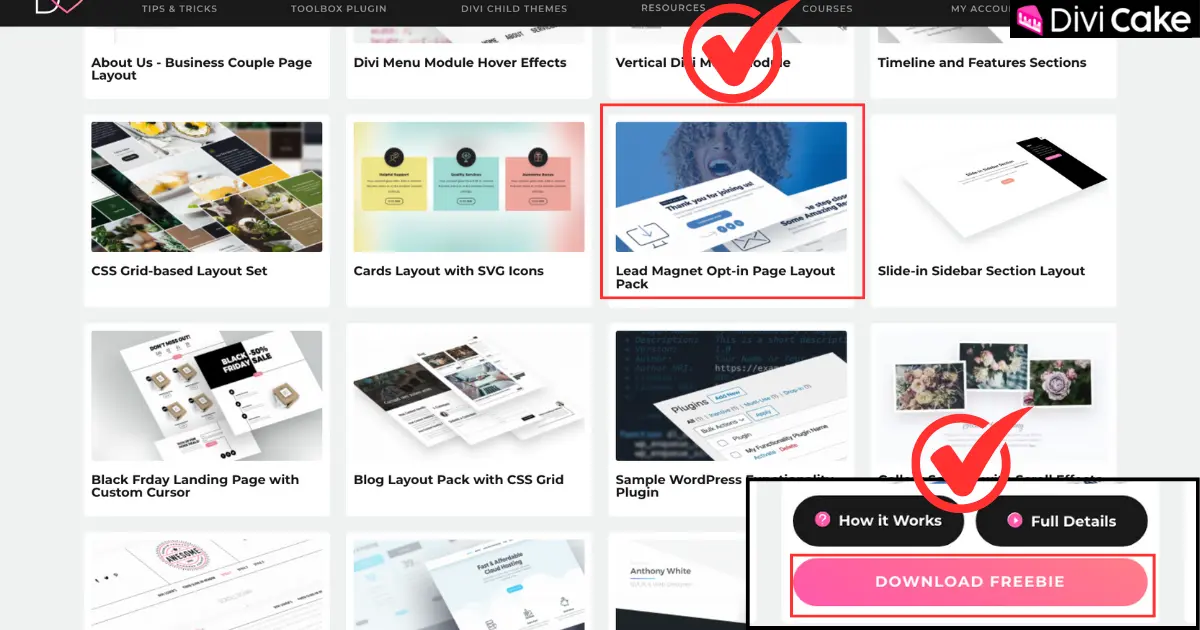
Go to the Divi Lover Freebie Library and hover your mouse over the desired layout. You’ll see a download option appear simply click it to download the file to your computer.
If you’re new to Divi Lover and unsure how to get started, don’t worry we have a complete step-by-step tutorial that explains how to access the Freebie Library and download any free layout pack or module.
Step 2: Unzip the Free Lead Magnet Opt-in Page Pack
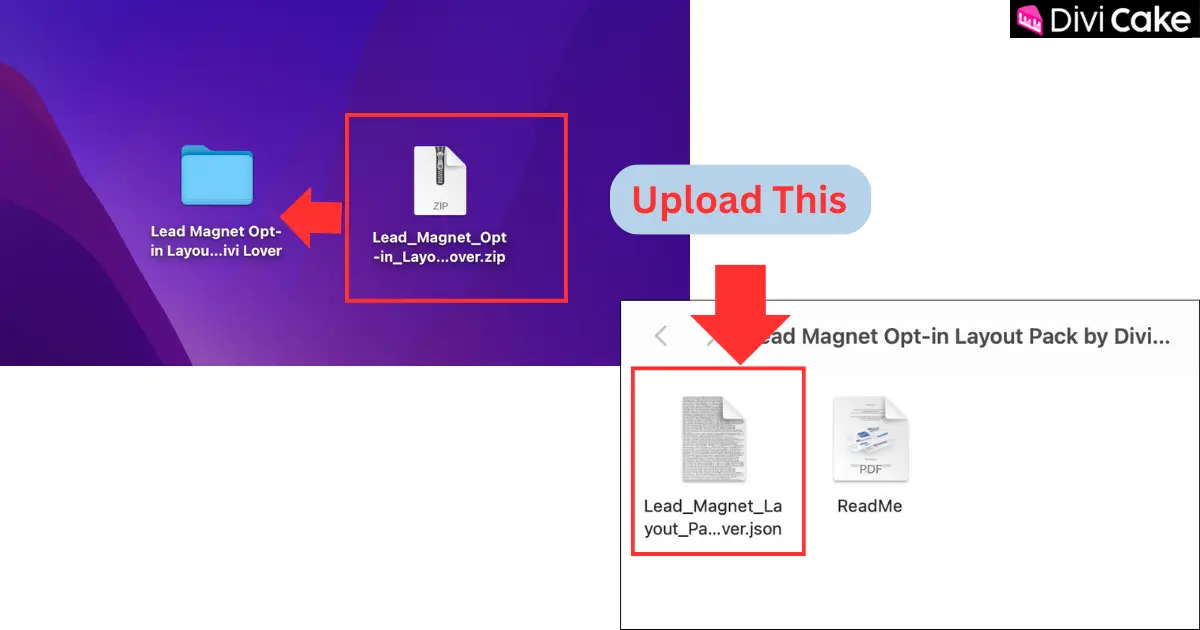
Once you download the Lead Magnet Opt-in Page Pack, it will come as a .zip file. If you try to import this file directly into the Divi Library, you’ll see an error because Divi does not support .zip format. To fix this, simply unzip the file on your computer. After unzipping, open the extracted folder where you’ll find a .json file. This is the file you need to import. Now head to your Divi Library and import the .json file to successfully add the layout to your site, as shown in the screenshot below.
Step 3: Import the Free Opt-in Page Pack
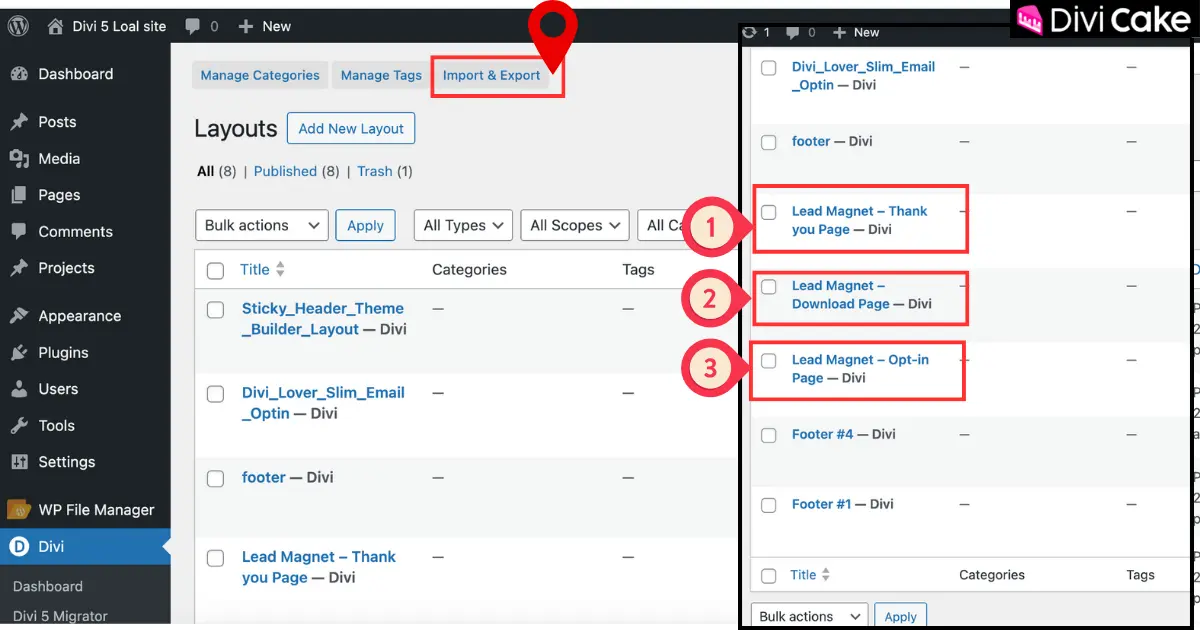
Importing any Divi layout the process must be same if you are a Divi WordPress Developer you must be know how to Import Lead Magnet Opt-in Page Pack, but if you’re a beginner, simply go to the Divi option in your WordPress dashboard, click on the Divi Library, then click the Import button and upload the layout as shown in the screenshot below. If you want more detail we have a complete process tutorial step by step you can read this.
In the screenshot below, we have shown the imported Lead Magnet Opt-in Page Pack. It is not a single design but includes three pre-made designs that you can use and customize. You can choose your favorite from these three layouts.
Step 4: Customize the Lead Magnet Opt-in Page Layout to Fit Your Freebie
If you don’t know how to customize this Lead Magnet Opt-in Page Pack, we have shown you in this quick step how you can easily use this layout. In this step, we are going to customize these layouts directly from the Divi Library. Make changes according to your choice, and then you can use it anywhere on your Divi website by simply importing it from the Divi Library directly into the page builder.
Follow these steps to customize the Lead Magnet Opt-in Page Pack to grow your email list:
- Hover the mouse over the particular Lead Magnet Opt-in layout you want to edit and click on the Edit button.
- Click on the Edit with Divi Builder button as shown in the screenshot below.
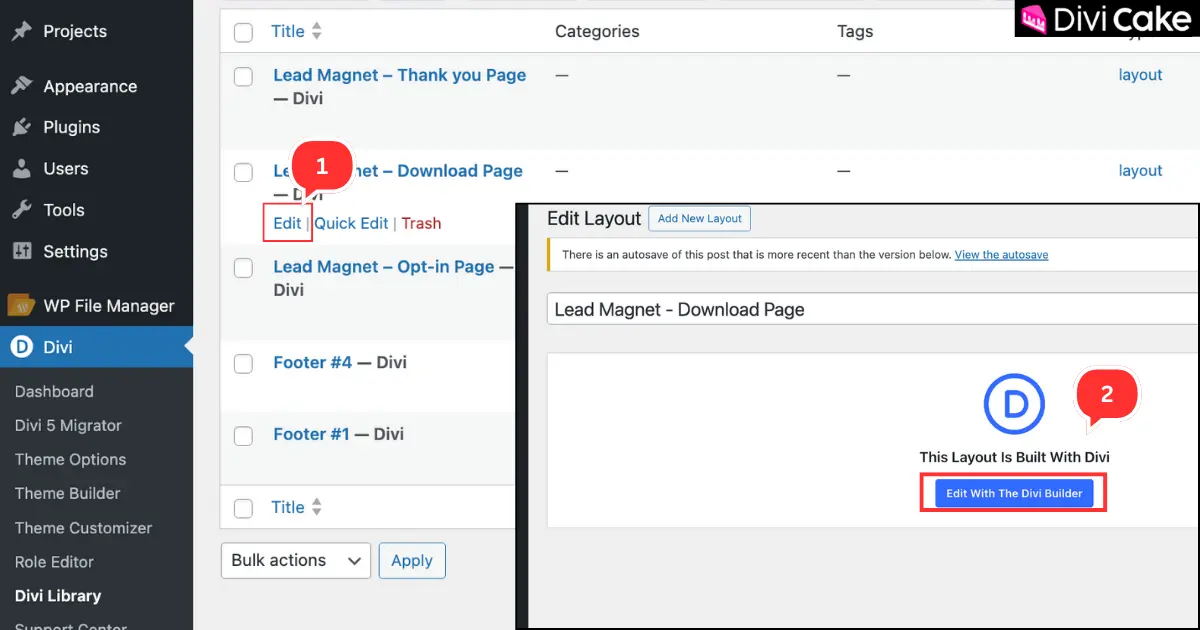
As shown in the screenshots below, our Lead Magnet Opt-in layout is open in the Divi 5 Visual Builder. In Divi 4, you needed to click on the gear icon to open the settings panel, but in Divi 5 the latest version by Elegant Themes the process is much simpler. You no longer need to hover over elements to find the settings button. Now, you can simply click once on any heading, row, section, button, or module, and the settings panel will open directly.
The customization process for the Lead Magnet Opt-in layout is straightforward and works the same way as customizing any other module or row in Divi. Therefore, we are not going too deep into customization.
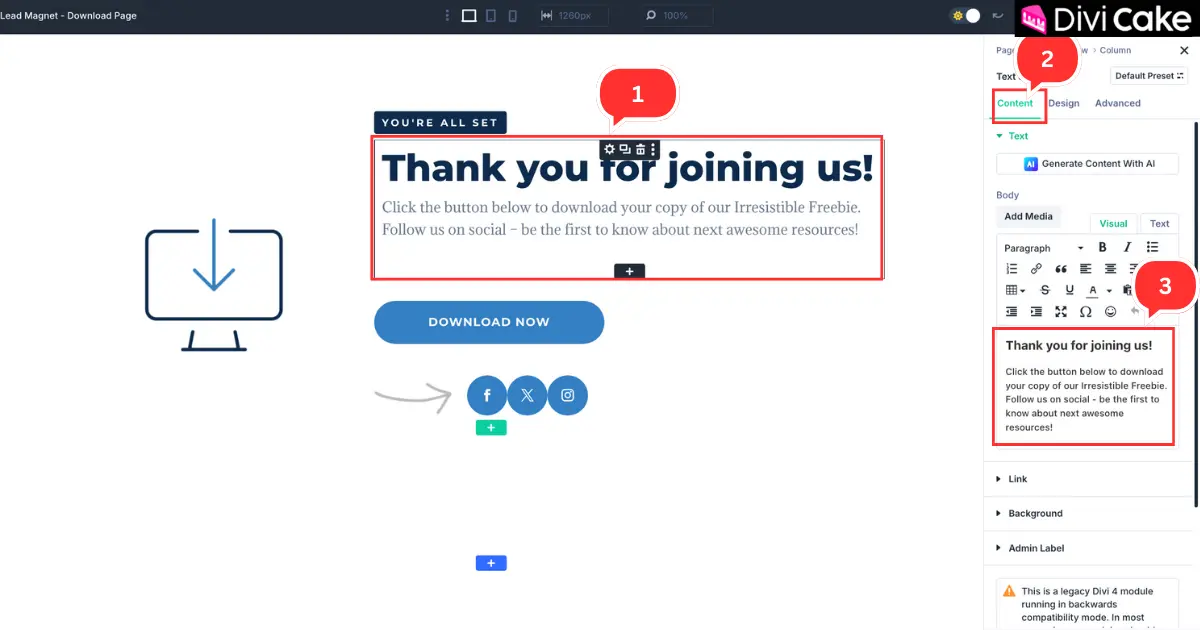
Follow these steps to edit your layout:
- Click on the heading or text as shown in the screenshot below.
- Click on the Content tab (it will open by default, but we are mentioning this step for clarity).
- Open the text option and change the heading and text according to your needs.
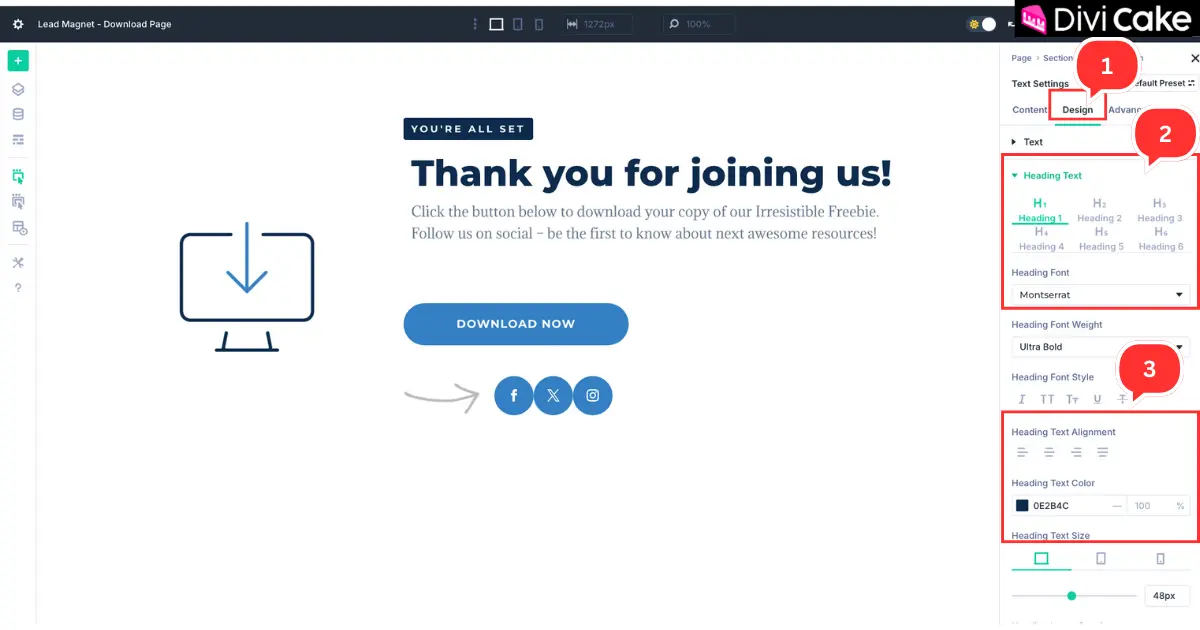
This time, open the Design tab to make visual changes such as text color, heading size, spacing, and more. All design options are located under the Design tab, and you can easily switch to it with a single click from the Content tab.
Follow these steps to adjust the design:
- Click on the Design tab.
- Select the correct heading level (for example, if your heading was set as H2 in the Content tab, choose H2 here). Your design changes will be instantly applied to the selected module.
- Adjust the heading alignment and color as shown in the screenshot below.
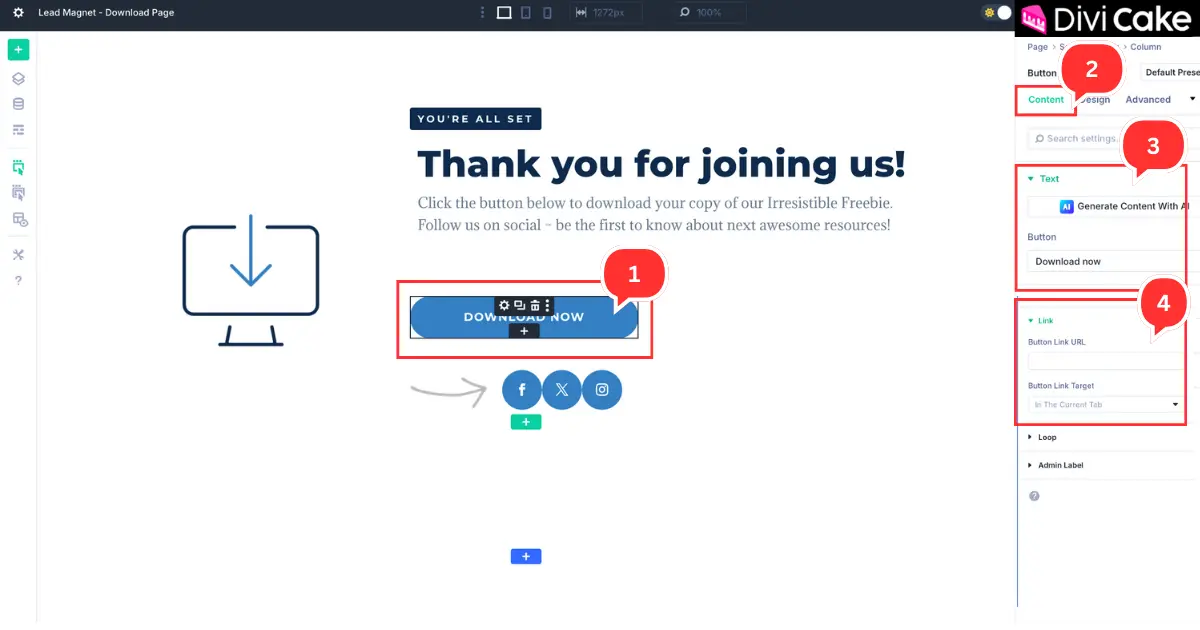
Now, open the Button module and make the necessary changes to match your website’s design. You can update the button text, insert the correct link, and customize the button’s color and size to fit perfectly with your layout.
Follow these steps to edit the button:
- Click on the Button area to open its settings.
- Go to the Content tab.
- In the Text option, change the button text to whatever you need.
- Open the Link option and insert the page link where you want the button to redirect users.
Final Thoughts
Using the Free Lead Magnet Opt-in Page Pack by Divi Lover is one of the easiest and most effective ways to start growing your email list today. With just a few clicks, you can download, import, and customize a professional opt-in page that perfectly matches your website’s design. Whether you are offering a free guide, checklist, or eBook, this layout gives you a beautiful and conversion-focused way to display your lead magnet.Remember, the key to success is making your lead magnet relevant, valuable, and easy to access. Customize the text, colors, and buttons to fit your brand and create a smooth experience for your visitors. Once everything is set up, connect it with your email marketing platform, publish the page, and start collecting subscribers effortlessly.
Learn More: Email Marketing with Bloom in Divi: A Step-by-Step Guide
Submit a comment
Comments are read before they appear. Your email is not published.
Thanks. Your comment is waiting for review and will appear here once it is approved.