
Divi 5 Video Autoplay (No Plugin): How to Autoplay Videos in the Divi Video Module
We may earn a commission from affiliate links in this post. Disclosure policy
If you’ve tried to enable video autoplay in Divi 5, you already know the annoying part: the Divi Video Module still doesn’t give you a simple “Autoplay” switch for self-hosted videos.
And even if you find a workaround, browsers like Chrome, Safari, and Firefox love to block autoplay when it’s done the wrong way (especially with sound).
The good news is this: Divi 5 autoplay works perfectly when you do it in the browser-friendly way.
In this tutorial, we are going to show you how to autoplay a self-hosted MP4 video in Divi 5 using the Video Module, without any plugin. This method is also great if you want:
- Divi autoplay video loop
- Divi video autoplay muted
- Divi video autoplay no controls
- A clean hero-style autoplay video
- A setup that is more likely to work on mobile (including iPhone, with playsinline)
What you need before starting
This guide is for self-hosted videos (like MP4) uploaded to your WordPress Media Library.
If you’re using YouTube or Vimeo, autoplay rules are different and often restricted. So for this tutorial, we’re focusing on the Divi Video Module with a real MP4 file.
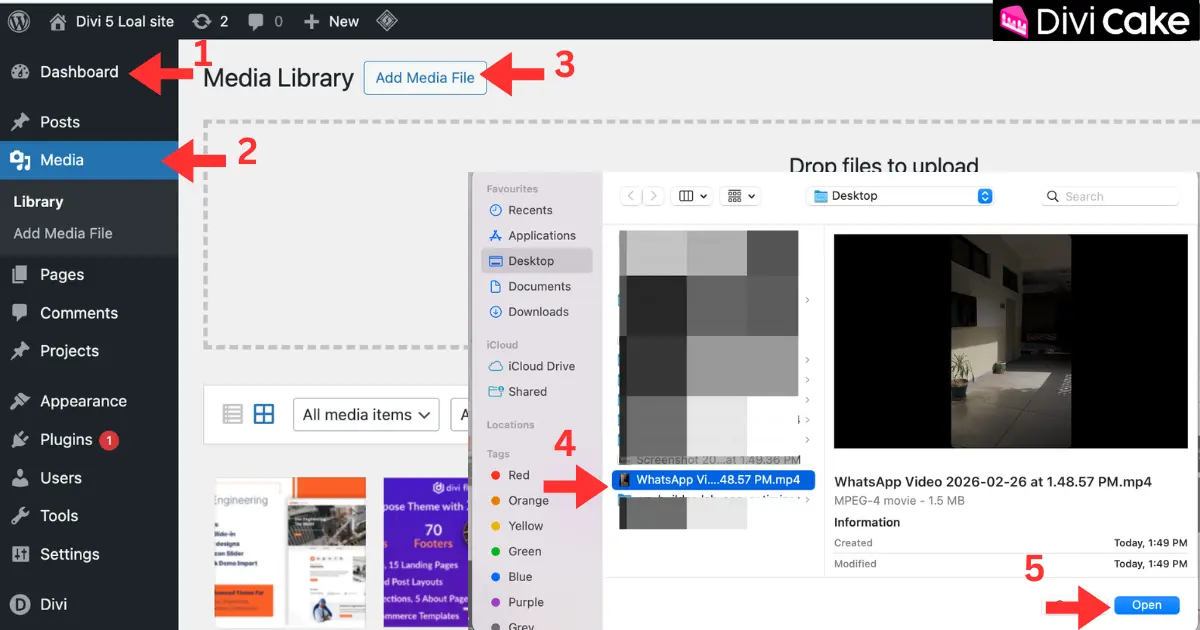
Step 1: Upload your MP4 video to the Media Library
In your first screenshot, you’re doing it the right way:
- Go to WordPress Dashboard
- Click Media
- Choose Add Media File
- Select your MP4 video from your computer
- Click Open to upload
This is the best way to start because Divi 5 will pull the video directly from your Media Library.
Step 2: Open the page in Divi 5 Visual Builder
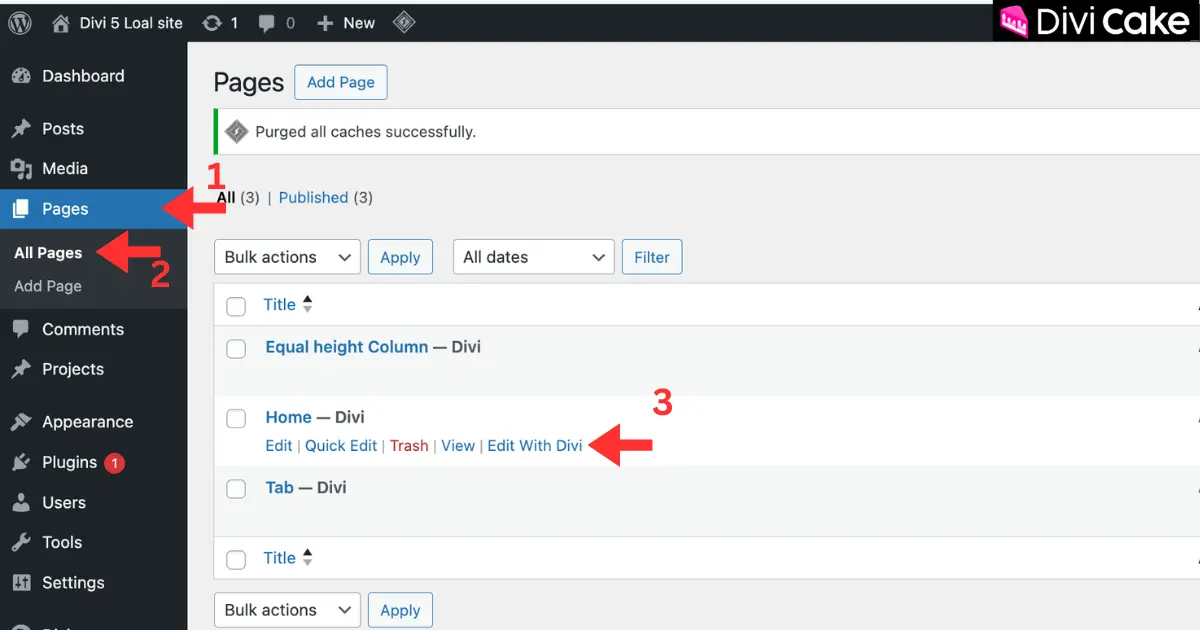
Next, go to the page where you want autoplay:
- Click Pages
- Open All Pages
- Click Edit With Divi on the page you want
Step 3: Add the Divi Video Module
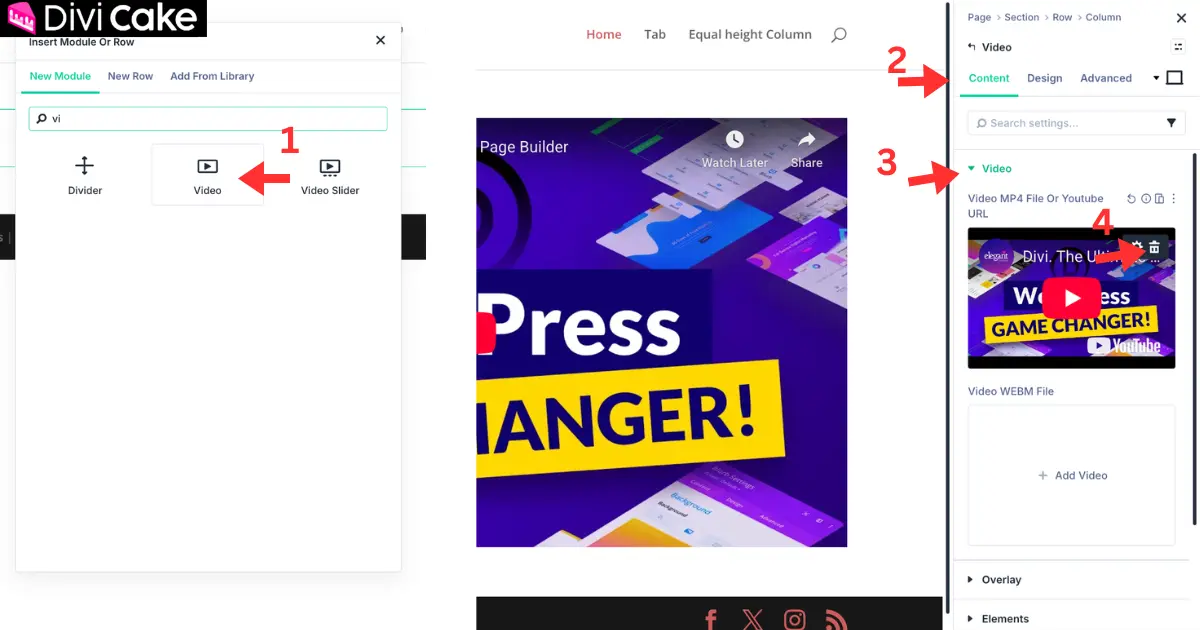
Now inside the Divi 5 builder:
- Click Add Module and Add Video Module
- Click on the Content tab
- Search for Video
- Delete the WordPress Default Video
This step helps you target keywords like Divi video module autoplay and Divi 5 video module autoplay because we’re using the actual Divi Video module, not background video tricks.
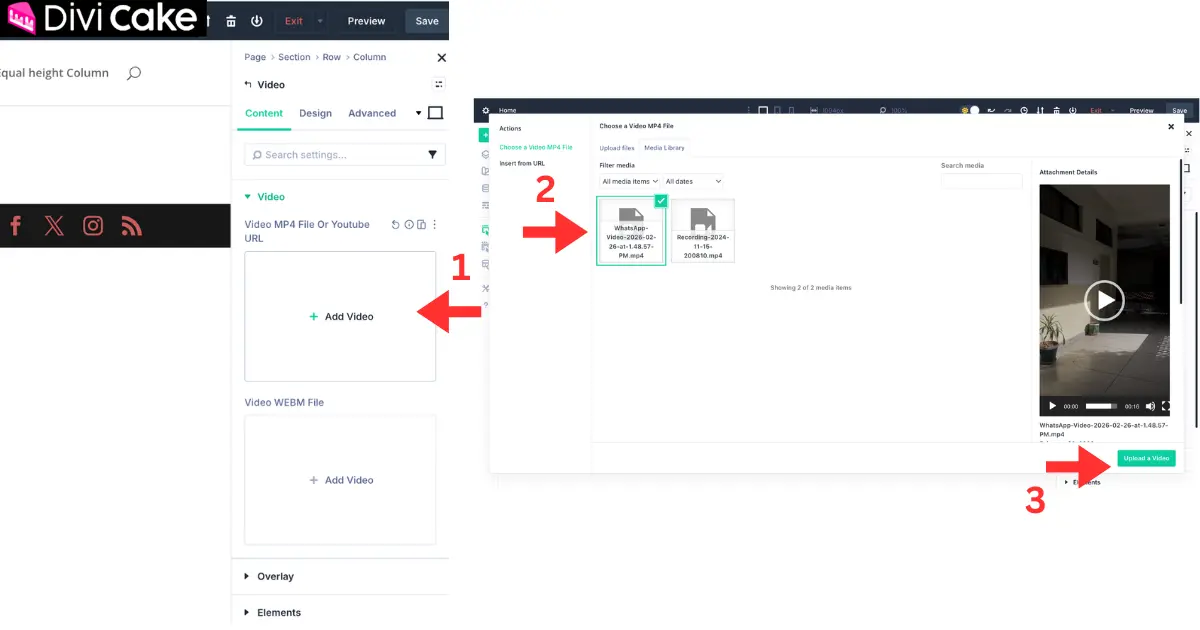
Step 4: Replace the default YouTube video with your MP4 file
Divi usually shows a default YouTube URL in the video module. Remove that and add your MP4:
- Click Add Video
- Select your uploaded MP4 from the Media Library
- Click Upload a Video (or confirm selection)
This is how you make Divi autoplay video work using a self-hosted file.
Step 5: Add a custom class (Divi 5 way) using Attributes
This is the most important part and it’s also where Divi 5 is different from older Divi versions.
Instead of the old “CSS ID & Classes” field, Divi 5 uses Attributes.
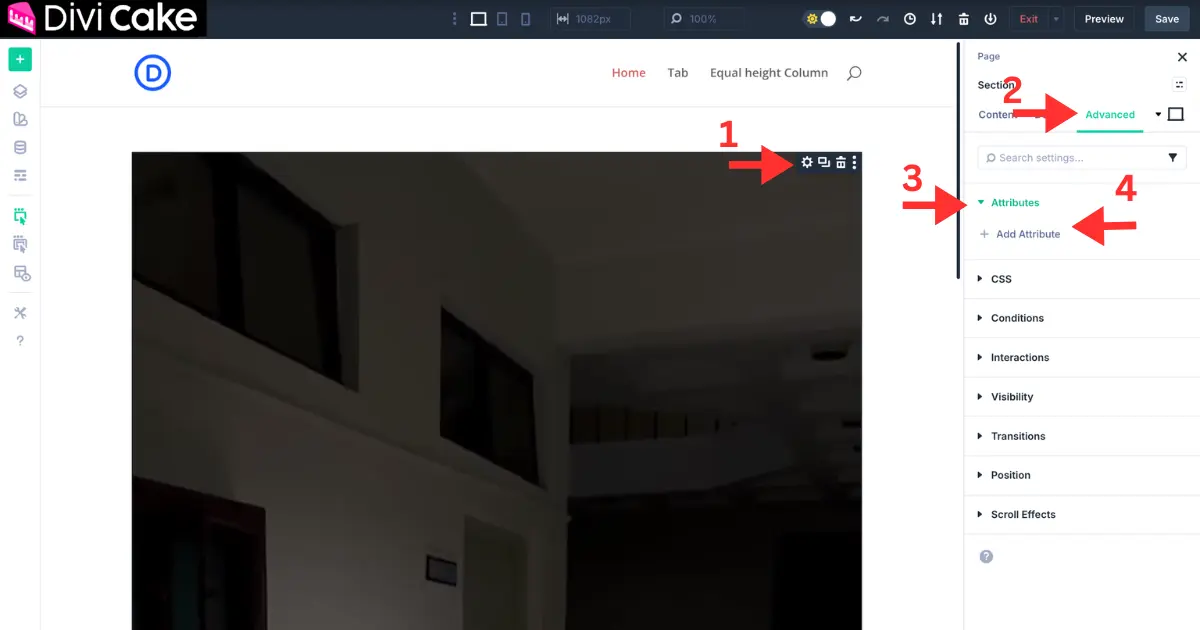
Here’s what you did:
- Click the module settings gear (top-right of the module) or double click on the Divi Module (Setting will open in Divi 5)
- Go to the Advanced tab
- Expand Attributes
- Click Add Attribute
Step 6: Choose “class” and add your class name
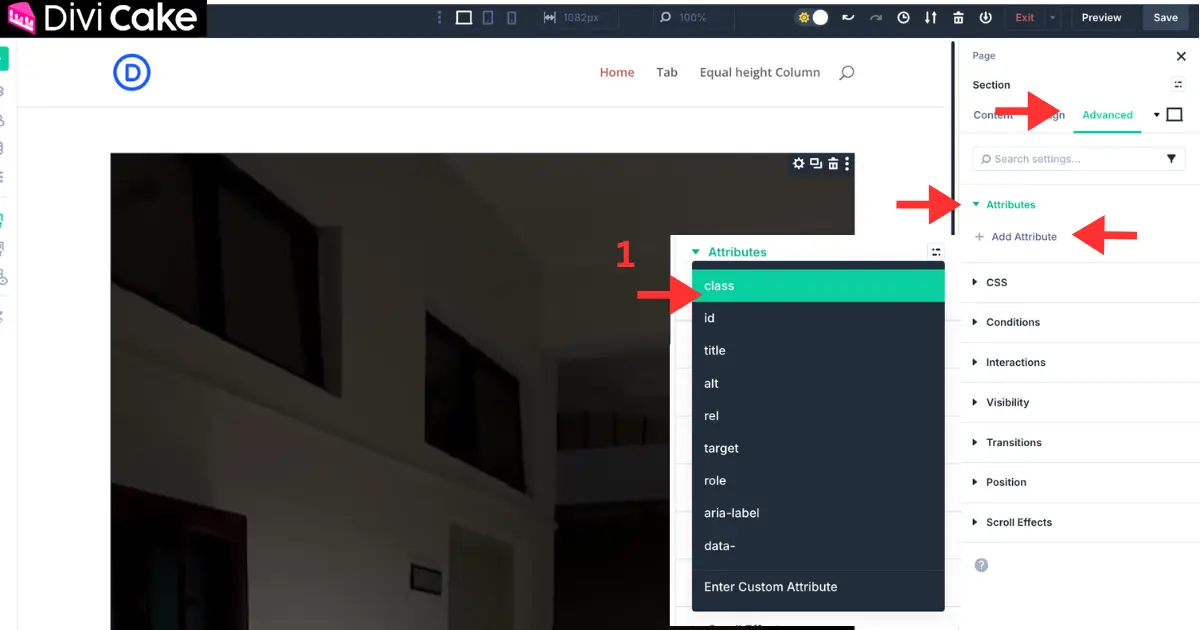
Now set the attribute like this:
- Select the Class in Attributes
This is your targeting hook. It ensures the autoplay script runs only on videos you choose, not every video sitewide.
Step 7: Confirm the class attribute value
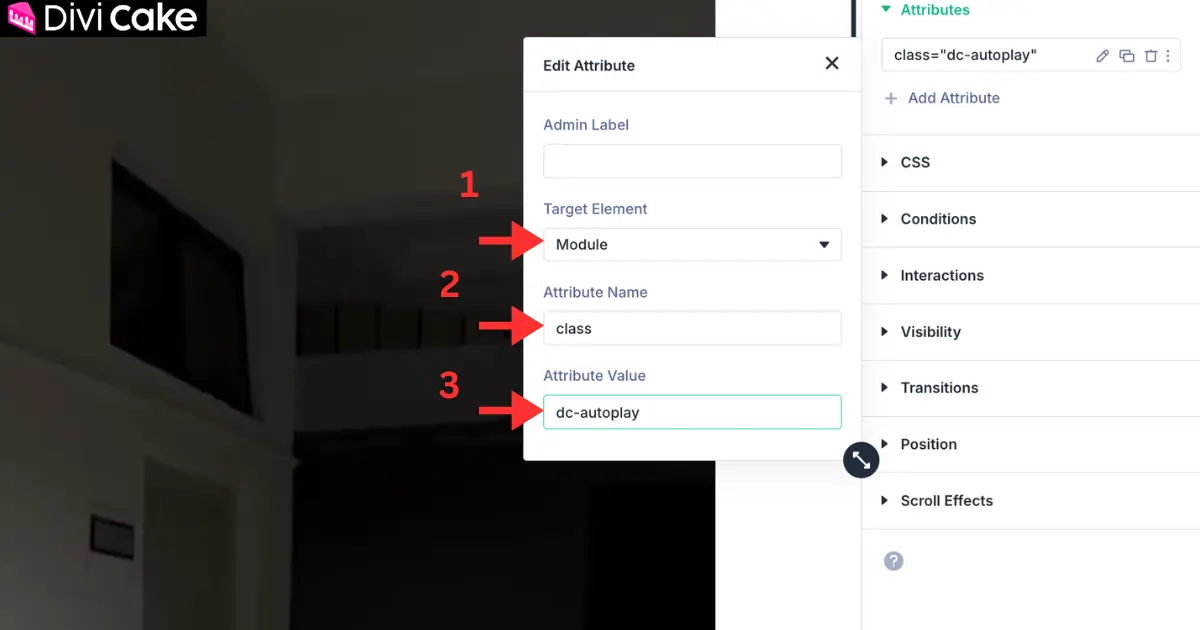
In your next screenshot, you already confirmed it correctly:
- Target Element: Module
- Attribute Name: class
- Copy this CSS Class “dc-autoplay” and Past in the Attribute Value
Perfect. Now we can attach autoplay behavior only to videos with this class.
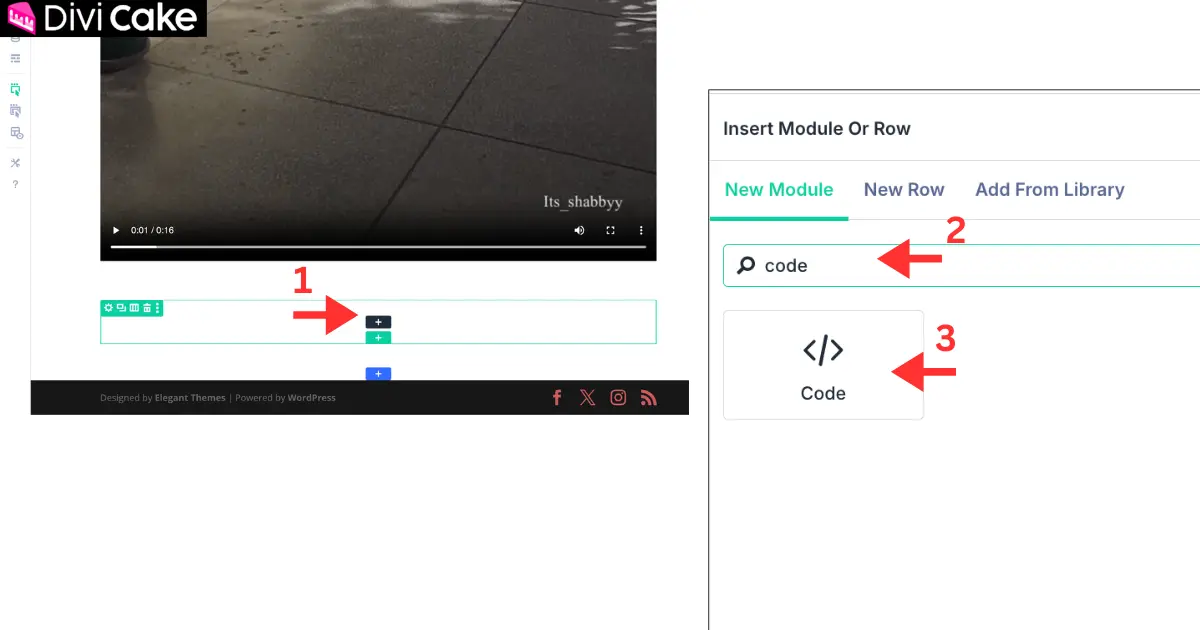
Step 8: Add a Code Module below the video
Now we’re going to add the script using a Divi Code Module.
- Click the Plus Icon where you want to insert the code
- Search for Code
- Add the Code module
This is the safest method because it keeps the script on the page where you need autoplay.
Step 9: Copy this autoplay script inside
Copy this code and will past in the Code Module in next step:
<script>
document.addEventListener("DOMContentLoaded", function () {
 const videos = document.querySelectorAll(".dc-autoplay video");

 videos.forEach((video) => {
   video.muted = true;
   video.loop = true;
   video.playsInline = true;
   video.setAttribute("playsinline", "");
   video.removeAttribute("controls");

   const tryPlay = () => video.play().catch(() => {});
   video.addEventListener("loadedmetadata", tryPlay);
   tryPlay();
 });
});
</script>
What this script does:
- Finds only videos inside elements with class dc-autoplay
- Enables muted autoplay (browser friendly)
- Enables loop
- Forces inline playback (important for iPhone and mobile)
- Removes controls for a cleaner autoplay look
- Attempts playback safely without breaking the page
This is one of the most reliable approaches for:
- divi autoplay not working
- divi video autoplay on mobile
- divi video autoplay loop
- divi video autoplay no controls
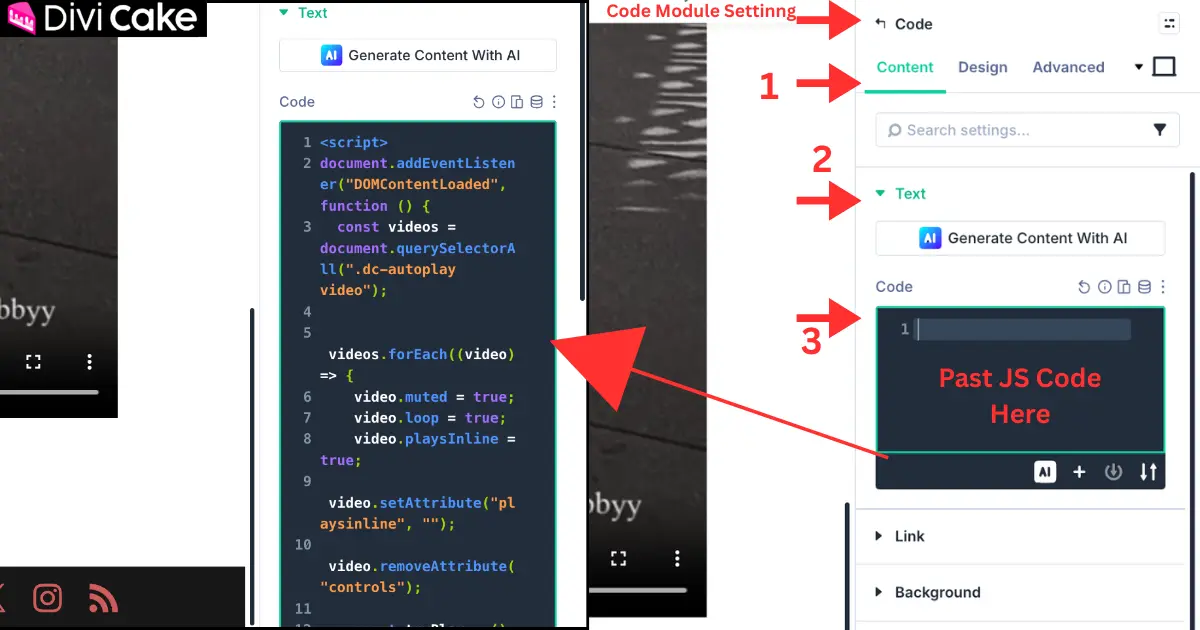
Step 10: Past this autoplay script inside the Code Module
The Code Module setting will automatically open if not open, then Double tap on it will open easily. Past the Copied code as shown in this step.
- Go to the Content tab
- Click on the Text
- Past the Copied Code in the Code box as show in the below screenshot
Step 11: Save and preview on the live page
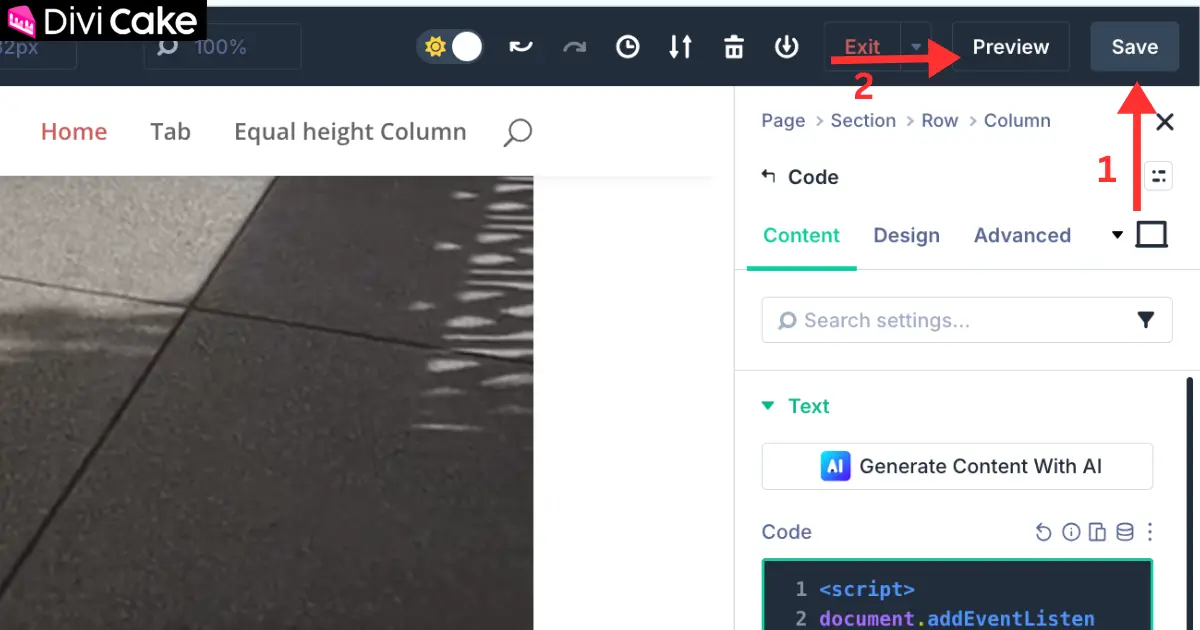
Finally:
- Click Save
- Click on the Preview
Autoplay often does not behave perfectly inside builder previews, so always test on the real page.
Learn More: Divi 5 Review: Is It Still the Best WordPress Builder?
Troubleshooting: If Divi 5 autoplay is not working
1) Autoplay works on desktop but not on mobile
This is usually normal. Mobile browsers (especially iOS Safari) are stricter. Make sure:
- video is muted
- playsinline is set (we did that)
- video is MP4 (recommended)
- file is not huge
2) Autoplay only works after refresh
Clear cache:
- caching plugin cache
- server cache
- browser cache
Then test in an incognito/private window.
3) Video still shows controls
We remove controls in the script. If you still see them:
- confirm the correct class is attached: dc-autoplay
- make sure the Code module is on the same page
- check if another script is overriding controls
4) Autoplay with sound does not work
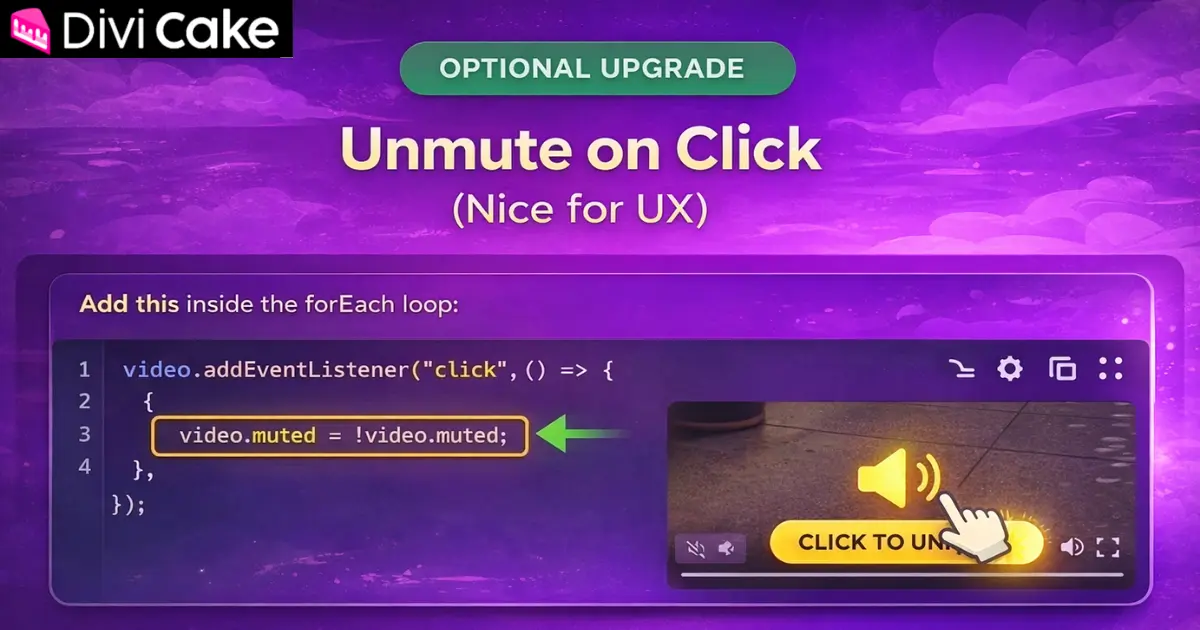
That’s browser policy. Sound autoplay is blocked unless the user interacts first. The correct approach is autoplay muted, then allow click to unmute (optional upgrade below).
Optional upgrade: Unmute on click (nice for UX)
If you want visitors to click the video to turn sound on, add this inside the forEach loop:
video.addEventListener(“click”, () => {
video.muted = !video.muted;
});
This gives you the best of both worlds:
- muted autoplay works
- users can unmute when they want
Why this method is better than plugins
Plugins often:
- add extra scripts globally
- slow down pages
- break on updates
- conflict with caching/minification
This approach is lightweight, targeted, and clean because:
- it runs only where you add dc-autoplay
- it follows autoplay policy rules
- it is easy to reuse on any page
Conclusion
Autoplay in Divi 5 isn’t really a Divi limitation as much as it’s a browser policy issue. Most modern browsers will block autoplay unless the video is muted, loops, and plays inline, especially on mobile. That’s why this method works so reliably: it follows the rules browsers expect while still giving you true Divi 5 video autoplay for self-hosted MP4 videos.
The best part is how clean and scalable your setup is. By adding the dc-autoplay class through Divi 5 Attributes and placing the script in a Code Module on the same page, the autoplay only runs where you want it. No plugins, no site-wide scripts, and no extra bloat. Just keep your MP4 optimized and short for faster loading, and you’ll have a smooth autoplay experience that’s easy to reuse on any page.
Read More: Autoplaying Videos in Divi 4
Quick FAQs
Does Divi 5 have autoplay in the Video Module?
Not as a built-in toggle, but you can enable autoplay using the method above.
Will this work with YouTube or Vimeo videos?
No. This is best for self-hosted MP4 videos. YouTube/Vimeo have their own autoplay restrictions.
Why must autoplay be muted?
Because browsers allow muted autoplay but block autoplay with sound in most cases.

Submit a comment
Comments are read before they appear. Your email is not published.
Thanks. Your comment is waiting for review and will appear here once it is approved.