
How to Create a Custom Global Header with Divi 5
We may earn a commission from affiliate links in this post. Disclosure policy
As Divi launched its latest Divi 5 version, many users found it challenging to create a Global Header. The reason behind this is the completely revamped interface and the introduction of several new features and changes. These updates, while powerful, have made it slightly confusing for those who were used to the previous versions.
That’s where this tutorial comes in. We’re here to walk you through the exact steps needed to build a fully responsive Global Header and menu using Divi 5. Our goal is to make the process simple, effective, and visually appealing. With this easy-to-follow guide, you’ll be able to create a stunning and functional Global Header in no time.
Creating Responsive Global Header in Divi 5
In this step, we’ll show you how to create a responsive Global Header using the Divi 5 Theme Builder. This will help demonstrate just how beginner-friendly Divi 5 really is. By following along, you’ll gain a clear understanding of the basic steps required to build a header in the new Divi 5 interface.
We’ll be adding a Global Header, which means the header will appear across your entire website—not just on a single page.
Follow the steps below:
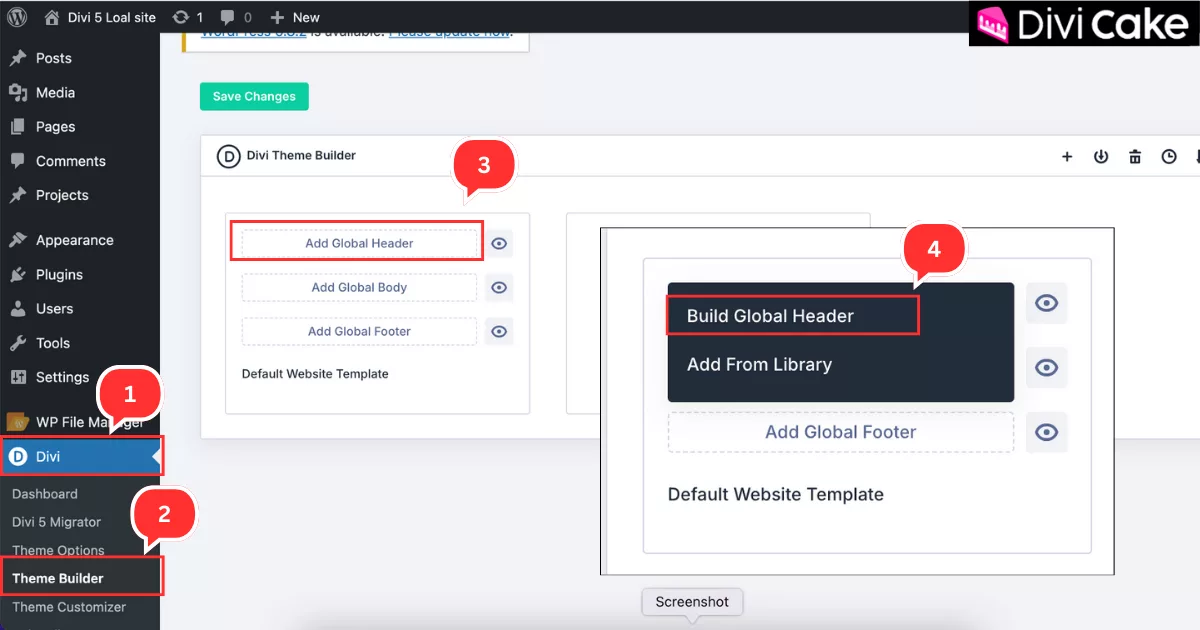
- Click on Divi.
- Click on Theme Builder.
- Click on Add Global Header.
- Click on Build Global Header.
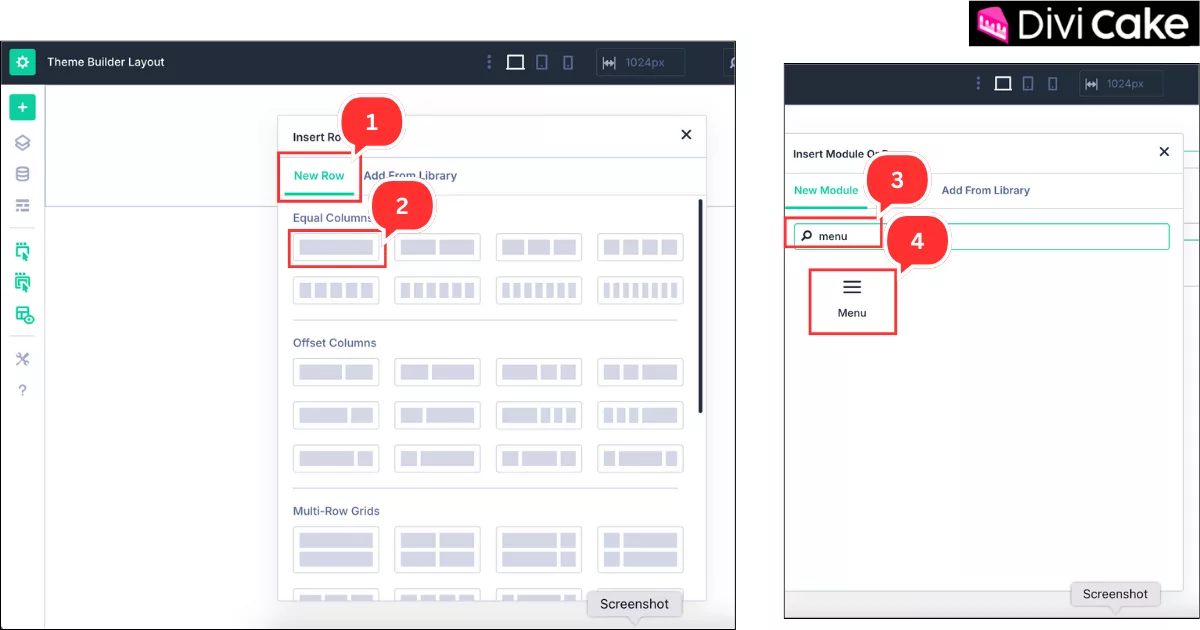
As shown in the screenshot below, when your header area opens in the Divi Theme Builder, it will appear as a blank canvas the first time you access it. You’ll only see a green Plus (+) icon, which is used to insert a new section. Click on this green icon to add a section—this is where we’ll insert our menu.
Follow the steps below:
- A New Row tab will automatically appear.
- Insert a single row with a single column as shown in the screenshot below.
- Once the section is added, its settings panel will open automatically. In the search bar, type “Menu.”
- Click on the Menu module to insert it.
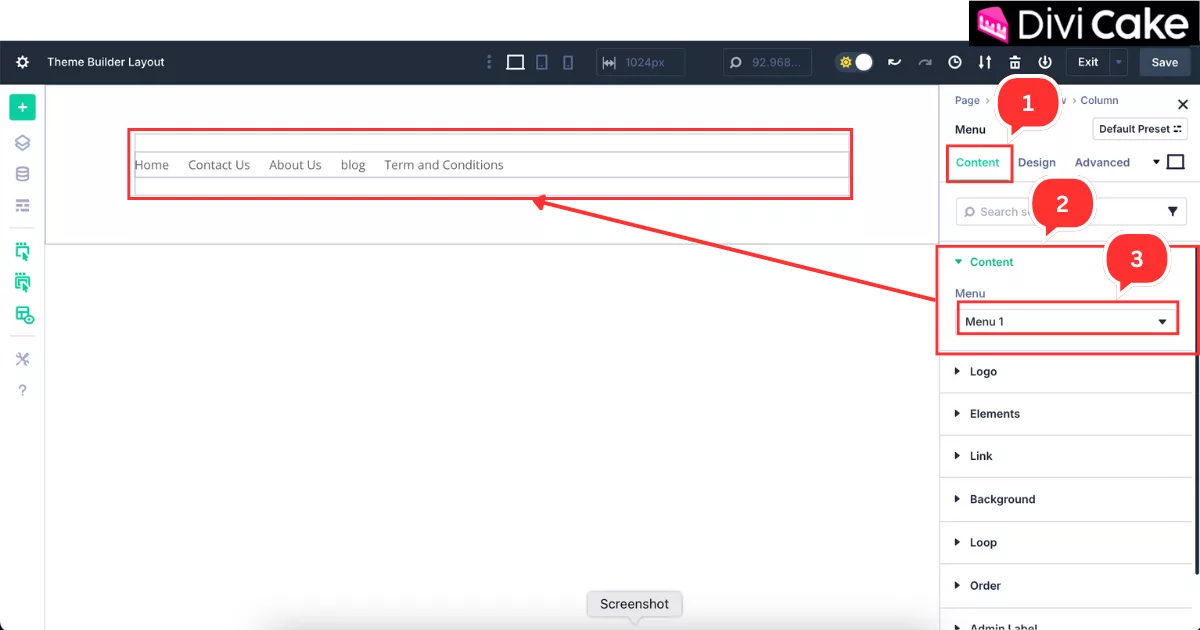
Once the Menu is added, its settings popup will appear automatically. If it doesn’t, you can easily open it by double-clicking on the menu area. This will reopen the settings panel. The first step is to assign the menu you’ve already created specifically for the header.
Follow these steps to customize:
- Click on the Content tab.
- Within the Content tab, click on the Content option.
- Select the Menu you want to display in the header.
Add Logo to the Header Menu
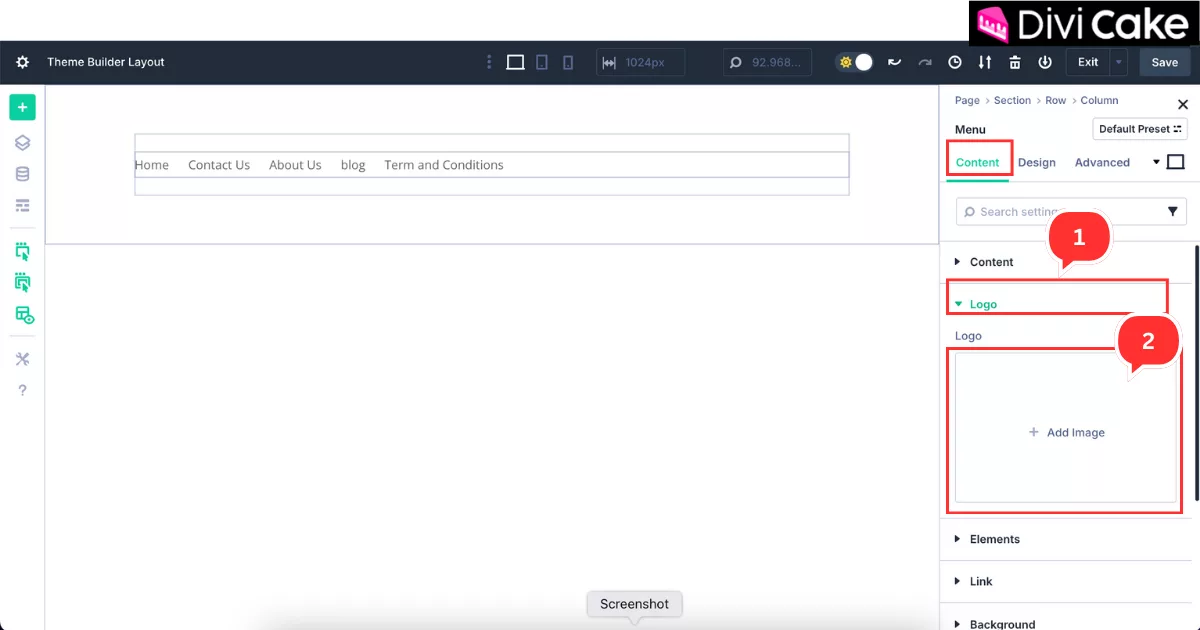
In this step, we’ll show you how to add a logo to your header menu using Divi 5. It’s a simple process, and anyone can do it by following the steps below. The option to add a logo is available under the Content tab in the Menu settings.
Follow these steps to add your logo:
- Click on the Logo option.
- Click on Add Image to upload your logo.
Adding Link to the Logo
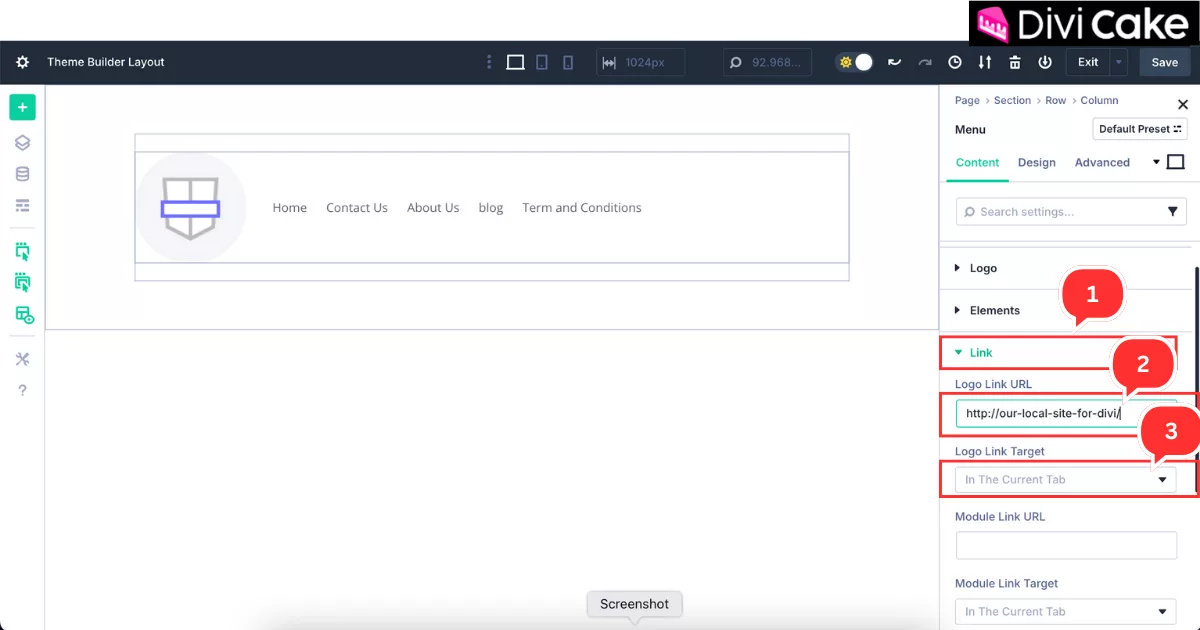
Just like on most websites, clicking on the logo redirects users to the homepage. We’ll do the same here by adding a link to your logo so that when users click on it, they are taken directly to your homepage or landing page. This setting is also available under the Content tab in the Menu settings.
Follow these steps to add the link:
- Click on the Link option under the Content tab.
- Add your Home Page URL as shown in the screenshot below.
- Choose whether you want the logo link to open in the Current tab or a New tab—the choice is yours.
Customize Your Menu and Header Using Divi 5
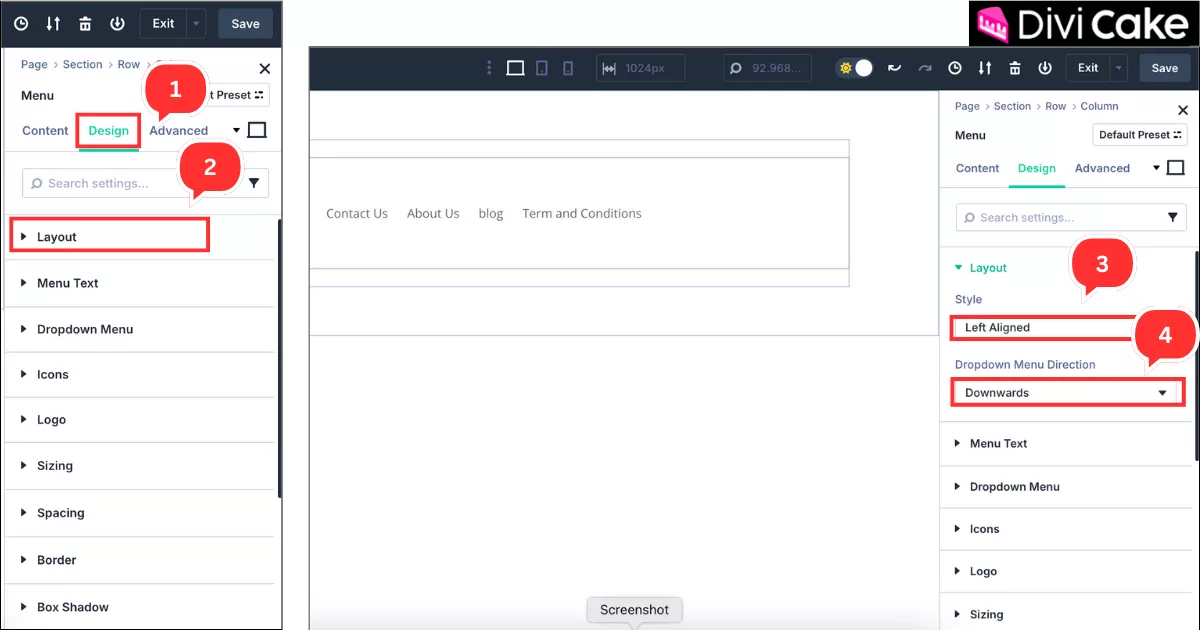
In the previous steps, we added a menu and a logo to the header. Now it’s time to customize the logo, menu, and overall header design to make it visually appealing and help beginners understand how to personalize the header layout.
Follow these steps to start customizing:
- Click on the Design tab in the Menu settings.
- Click on the Layout option under the Design tab.
- Choose the Menu Alignment—left, center, or right—based on how you want your Divi website menu to appear.
- Set the Dropdown Menu Direction to either Upward or Downward, depending on how you want the dropdown menu to open.
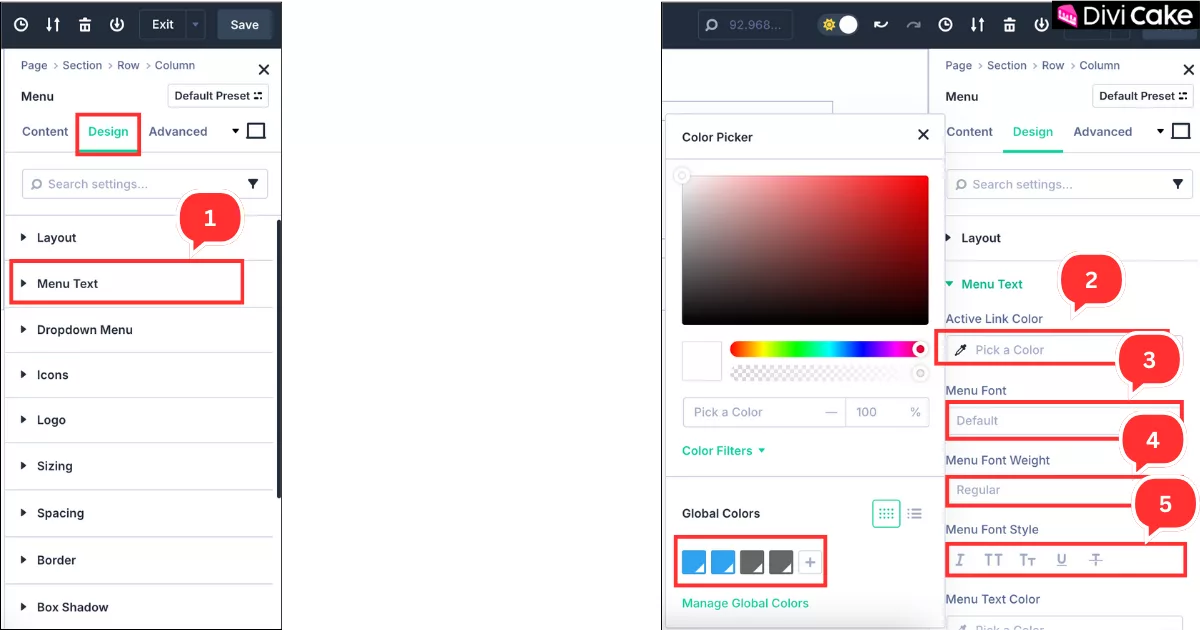
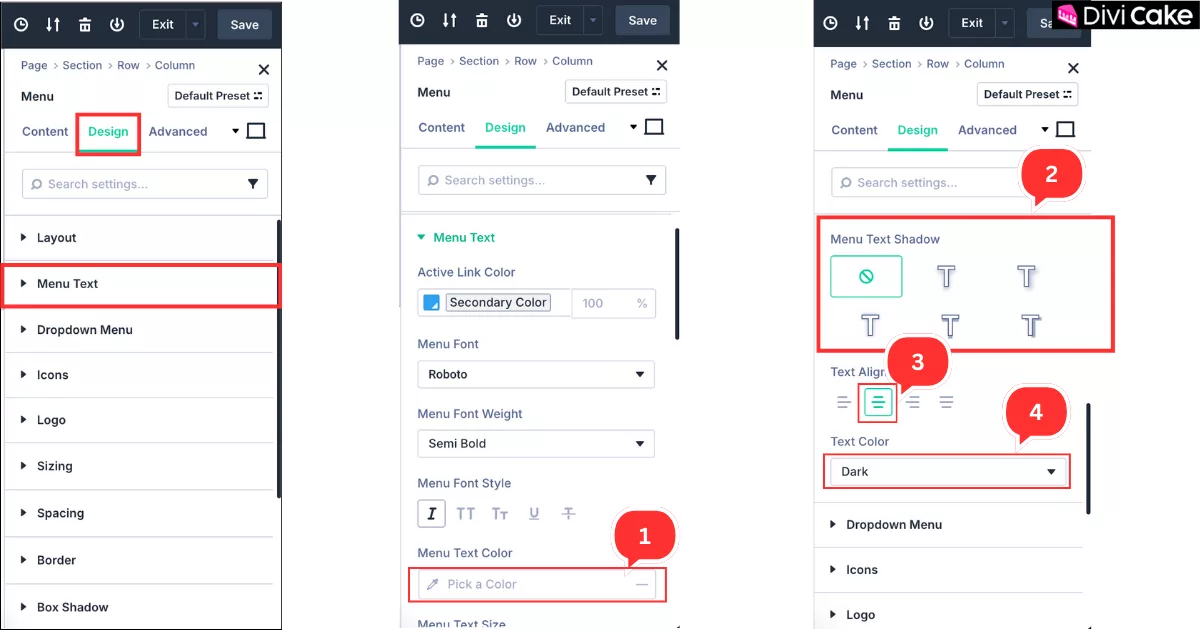
This time, we’ll customize the menu’s text color to give your header a more attractive and polished look. To do this, open the Text settings under the Design tab in the Menu settings.
Follow these steps:
- Click on the Menu Text option under the Design tab.
- Select the Active Link Color for your menu (this color will appear when someone clicks on any page link in your website menu).
- Choose your Menu Font—it’s totally up to you. For example, we selected Roboto.
- Set your Menu Font Weight, such as Bold, Semi Bold, etc.
- Add your preferred Menu Font Style, like Italic or others—it’s your choice.
Learn More: Style a Divi Menu Add Icons and Images
Next, we’ll continue customizing the Menu Text to enhance the overall look of your header.
Follow these steps:
- Click on the Menu Text Color and set the color of your choice.
- Set the Menu Text Shadow if you’d like, or leave it as default.
- Adjust the Text Alignment—we’ve set it to Center as shown in the screenshot below, but you can choose any alignment you prefer.
- Finally, select the Text Color that best matches your website design.
Customized Logo in the Divi 5 Menu
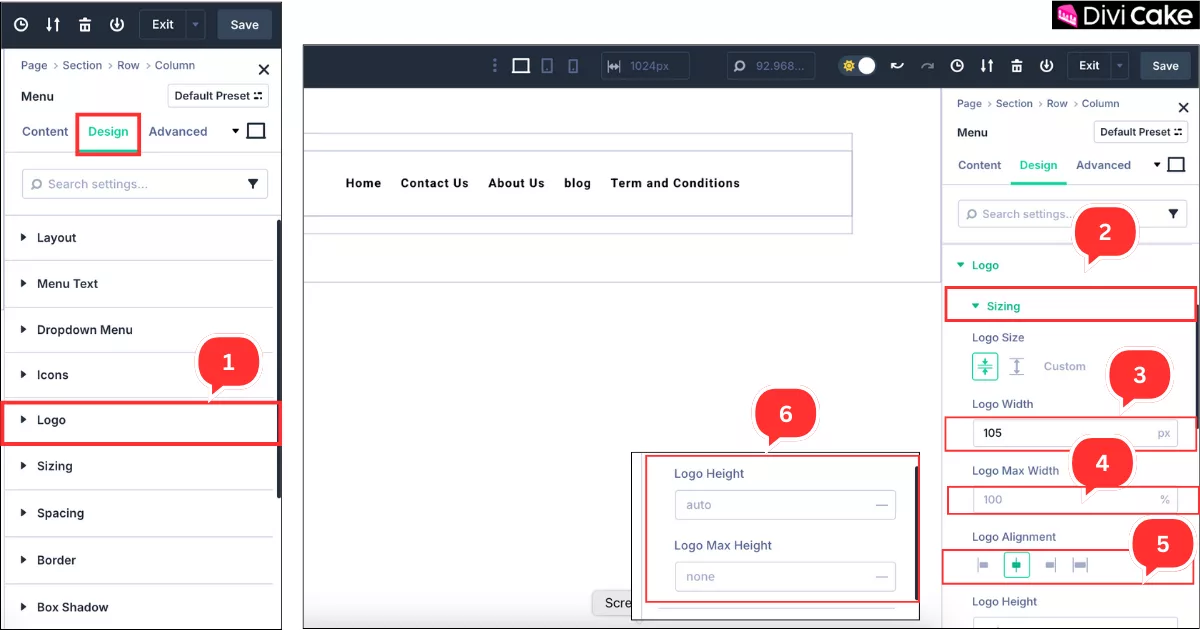
Now we’ll customize the logo size and alignment using Divi 5. This will give your header menu a more professional and balanced appearance. The logo customization settings are also available under the Design tab in the Menu settings.
Follow these steps:
- Click on the Logo option under the Design tab, as shown in the screenshot below.
- Click on Sizing.
- Set the Logo Width according to your preference.
- Keep the Logo Max Width at 100%.
- Adjust the Logo Alignment—this is completely up to you.
- Set the Logo Height and Logo Max Height, if needed.
Learn More: Utilizing a Dynamic Logo on Your Divi Website: A Step-by-Step Guide
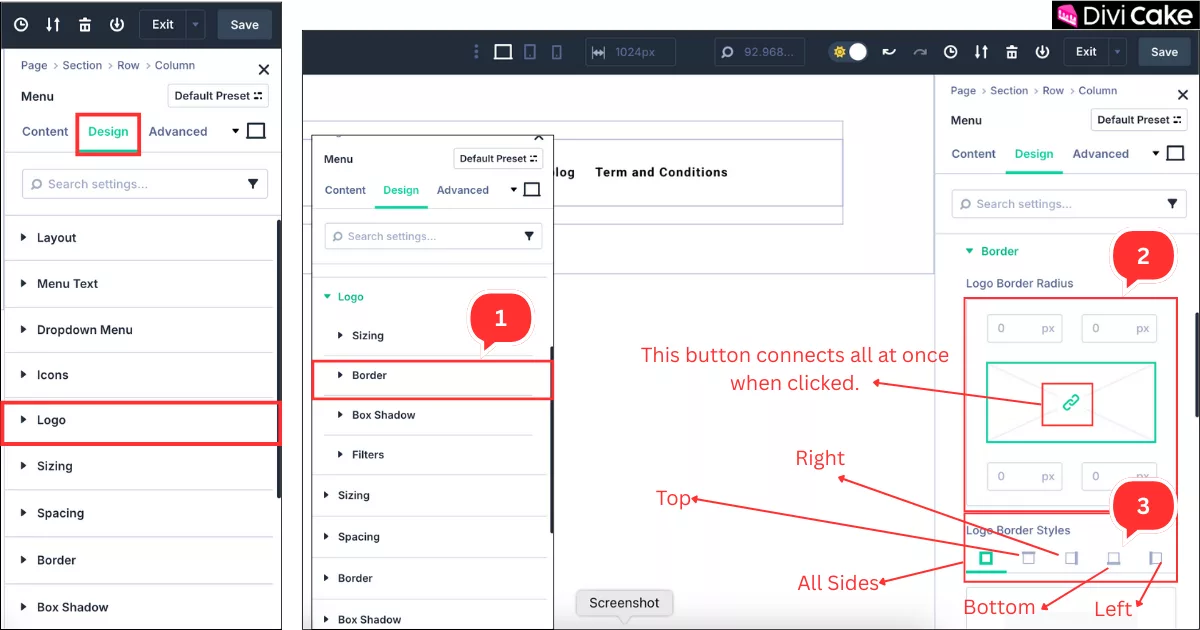
This time, we’ll explore the second option available for logo customization, which is the Border setting. If you want to add a border with a specific width and color, apply a border to just one side, or give your logo image rounded or curved corners, this option is perfect for you. We’ll walk you through these settings in detail.
Follow these steps:
- Click on the Border option.
- Set the Logo Border Radius if you prefer a rounded corner—though it’s optional, and we generally don’t recommend it for a clean look.
- Choose the Border Radius Style. The first button applies the radius to all sides, while the others apply it to a single side—top, bottom, left, or right.
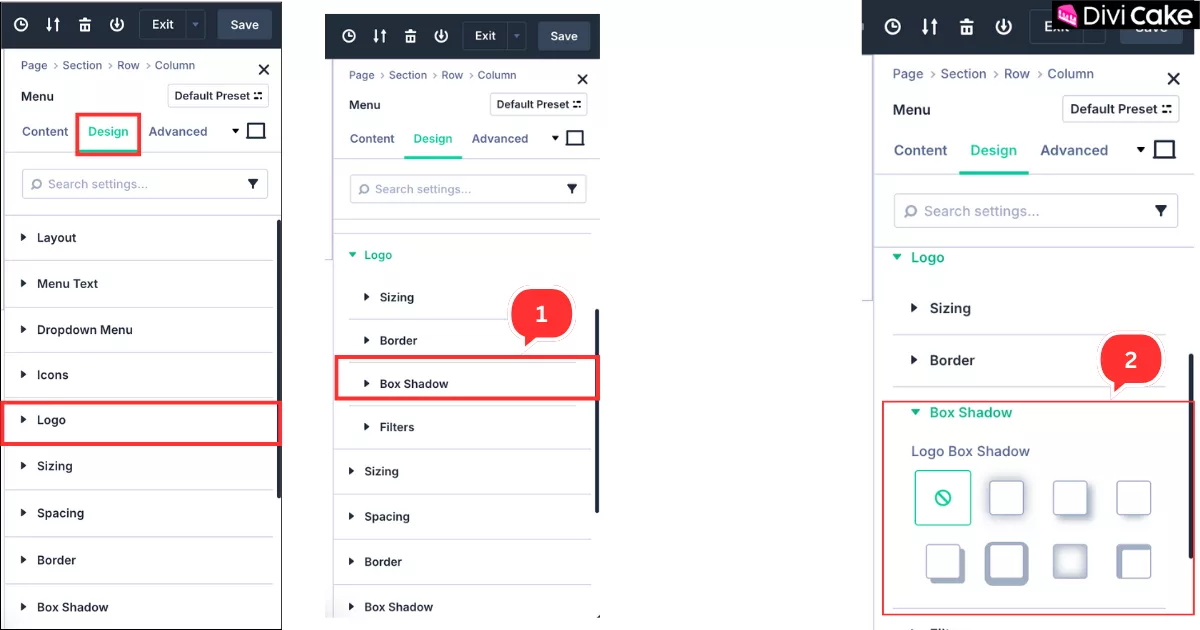
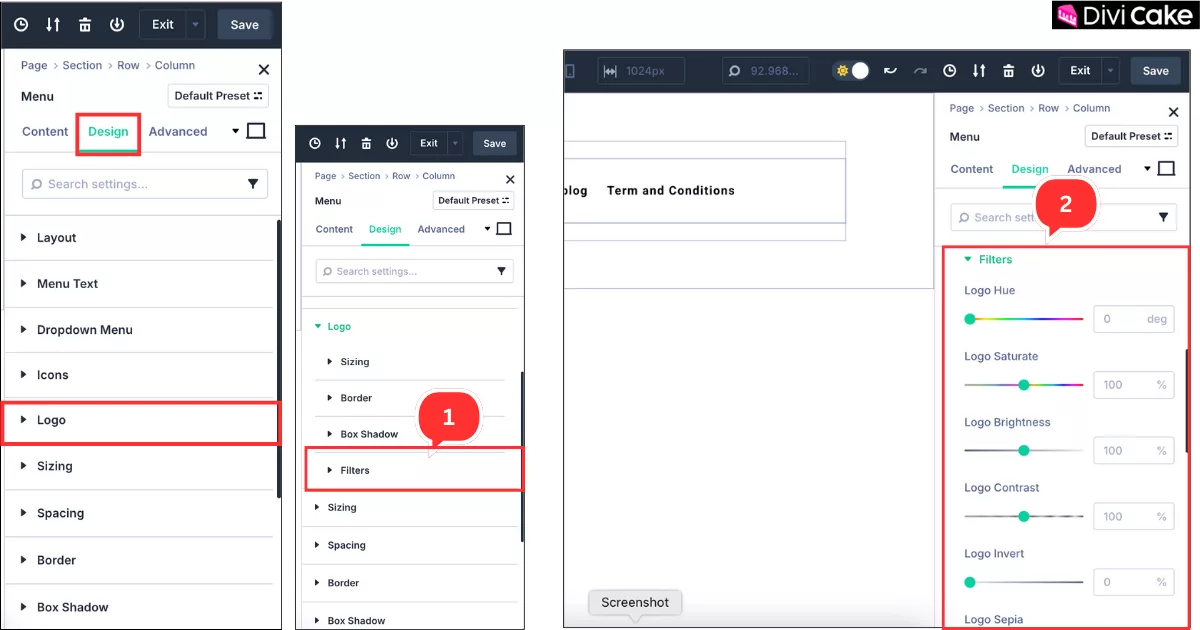
The third setting available in the logo customization options is the Logo Box Shadow. You can use this feature to add a shadow effect to your logo box, giving it a more stylish and eye-catching appearance. Although we are not applying this to our menu, we’ll show you how to enable it. This option is also located under the Design tab in the Logo settings of the Menu module.
Follow these steps:
- Click on Box Shadow in the Logo settings.
- Select one of the shadow styles you like from the available options.
The final setting available for the logo is the Filter option. Using this feature, you can apply color effects or gradients to your logo, enhancing its visual style.
Follow these steps to apply a filter:
- Click on Filters in the Logo settings.
- Adjust the logo filter settings if you wish to change the logo’s original color or apply a pre-designed visual effect.
Customize Your Dropdown Menu
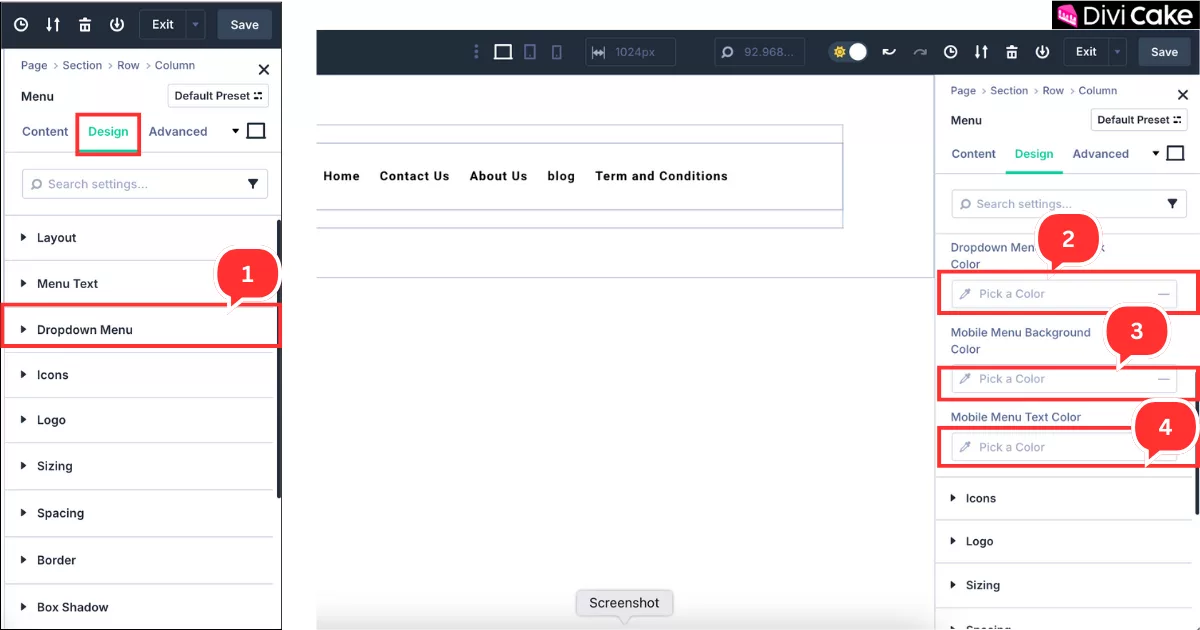
Now, we’ll edit and apply custom colors to the Dropdown Menu. But first, what is a dropdown menu? A dropdown menu appears when there are subpages under a main page. For example, if you add subpages under a main page like Services (such as product-specific pages), those subpages will appear as a dropdown. The hamburger menu on mobile devices also acts as a dropdown menu when tapped.
This setting is available under the Design tab in the Menu settings.
Follow these steps:
- Click on Dropdown Menu in the Design tab.
- Set the Dropdown Menu Active Color.
- Set the Mobile Menu Text Color.
- Adjust the Mobile Menu Background Color if needed.
Add Background Color to the Section
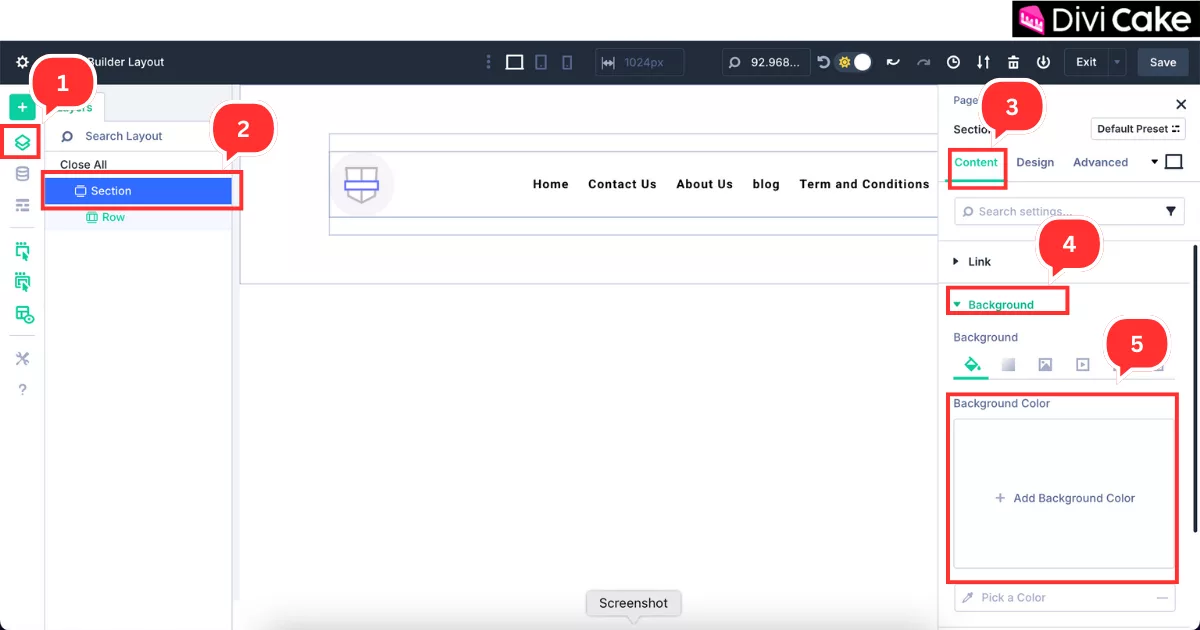
In this step, we’re going to add a background color to the header section, not the menu itself. Divi 5 offers three simple ways to access the section settings, making it even easier to customize.
- The first way is to Left-click on the section area, and the settings will open.
- The second is to click on the Settings (gear) icon for the section.
- The third method is explained step-by-step below, which ensures you’re confident about which setting is open and selected:
Follow these steps:
- Click on the Layer (Navigation) button, as shown in the screenshot below.
- Click on the Section.
- Click on the Content tab.
- Click on the Background option.
- Click on Add Background Color and choose your desired color.
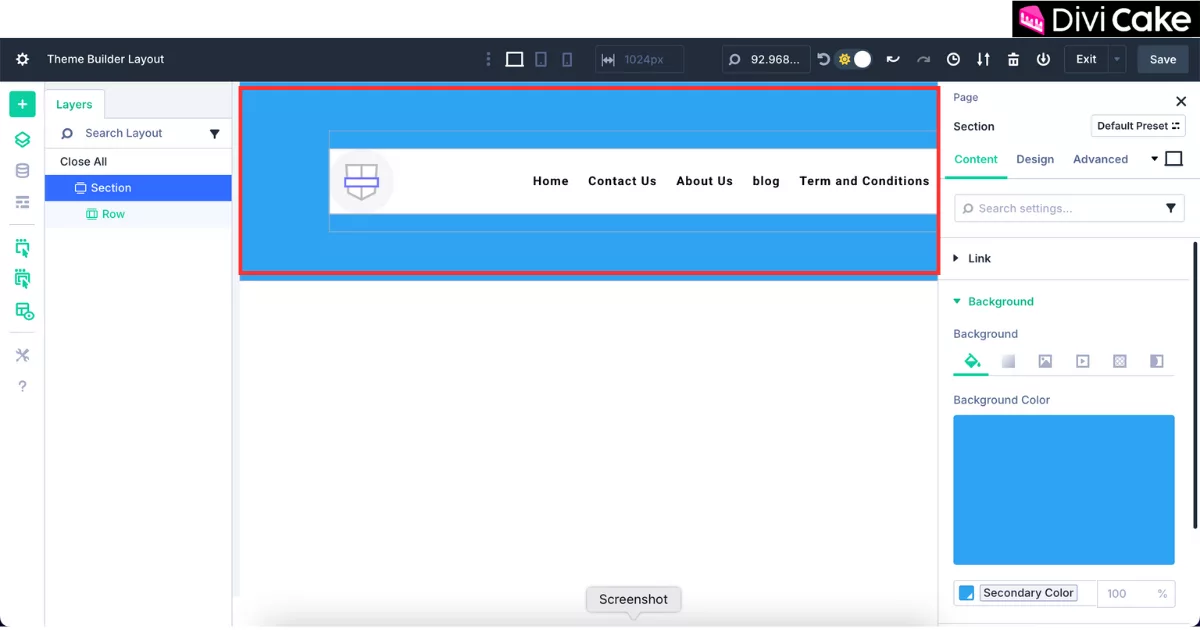
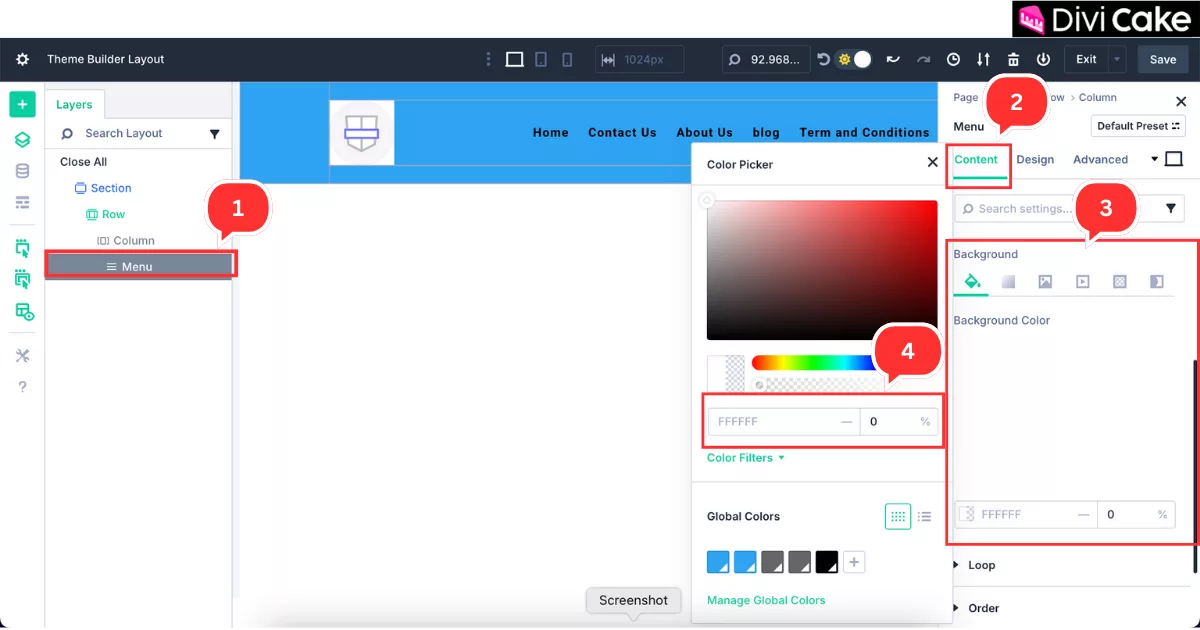
In some cases—just like ours—you may notice an issue where the menu color remains default even after changing the section background color. But don’t worry, this can be fixed easily by making the menu background transparent.
As shown in the screenshot below, our menu background is white, while the section has a blue background. Additionally, you’ll see that the menu has default top and bottom padding (a few pixels), which makes it look slightly bulky. We’ll also remove that padding to give our header a sleek and slim appearance, allowing the section height to perfectly match the menu size.
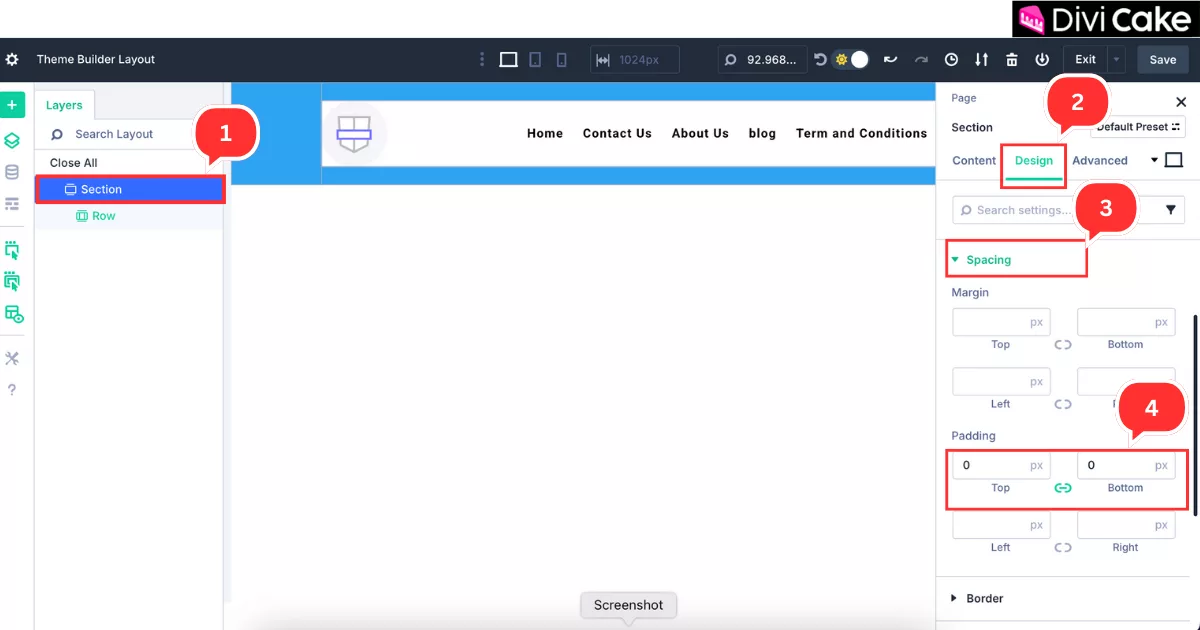
Remove Top and Bottom Padding
In this step, we’ll remove the default top and bottom padding applied to the header section (not the menu). This will help align your header neatly and give it a more compact and professional look.
Follow these steps:
- Use the previous method to open the Section Settings.
- This time, click on the Design tab.
- Scroll down and click on the Spacing option.
- Set the Top and Bottom Padding to 0px or adjust as needed.
This adjustment will give you the result shown in the screenshot below.
Changing The Menu Background Color
Now in this step we are going to change the menu background color to transparent to meet its color with the Section background color.
- Open the Menu setting as in the below screenshot.
- Click on the Content tab.
- Open Background Setting.
- Change the background color to transparent just like in the below screenshot
Final Result for the Header Responsiveness view
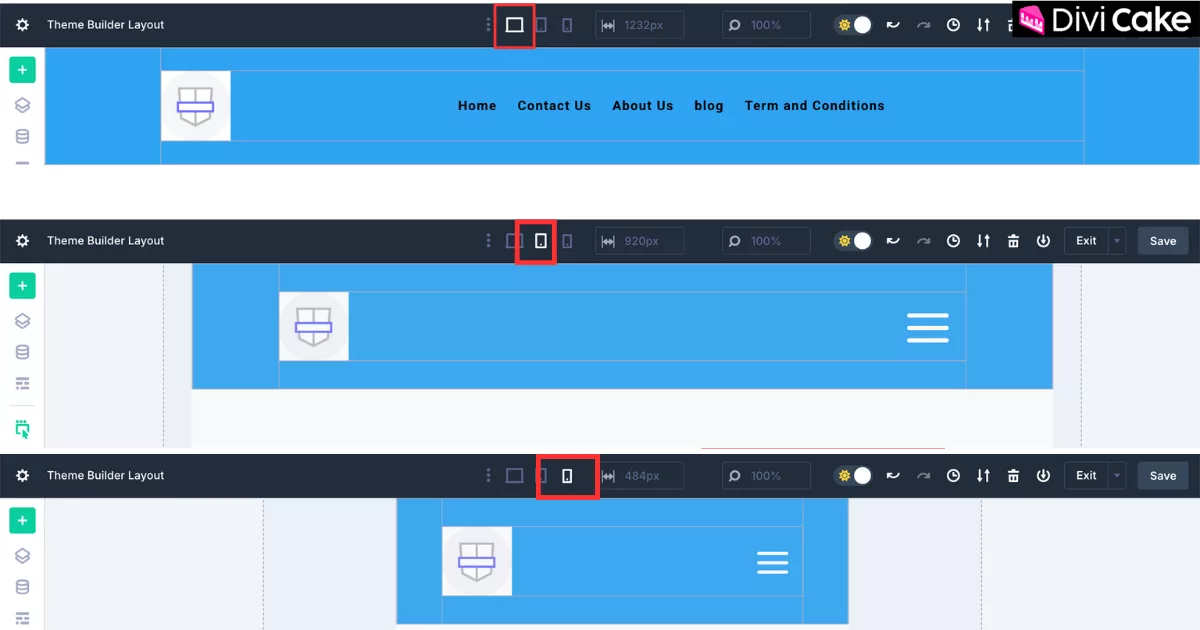
The below screenshot shows the result of the header on three screens Desktop, tablet and Mobile by just clicking the above Icon button. Please when you create any design in Divi must check every section, pages etc in desktop view, Tablet view and Mobile view so through this way you can make a responsive design otherwise it should be not responsive on other devices. When you switch the Divi builder view to Tablet or mobile so make changes according to that views because when you making changes it will be only apply to that device view on which you are working so don’t worry that your Desktop view be affected by my Tablet changes so the changes will be only apply to tablet when you working tablet view.
So our design is naturally responsive on all devices if your design is not responsive on all so must make it responsive.
Conclusion
And that’s it! You’ve just learned how to create a fully customized, responsive global header in Divi 5—from adding a logo and setting up your menu to perfecting the design with colors, spacing, and styling. While Divi 5 may look different at first, it offers powerful tools that make designing easier and more flexible than ever—even for beginners.
Take your time, play around with the settings, and make your header truly reflect your brand. With just a few clicks, you can turn a basic layout into a professional-looking header that works beautifully across all devices. Happy designing—and don’t forget to explore more of what Divi 5 has to offer!
Learn More: Vertical Navigation Menu or Header in Divi - How to Guide

Submit a comment
Comments are read before they appear. Your email is not published.
Thanks. Your comment is waiting for review and will appear here once it is approved.