
How to Create a Custom Global Footer with Divi 5

We may earn a commission from affiliate links in this post. Disclosure policy
Are you finding it hard to design a custom global footer that shows up on every page of your website? Your website footer is not just the last section — it’s where visitors expect to find useful links, contact details, and other important information.
A well-designed footer improves navigation, increases user engagement, and gives your site a professional look.
The good news is, with Divi 5, creating a custom global footer is simple. You can design a footer that matches your brand style, includes the right information, and updates across your entire website automatically — no coding needed.
In this guide, we’ll show you step by step how to create a beautiful global footer using Divi 5 Theme Builder. Whether you want a simple copyright bar or a multi-column footer with menus, this tutorial will make the process quick, easy, and perfect for beginners.
Step 1: How to Open the Global Footer in Divi 5 Theme Builder
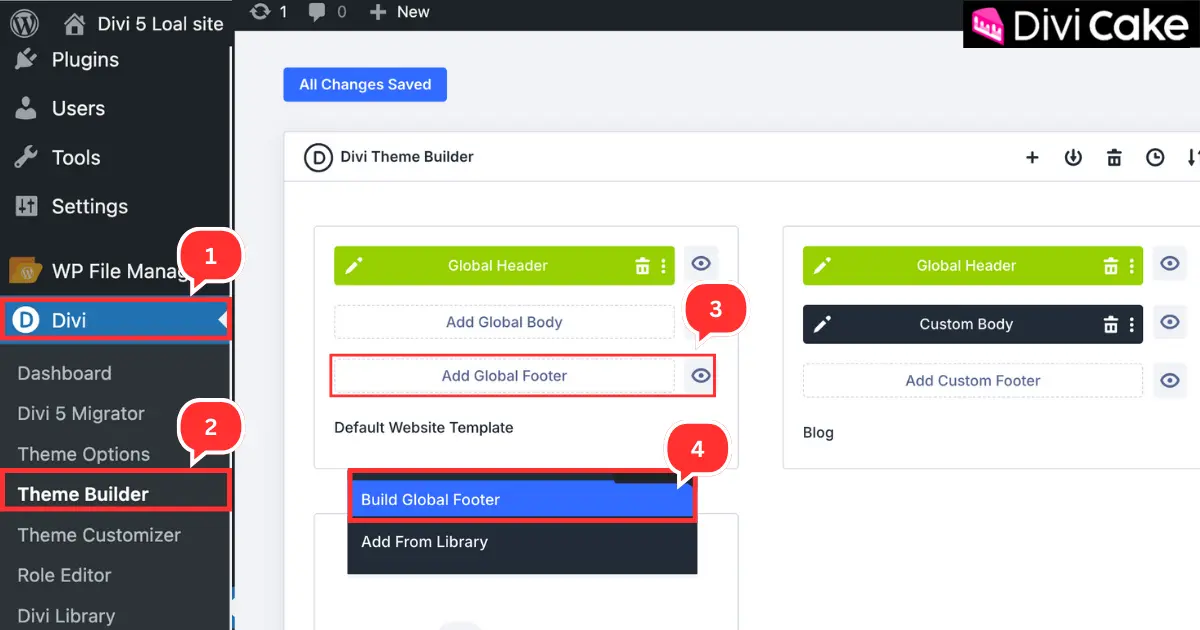
First, log in to your WordPress dashboard. From here, we will access the Divi Theme Builder, where you can create and edit your custom global footer. When you add a footer to the Global Footer area, it will automatically display on every page of your website.
Follow these steps to open the Global Footer:
- Click on Divi in your WordPress dashboard.
- Select Theme Builder from the menu.
- Click on Add Global Footer to create a new footer.
- Choose Build Global Footer to open the Divi Builder and start designing.
Step 2: How to Add a Section in Divi 5 Global Footer
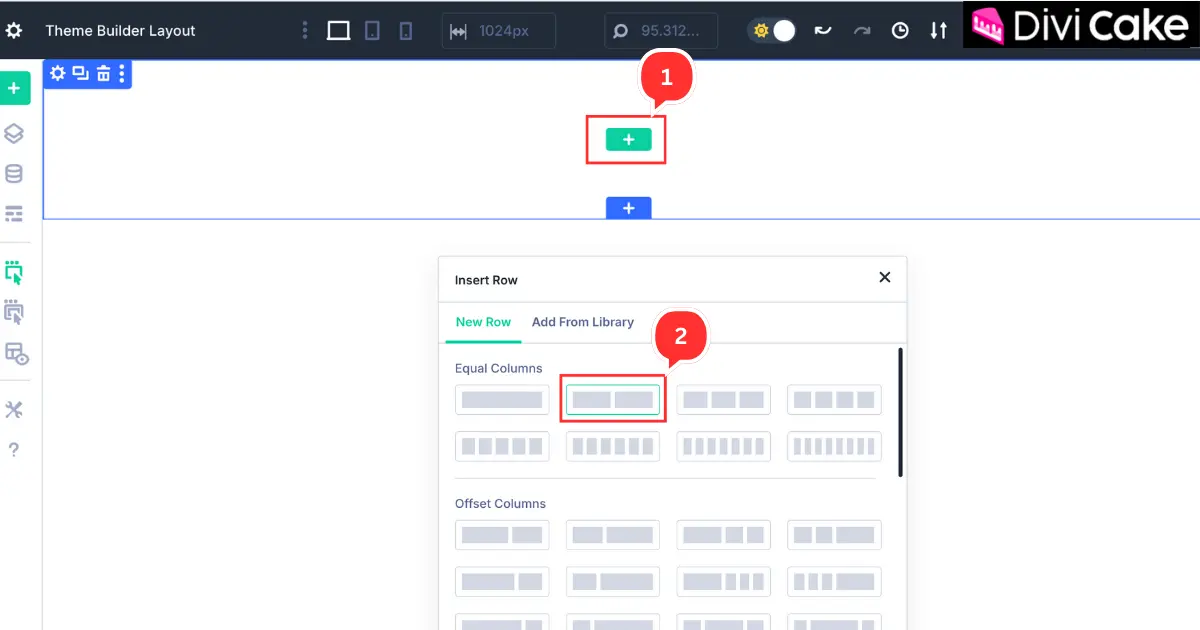
Now you are inside the Divi 5 Page Builder, which is much easier and more user-friendly compared to Divi 4. This is where you will start designing your custom footer. Using two columns allows you to add content like a logo on one side and navigation links or contact info on the other, creating a clean and professional layout.
Follow these steps:
- Click the Plus (+) icon to add a new section.
- Select one row with two columns section for a balanced footer design.
Step 3: Add Your Website Logo and Description in Divi 5 Footer
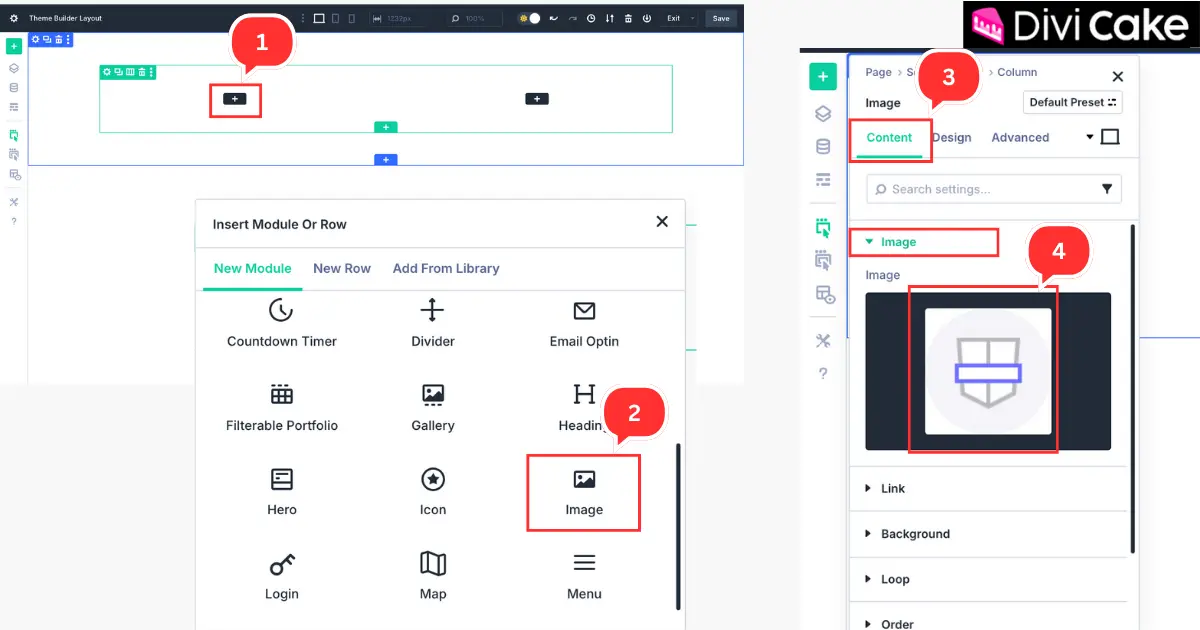
In the first column, we will add the Divi logo — just like most professional websites do. After the logo, we will also add a Text Module to display a short description of the website.
Follow these steps:
- Click the Plus (+) icon inside the left column.
- Insert an Image Module.
- The Image Module settings will open automatically — go to the Content tab.
- Upload and add your logo image.
Step 4: Add a Clickable Logo Link in Divi 5 Footer
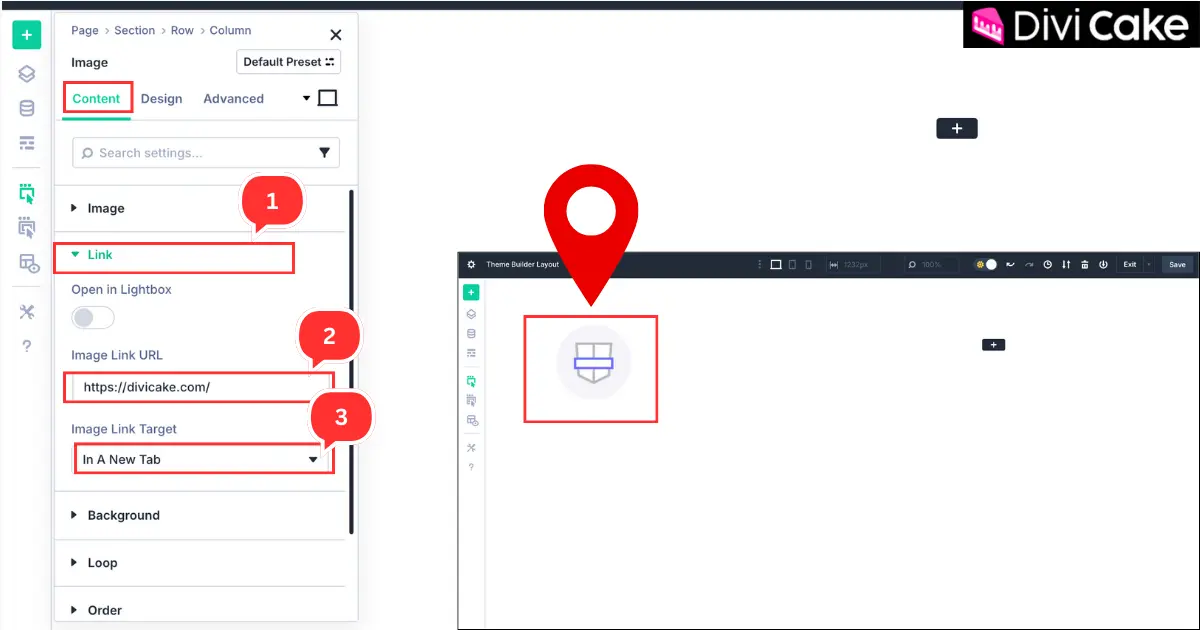
Once you have added the logo image, the next step is to make it clickable. This will turn your logo into a link that redirects visitors to your homepage or landing page when they click on it.
Follow these steps:
- Open the Link option inside the Content tab of the Image Module.
- Add your website URL in the Image Link URL field.
- Set the Image Link Target to “Open in a New Tab” so it will open in a new tab.
Step 5: Customize Logo Design in Divi 5 Footer Using the Design Tab
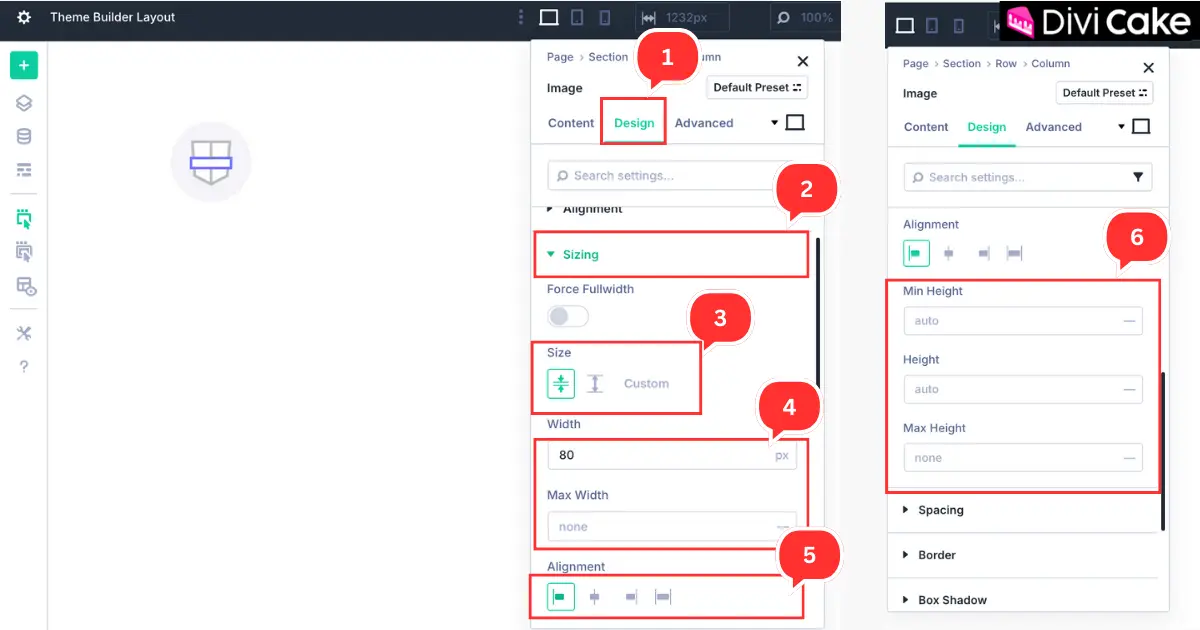
In this step, we will open the Design tab to adjust the logo size, width, and alignment so it looks perfect on your footer.
Follow these steps:
- Click on the Design tab in the Image Module settings.
- Open the Sizing option.
- Keep the Size button set to default as shown in the screenshot.
- Set your logo width (for example, 80px) and keep the Max Width on Auto — or adjust it as per your preference.
- Set the alignment to Left for a clean footer design.
- Keep the Logo Image Height on Auto (or adjust if needed) to make sure it fits nicely.
Step 6: Add a Background Color to the Footer Section
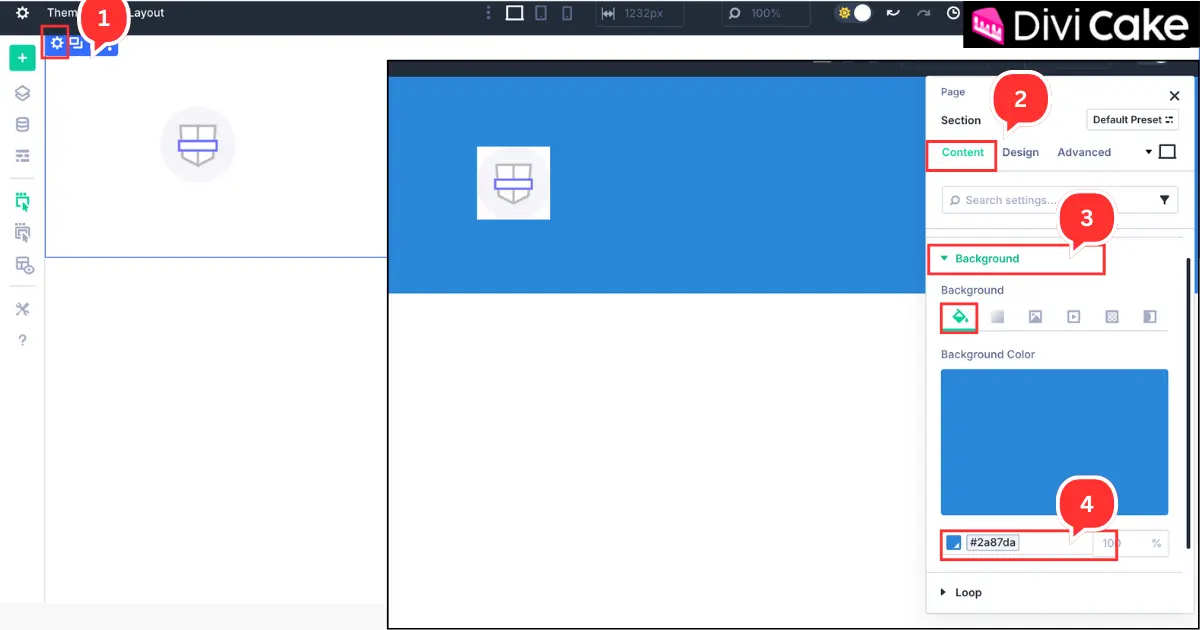
Now, let’s add a background color to the entire footer section so it looks consistent across your website.
Follow these steps:
- Click on the blue color Section Gear icon button.
- Go to the Content tab.
- Open the Background option.
- Choose and apply your preferred background color as shown in the screenshot.
Step 7: Add a Text Module for Website Description
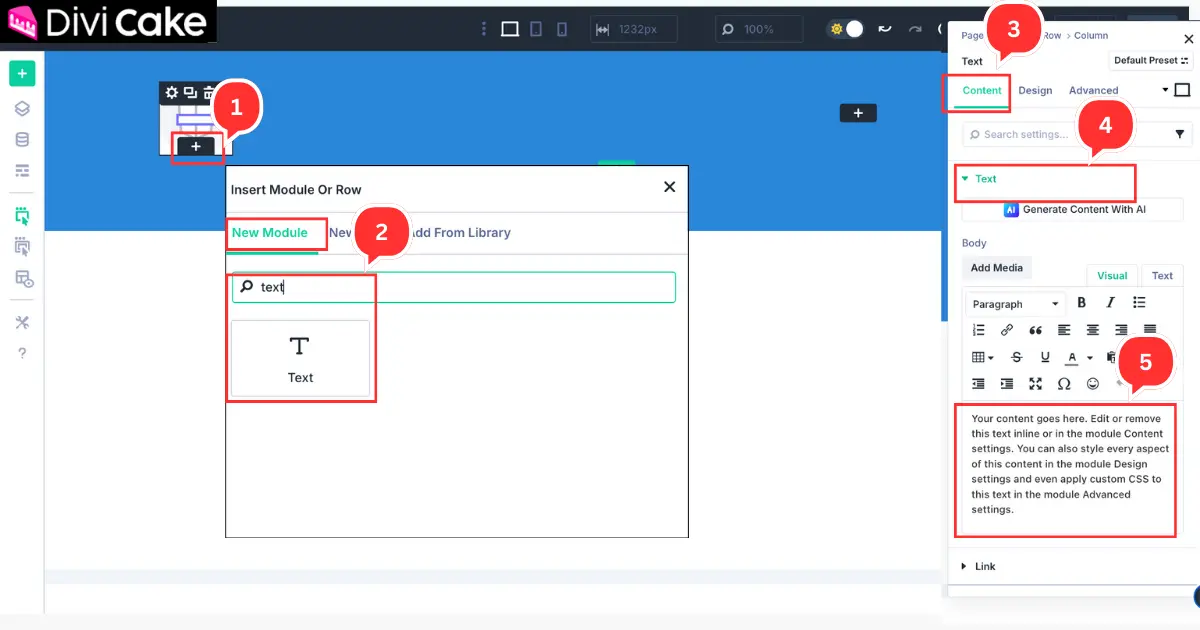
Next, we will add a Text Module to display your website description. This section can include a short introduction, tagline, or anything you want visitors to know about your site.
Follow these steps:
- Click the Plus (+) icon below the logo in the first column.
- Search for Text Module in the search bar and Insert the Text Module as shown in the screenshot.
Learn More: Divi Modules Ultimate List (with Documentation)
Step 8: Customize the Text Module Design
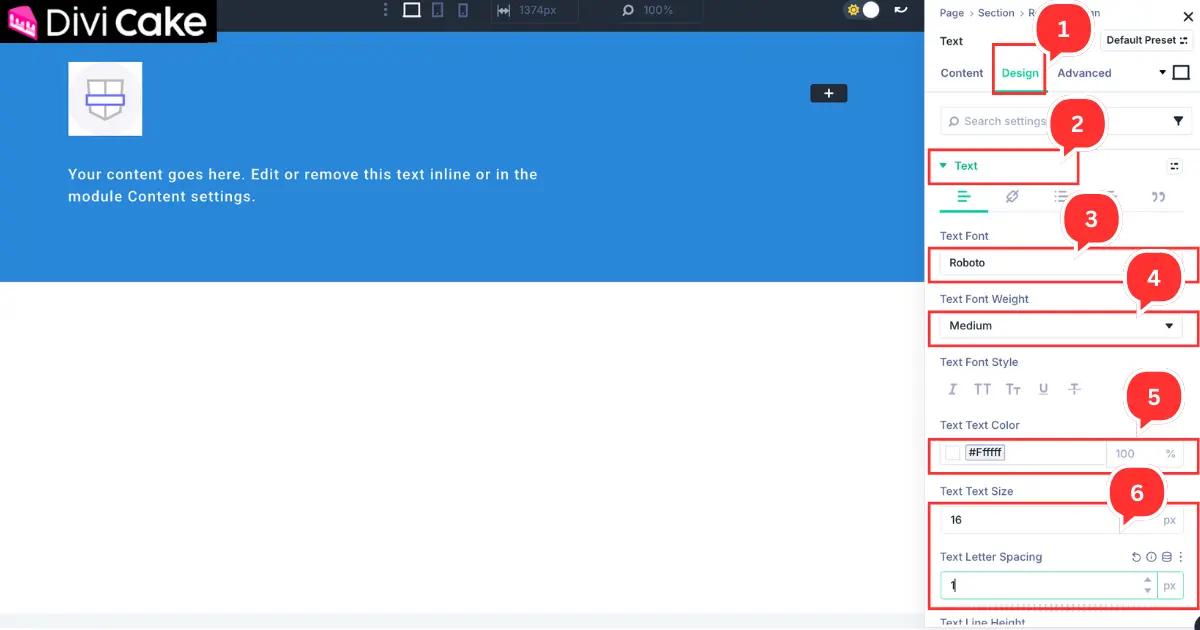
Now let’s style the website description text to match your site’s design and make it easy to read.
Follow these steps:
- Open the Design tab in the Text Module settings.
- Click on the Text option.
- Set the Text Font to match your website font (for example, we used Roboto).
- Choose the Font Weight (we set it to Medium).
- Select the Text Color (we used white to match the footer background).
- Adjust the Text Size and Letter Spacing until it looks perfect.
Learn More: Divi Custom Modules (Beginner’s Guide)
Step 9: Add a Text Module for Pages or Categories in Divi 5
In this step, we will add pages or categories to the second column of the footer. You can choose what works best for your website for example, important page links, blog categories, or contact information.
Follow these steps:
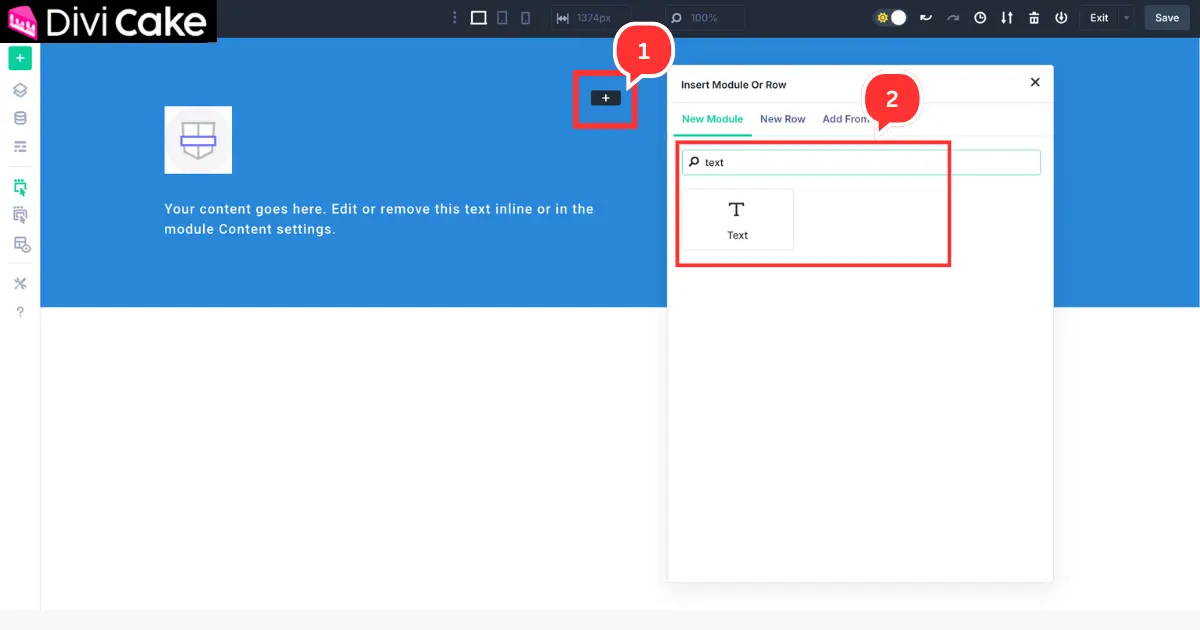
- Click the Plus (+) icon in the right-side column.
- Insert a Text Module to add your pages or categories.
Step 10: Add Page or Category in Text Module
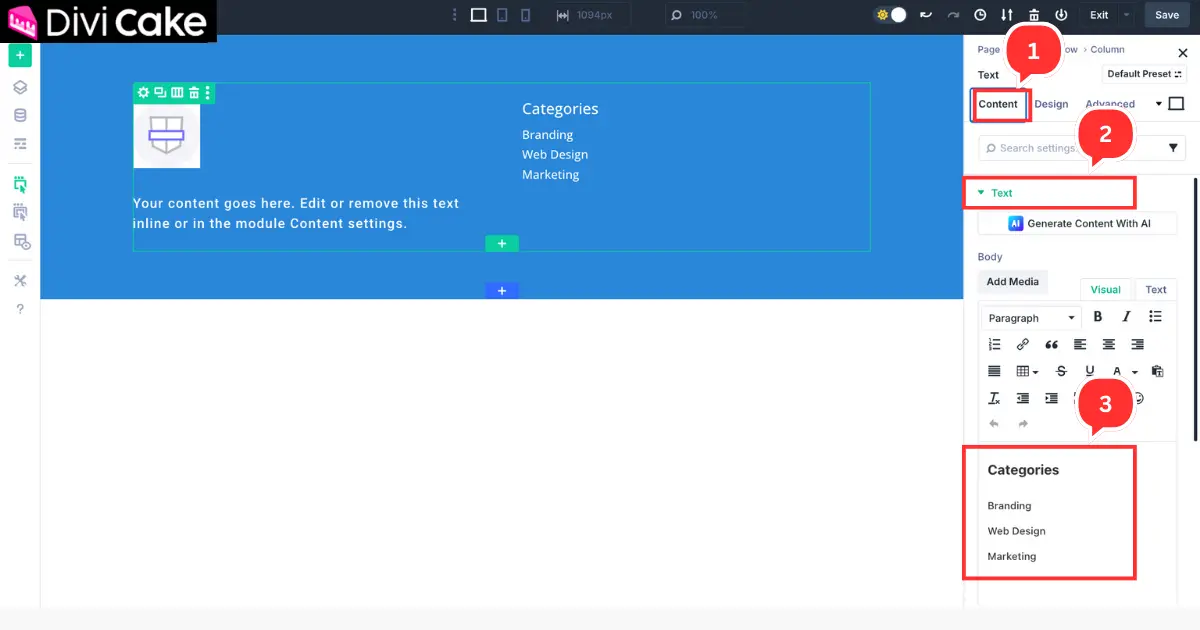
Now, we will add the names of your pages or categories in the Text Module. This step helps organize your footer content before we turn them into clickable links in the next step.
Follow these steps:
- Open the Text Module settings by double-clicking on the text area in the right column.
- Go to the Content tab.
- Open the Text option.
- Write or paste the names of your pages or categories in a simple list format (as shown in the image).
Note: You can add anything based on your website’s needs — such as pages, blog categories, Sitemap, Terms and Conditions, or Privacy Policy. The process remains the same.
Step 11: Add Links to Your Pages or Categories
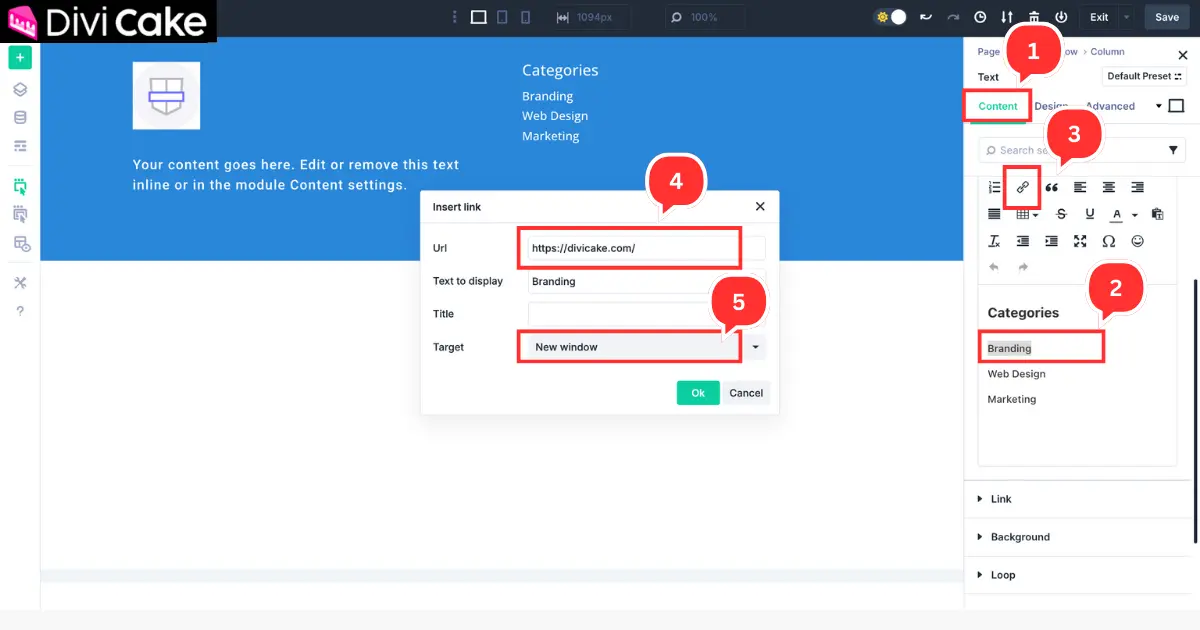
Now it’s time to turn the page or category names into clickable links, so your footer becomes a functional navigation menu.
Follow these steps:
- Stay in the same Text Module settings and continue in the Content tab.
- Select the first page name (as shown in the screenshot).
- Click on the Link button in the editor toolbar.
- Paste the URL of that page into the URL box.
- Change the Link Target to “Open in a New Tab” so that when visitors click, the page opens separately. Repeat this process for all the pages or categories you want to link.
Important Tip: Make sure your footer background color matches well with your link color. If the links are not clearly visible, either adjust the background color or change your default link color for better readability.
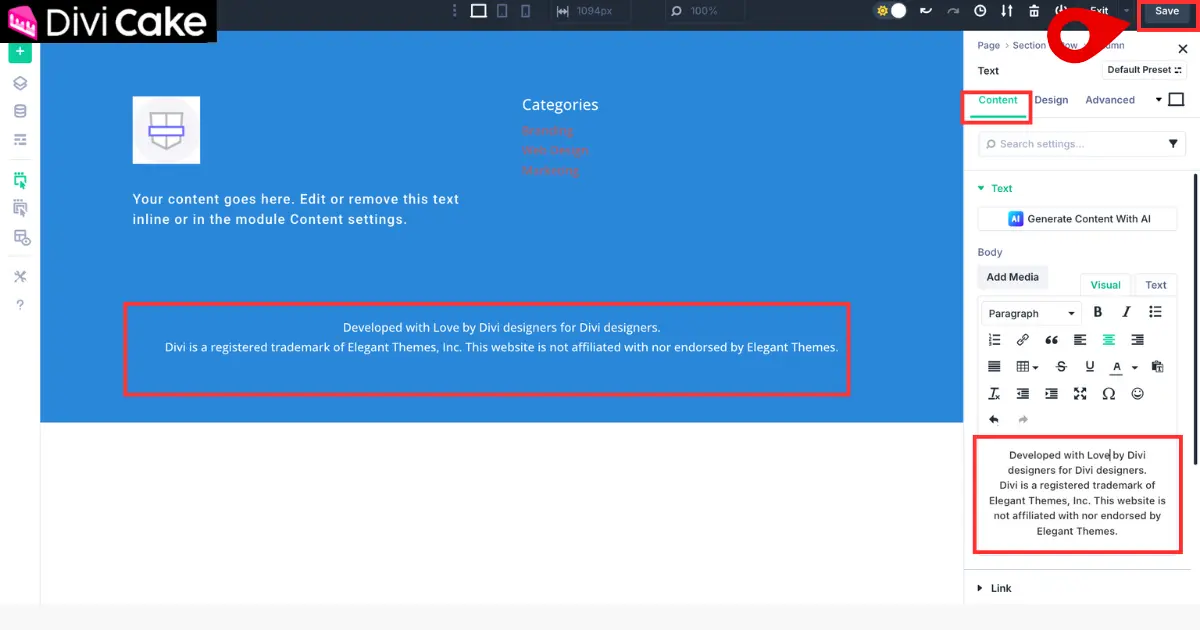
Step 12: Add Website Credits in Divi 5 Global Footer
In this step, we will add a new section to display your website credits (for example: © 2025 Divi Cake. All rights reserved. Designed with Love for the Divi Community).
We will add this in a simple Text Module, but if you want a dynamic credit where the year updates automatically, How to Change the Footer Credits in Divi Builder
Follow these steps:
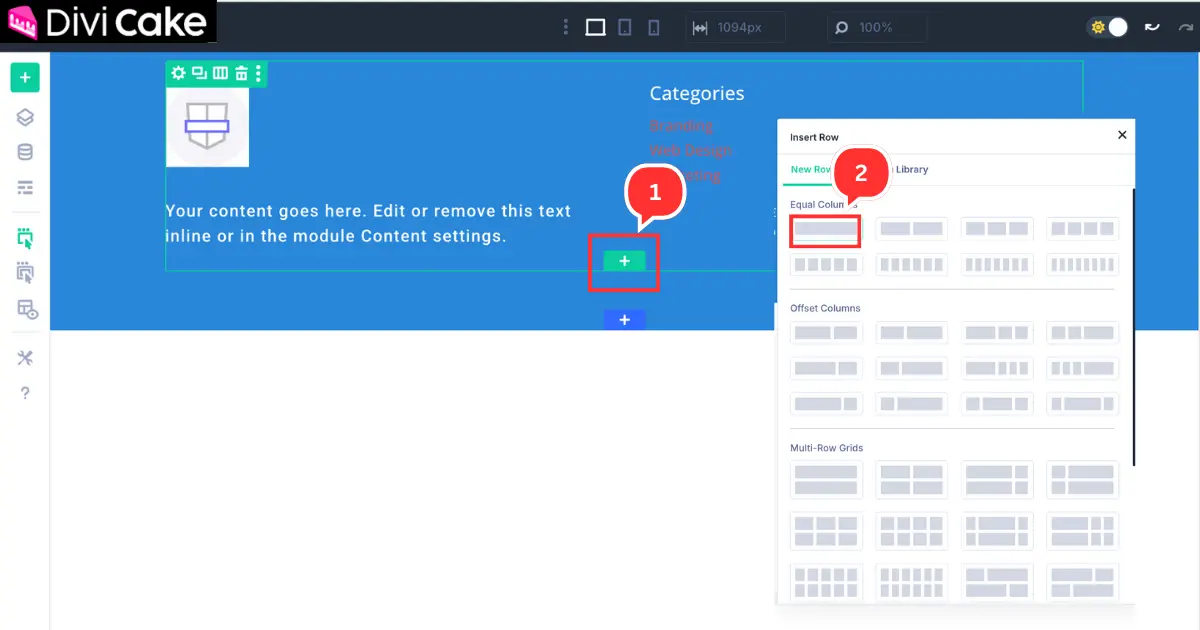
- Click on the green Plus (+) icon as shown in the screenshot.
- Add a single row with one column. Insert a Text Module and write your website credits.
Step 13: Save Your Custom Global Footer in Divi 5
Once you have added your footer credits, your custom global footer is now complete. The last step is very important – don’t forget to save your changes.
Click the Save button as shown in the screenshot to make sure your footer is applied to the entire website.
Conclusion
Creating a custom global footer in Divi 5 is one of the easiest ways to give your website a professional and consistent look. By following these simple steps, you’ve designed a footer that matches your brand, improves navigation, and makes it easier for visitors to find important information.
A well-structured footer not only enhances user experience but also helps build trust with your audience. Whether you added a logo, website description, navigation links, or credits, every element plays an important role in making your website look polished and complete.
Learn More: How to Create a Custom Global Header with Divi 5

Submit a comment
Comments are read before they appear. Your email is not published.
Thanks. Your comment is waiting for review and will appear here once it is approved.