
How to Generate and Install a Free Divi Child Theme (Using DiviCake)
We may earn a commission from affiliate links in this post. Disclosure policy
If you’re using Divi and you generated a child theme with the DiviCake Child Theme Generator, it’s normal to feel confused right after installation. Many users activate the child theme and immediately expect a visible change only to find the site looks the same (or feels empty). That moment often triggers questions like: Did I do something wrong? Did the child theme install correctly? Why does nothing look different?
This guide clears up that confusion and shows you exactly what to expect. You’ll learn what a Divi child theme really is, why the “blank” feeling happens, and how to generate and install a child theme properly using DiviCake. We’ll also cover how a child theme fits into real-world Divi workflows whether you’re building client sites, managing multiple projects, or preparing a site for long-term maintenance.
By the end, you’ll know you’re doing it right, and you’ll be able to confidently install and use your child theme without second-guessing anything.
What Is a Divi Child Theme?
A Divi child theme is a lightweight theme that runs on top of Divi theme. It does not replace Divi, and it does not include ready-made designs by default. Think of it as a safe container for your custom work.
A child theme helps you store things like:
- Custom CSS
- Custom PHP functions (via functions.php)
- JavaScript snippets
- Template overrides (advanced use cases)
So the key point is:
- Divi remains the parent theme
- The child theme protects your changes
- You still build pages using the Divi Builder
That’s exactly why your site can look “empty” after activation because a child theme is a foundation, not a finished website.
Read More: How To Create a Child Theme for Your Divi Website
What Is the DiviCake Child Theme Generator?
DiviCake offers a free Child Theme Generator that creates a properly structured child theme ZIP file in seconds with no coding required. You can generate a child theme for:
- Divi Theme
- Extra Theme
Once generated, you install it like any other WordPress theme.
How to Generate a Divi Child Theme (Step by Step)
Here’s the simplest way to fill out the DiviCake generator form without confusion.
Step 1: Open the Generator Page
Go to the Divi Cake Child Theme Generator. You can find it in the header menu, or you can access it directly here: Visit the Divi Cake Child Theme Generator.
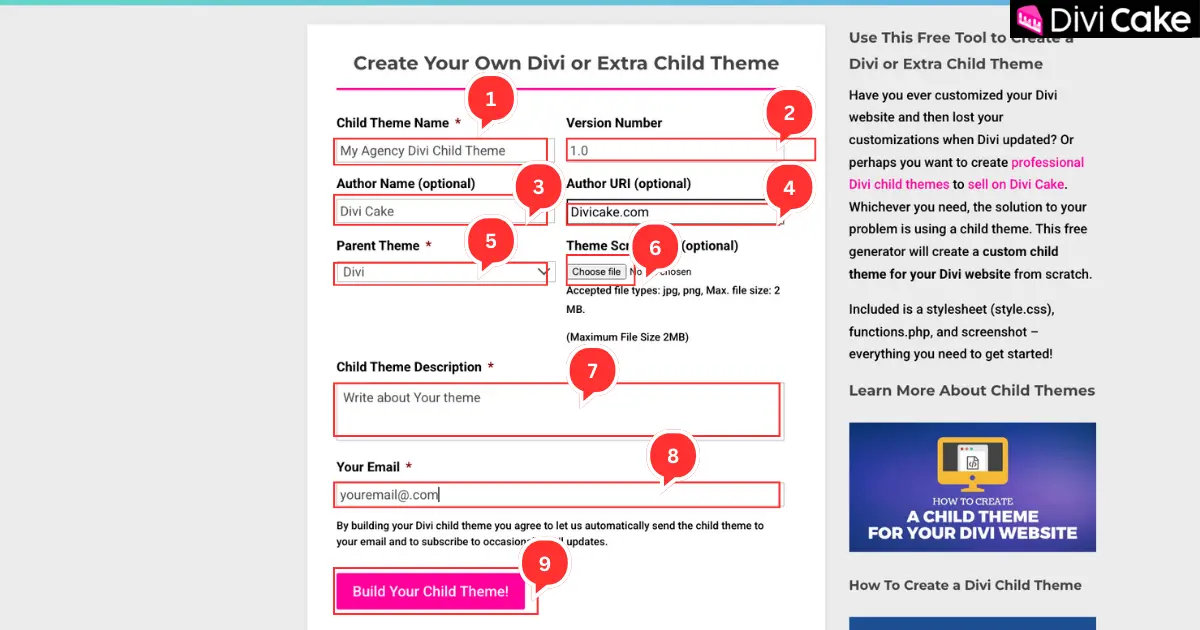
Step 2: Add Your Theme Details
Fill in your basic info:
- Theme Name: Any name (example: My Agency Divi Child Theme)
- Version: Start with 1.0
- Author Name: Your name or Business name
- Author URI: Optional
- Parent Theme: Select Divi (choose this if your site uses Divi)
- Screenshot (screenshot.png): Upload your child theme preview image
- Description: Write a short summary (example: A custom Divi child theme for client websites)
- Email Address: Enter your email, your child theme will be sent to this address
- Finally, click on the Build Your Child Theme button.
Step 3: Where Will You Receive the Child Theme ZIP?
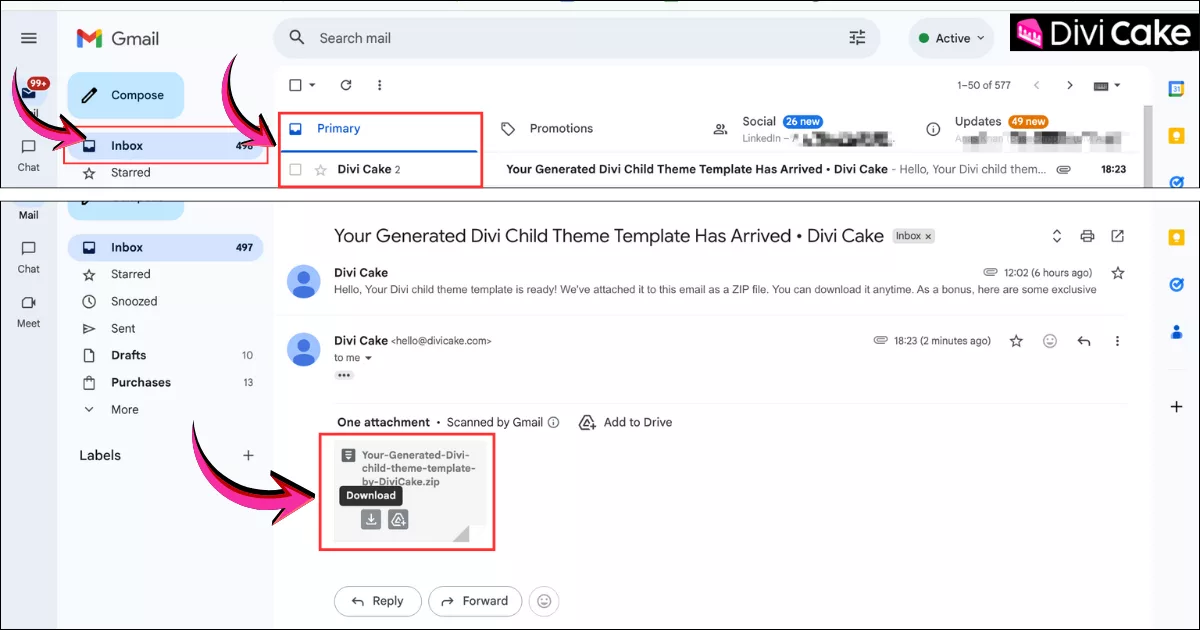
After you submit the form, DiviCake will email you a download link for your child theme ZIP file.
Check your inbox for an email from DiviCake. In Gmail, it may appear in Primary or Promotions. Open the email and click the link/button to download the ZIP file.
If you don’t see it within a few minutes, check:
- Inbox / Primary
- Promotions (Gmail)
- Spam / Junk
Note: The downloaded ZIP file is your actual Divi child theme that you’ll install in WordPress.
How to Install the Divi Child Theme in WordPress
Once you download the ZIP file, you can install it like any other WordPress theme. The steps below are written for beginners if you’ve installed themes before, feel free to skip ahead.
Step 1: Open Your WordPress Dashboard
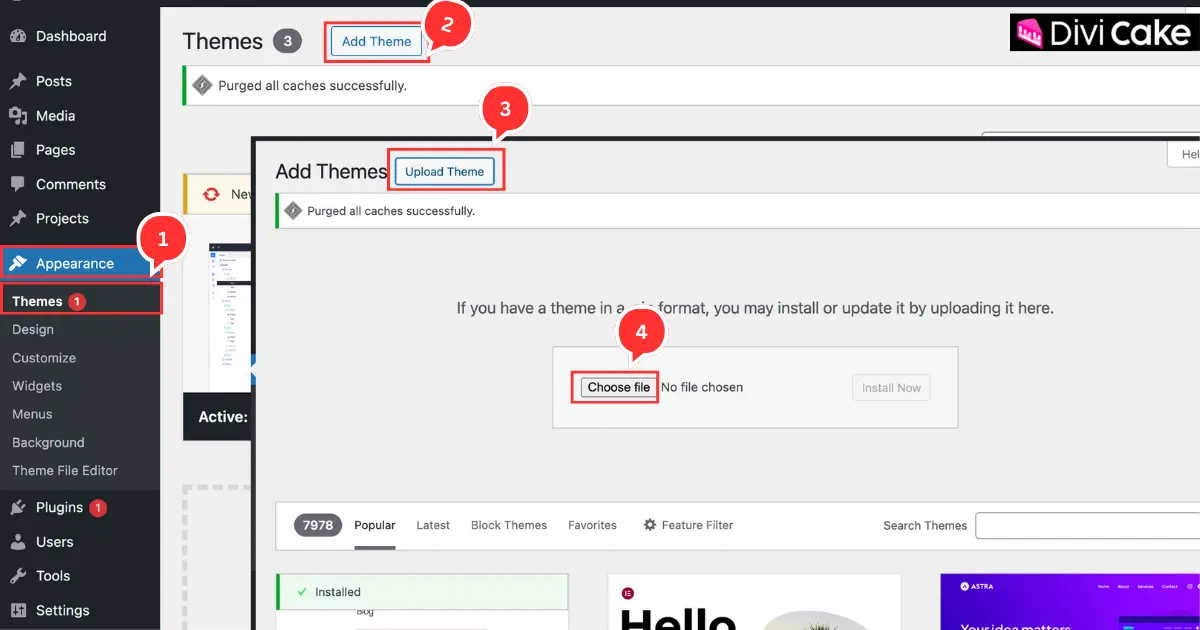
- Go to your WordPress Dashboard Navigate to Appearance → Themes
- Click Add New button
- Click Upload Theme button
- Click on the Choose File button.
Important Note
Your parent theme (Divi or Extra) must already be installed, because the child theme depends on it.
Read More: Divi Theme: Purchase, Installation, and Setup Guide
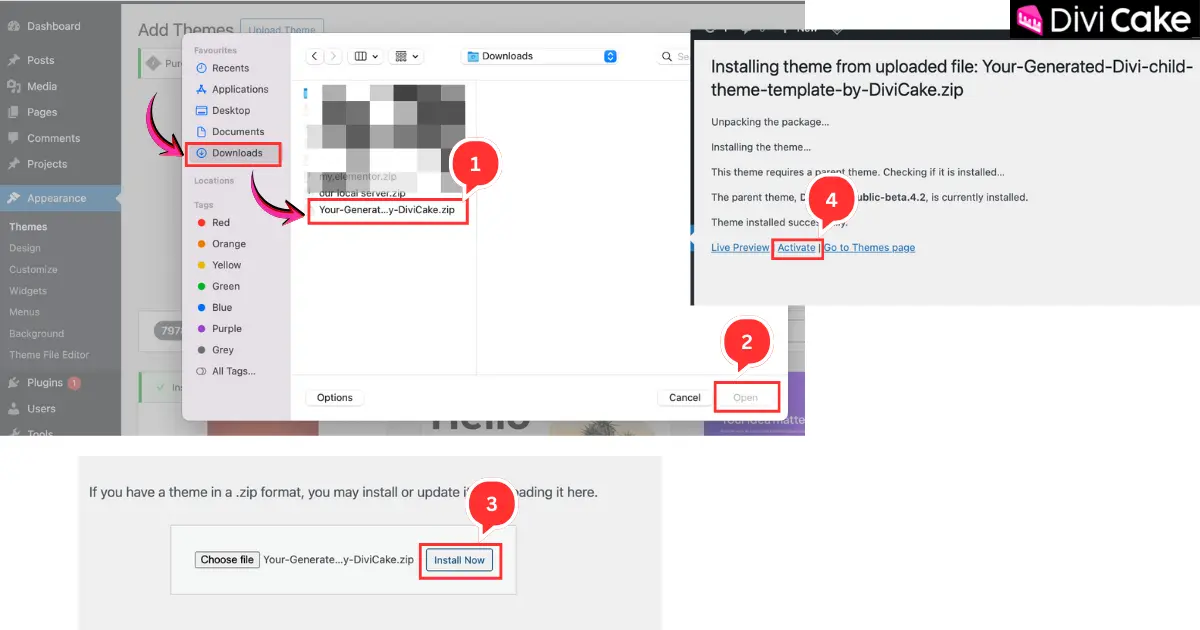
Step 2: Find the Child Theme ZIP on Your Computer and Upload It
In this step, you’ll upload the downloaded child theme ZIP file from your computer to your WordPress dashboard. In our example screenshot, the file is in the Downloads folder. On your computer, it may be saved in a different folder depending on your browser’s download settings (for example, Chrome’s default download location).
- Select the file: Your-Generated-Divi-child-theme-template-by-DiviCake.zip
- Click Open
- Click Install Now
- After installation completes, click Activate (as shown in the screenshot)
Final Result
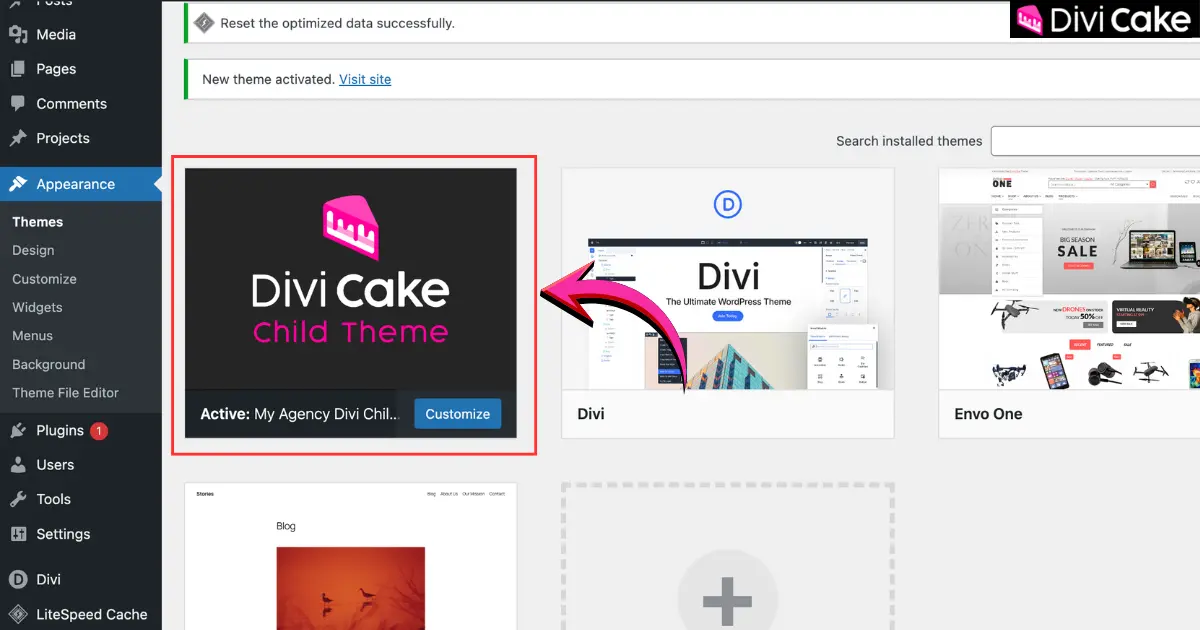
In the screenshot below, you can see that the child theme is successfully installed and activated on the website.
Why Does the Child Theme Look Blank After Activation?
This is the number 1 misunderstanding and it’s the most important thing to know.
A Divi child theme usually:
- Does not include demo pages
- Does not import layouts automatically
- Does not add content
- Does not change your site design by itself
This is intentional.
Unlike “demo themes” that load a full website design instantly, a Divi child theme is simply a clean base where your custom code can live safely.
How to Use a Divi Child Theme the Right Way
After activating the child theme, your workflow stays the same:
- Go to Pages → Add New
- Click Use Divi Builder
- Build your pages like normal:
- Home
- About
- Services
- Blog
- Contact
- WooCommerce pages (if needed)
- Customize styles using Divi + your child theme (as needed)
Your child theme runs quietly in the background protecting your custom code and keeping your work organized.
What’s the Real Purpose of a Divi Child Theme?
A Divi child theme is all about safety and structure.
It protects your custom work
Divi updates won’t overwrite your:
- Custom CSS
- functions.php code
- Custom scripts and tweaks
It keeps your project clean
Instead of scattering code across plugins or messy theme edits, you keep everything:
- Organized
- Easier to manage
- Easier to hand off to a client/team
This is why child themes are especially valuable for agencies, freelancers, and long-term sites.
Can You Sell a Website Built With a Divi Child Theme?
Yes you can absolutely package and sell a website built with Divi + a child theme.
But here’s the honest rule: You can’t sell it as a standalone theme that replaces Divi, You can sell it as a Divi child theme or Divi website/template package
Just make it clear on your sales page:
Requires Divi (parent theme)
You can still brand it with:
- Your theme name
- Your author name
- Your versioning
- Your custom styling and features
Learn More: How To Package a Divi Child Theme for Sale
Who Should Use a Divi Child Theme?
A Divi child theme is highly recommended for:
- Divi developers
- Freelancers
- Agencies
- Anyone building multiple Divi websites
- Anyone adding custom code (CSS/PHP/JS)
If you’re building a very small site with no custom code, it’s optional but for professional work, it’s one of the safest habits you can adopt.
Conclusion
A Divi child theme isn’t meant to “change” your website the moment you activate it and that’s exactly why it can look blank at first. A child theme is simply a clean foundation that sits on top of Divi and protects your custom work. It’s where you safely keep things like custom CSS, functions.php edits, small JavaScript tweaks, and advanced template overrides without touching Divi’s core files.
That protection is the real purpose. When Divi updates, your changes won’t get overwritten, and your project stays organized instead of having random code scattered across plugins or theme files. This is especially helpful if you’re building client websites, managing multiple Divi sites, or planning to maintain a site long term.
The DiviCake Child Theme Generator makes the whole process beginner-friendly by creating a properly structured child theme ZIP in seconds. Once you install and activate it in WordPress, you continue building pages exactly the same way using the Divi Builder Home, About, Services, Blog, Contact, and even WooCommerce pages. So if you want a safer, cleaner, and more professional Divi workflow, a child theme is the way to go.
Learn More: Do You Really Need a Child Theme in Divi?
Submit a comment
Comments are read before they appear. Your email is not published.
Thanks. Your comment is waiting for review and will appear here once it is approved.