
Adding and Styling Divi Section Dividers: Step-by-Step Tutorial
We may earn a commission from affiliate links in this post. Disclosure policy
Want to give your Divi website a modern and creative touch? Adding a stylish Divider to your Divi sections is one of the easiest and most effective ways to make your layout visually appealing and unique. Whether you’re working on a landing page, homepage, about section, or service area, Divi’s built-in Divider settings allow you to add eye-catching shapes, custom colors, and elegant effects all without touching a single line of code.
In this step-by-step guide, we’ll walk you through the entire process of adding a Divider to the top and bottom of a section using the Divi Visual Builder. It’s super simple, beginner-friendly, and by the end of this tutorial, your page will look more polished, professional, and engaging — all with just a few easy clicks.
Step 1: How to Access Your Page in Divi
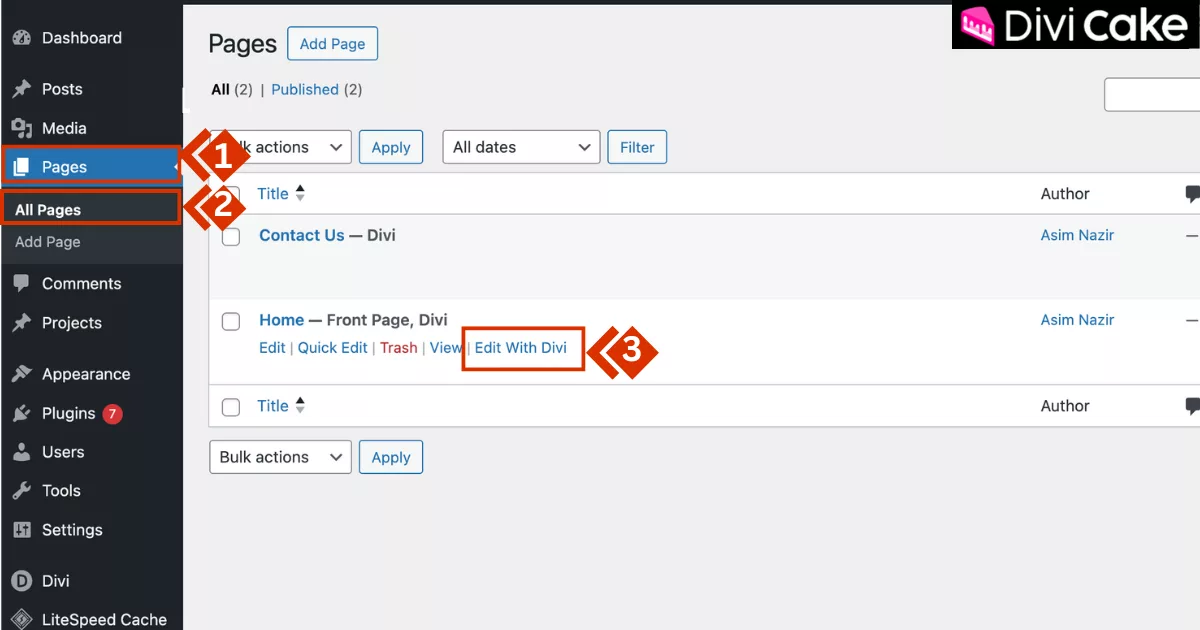
Before we jump into adding a Divider to a section in the Divi theme, let’s first make sure you’re on the right page. You’ll need to open the specific page where you want to place the Divider.
Steps to Open Your Page in Divi:
- From your WordPress dashboard, click on Pages.
- Next, click on All Pages to view a list of your existing pages.
- Find the page you want to edit, and click on Edit with Divi.
Step 2: Choose the Section to Add the Divider
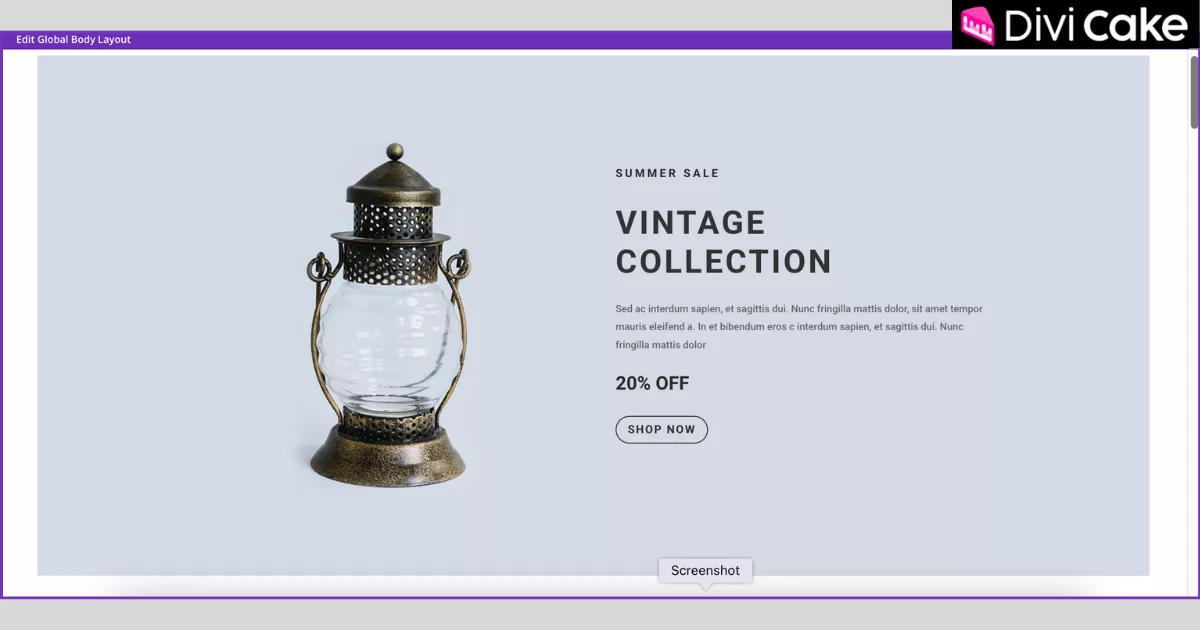
Now that you’re on the right page, the next step is to pick the section where you want the Divider to appear. This is important because Divi lets you customize each section individually.
In the screen below, we’ve already selected the section where I’m planning to add the Divider. You can do the same by hovering over the section and making sure it’s the one you want to update.
Read More: Getting Started with Divi: Theme Options – General Tab
Step 3: Accessing Divider Settings in a Divi Section
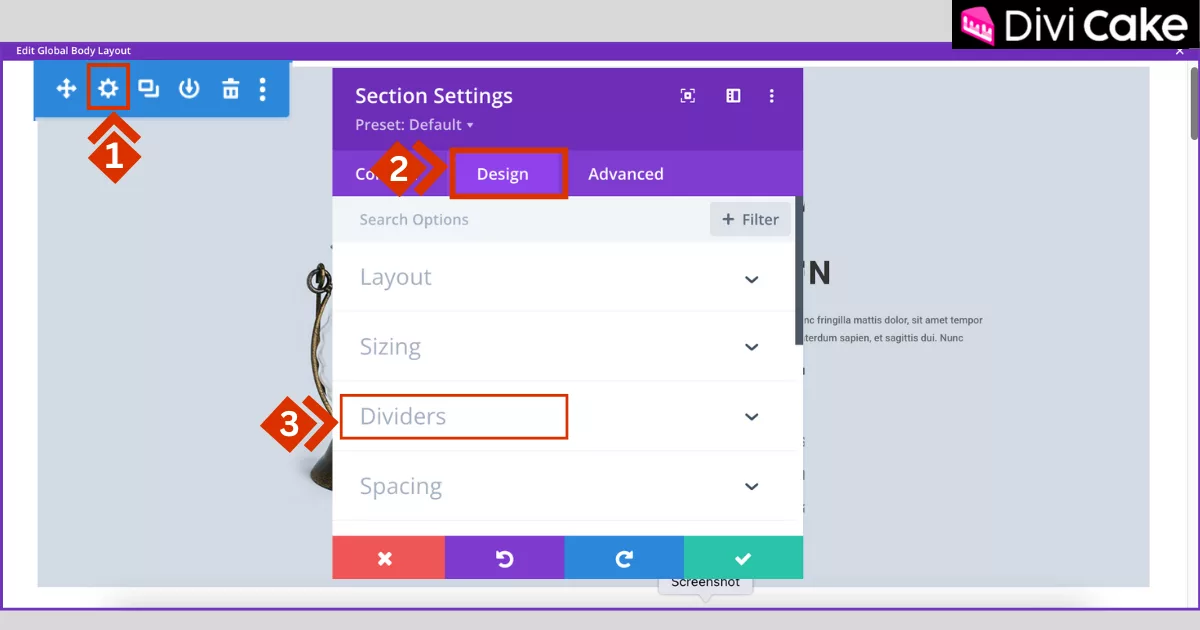
Alright, now that you’ve picked the section, let’s go ahead and add the Divider to it and the Divider option is found in the Design tab.
Here’s how you can do it:
- Click on the Settings icon (gear icon) of the section you selected.
- Switch over to the Design tab.
- Scroll down and click on Dividers.
Step 4: Choose Divider Placement and Style in Divi
Once the Divider settings panel opens, you’ll notice two buttons at the top: Top and Bottom. These let you decide where you want to place the Divider — either at the top or bottom of your section.
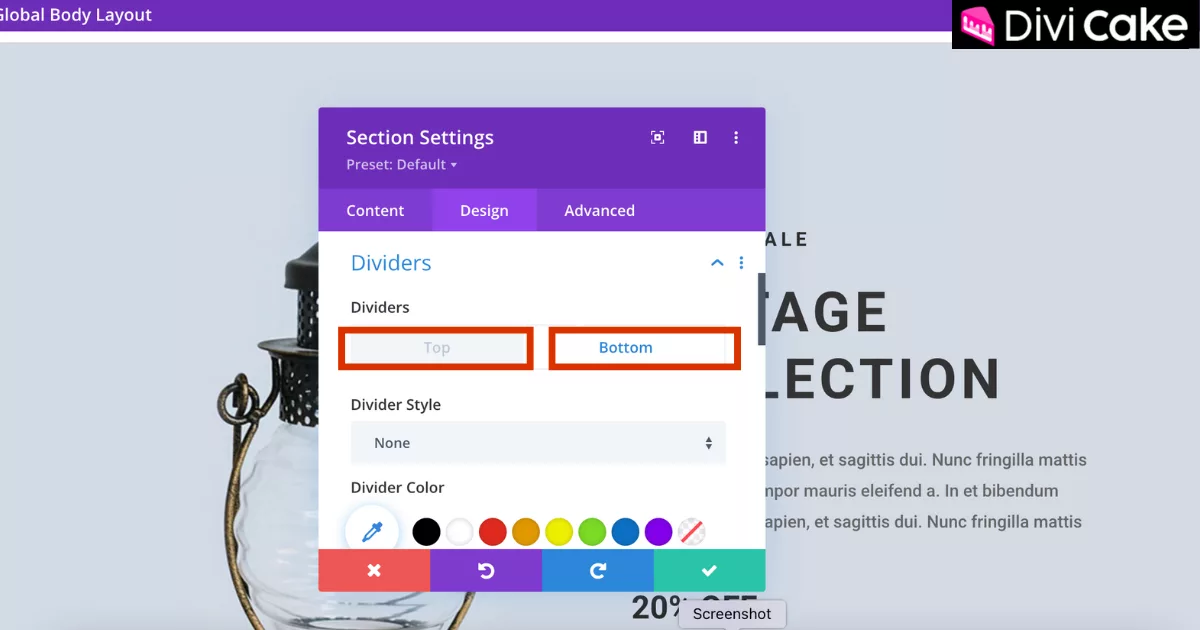
Add a Divider to the Bottom of the Section
For this tutorial, we’ll start by adding the Divider to the bottom of the section first.
Follow these steps:
- Click on the Bottom button to place your Divider at the bottom of the section.
- Click on the Divider styles (as shown in the screenshot below).
- Choose the Shape that you like best Divi offers plenty of stylish options!
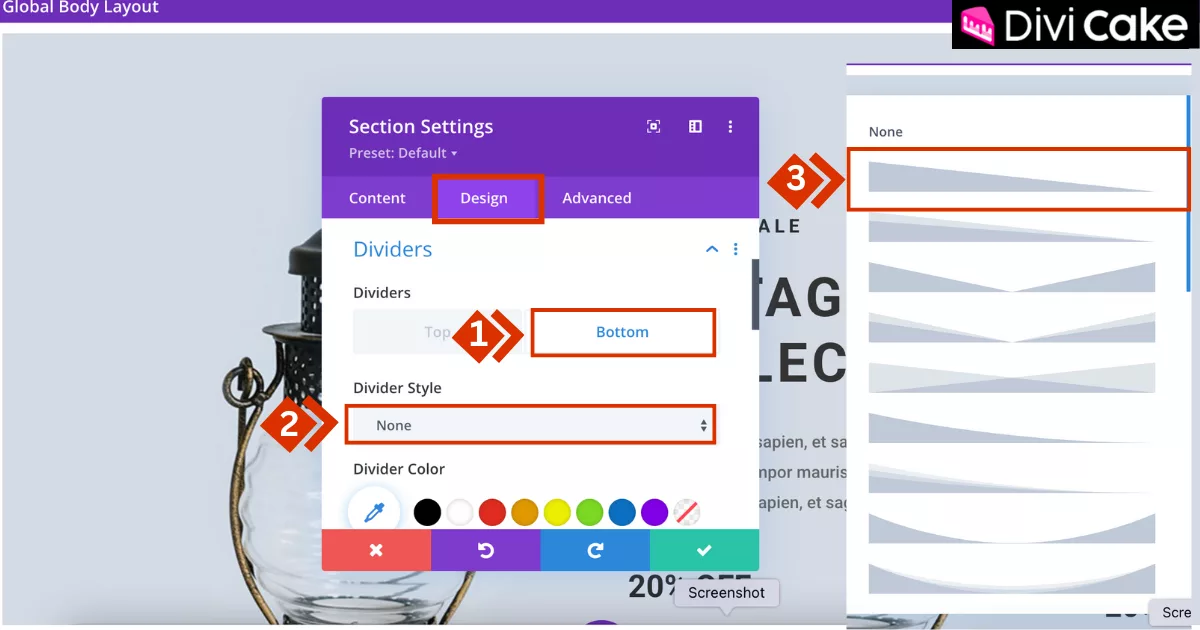
Preview Your Divider Style
Once you select a Divider shape, you’ll instantly see the bottom border of your section transform into that style and honestly, it looks pretty awesome!
Divi applies the design in real-time, so you can check out how it looks right away (just like in the screenshot below). This makes it super easy to try different shapes until you find the one that fits your page perfectly.
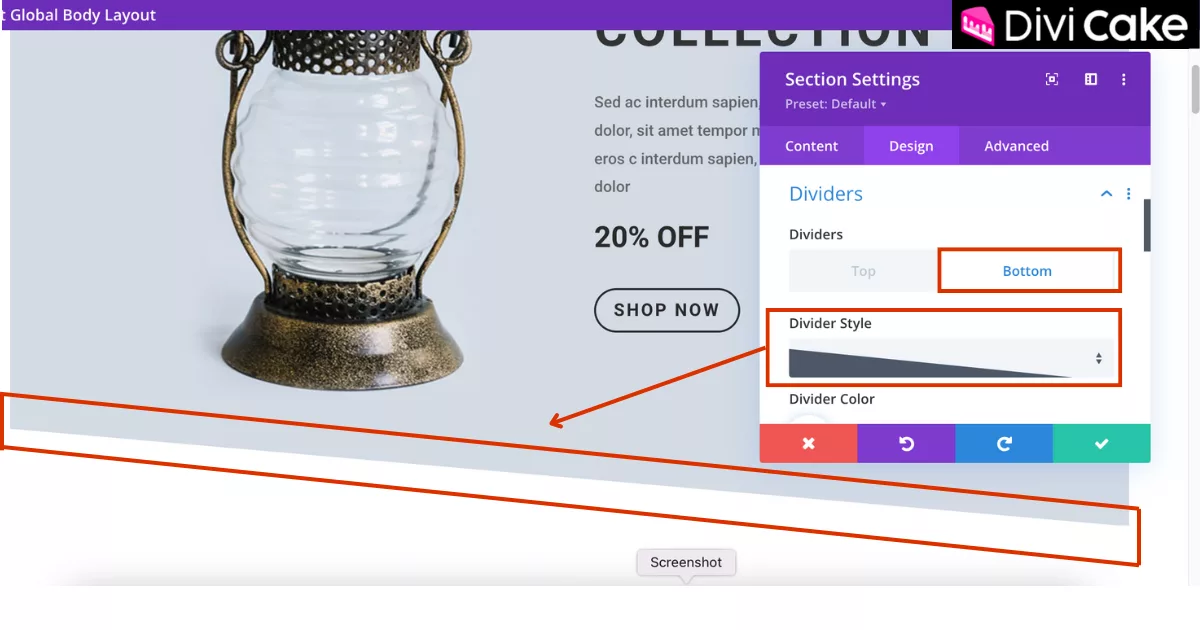
Bottom Section Divider Design in Divi
We’ve decided to go with this Divider style for the bottom border, as shown in the screenshot below.
But remember, the choice is totally up to you. Divi, the WordPress theme gives you a bunch of options and stylish shapes to choose from, so feel free to play around until you find the one that fits your design the best.
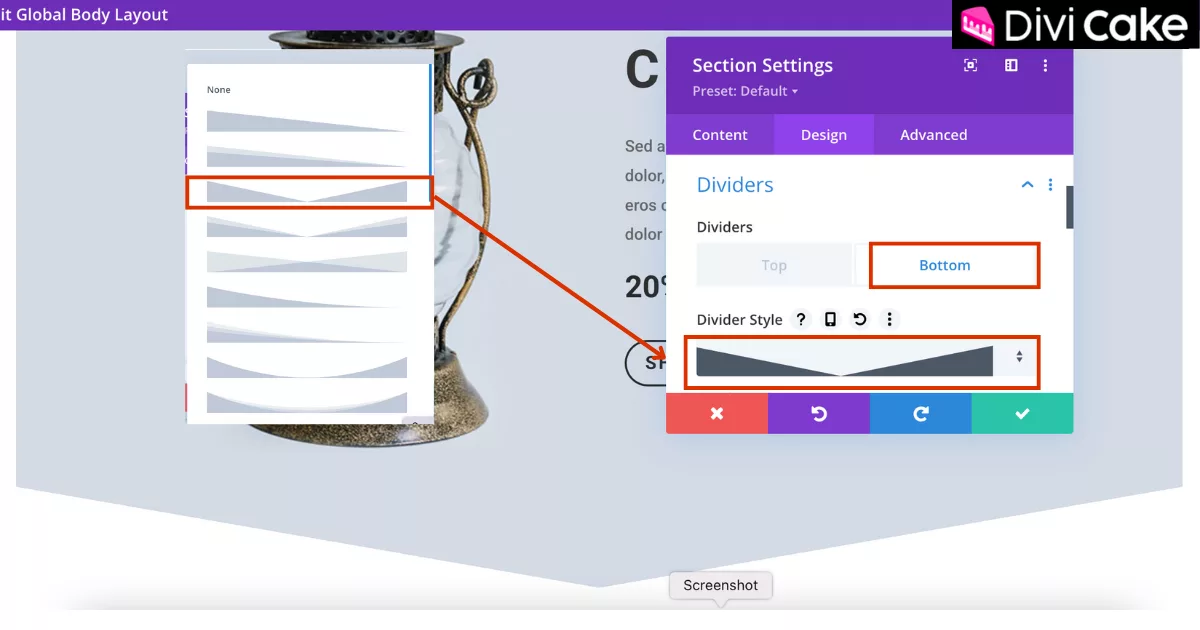
Top Section Divider Design in Divi
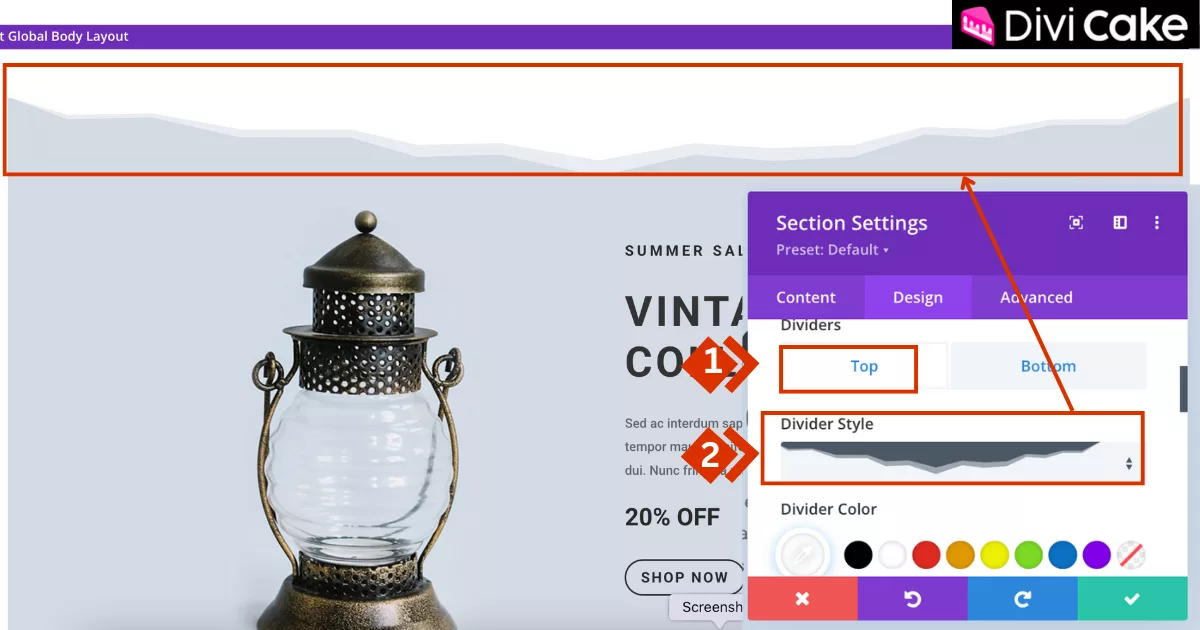
Now let’s take it a step further and add a Divider to the top of the section. This helps balance your design and gives the section a more polished look.
Here’s how to do it:
- Click on the Top button in the Divider settings panel.
- Just like before, choose the shape from the options available (see the example below).
Step 5: Customize the Divider Color in Divi
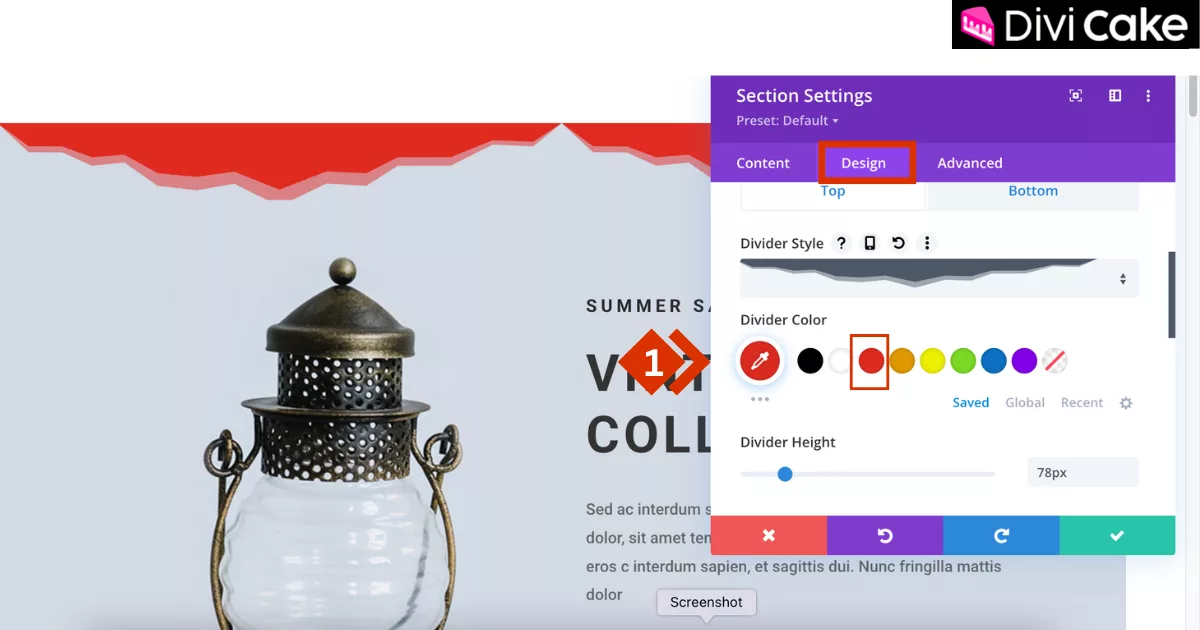
Make your Divider more customised, You can easily change its color to match your site’s style. Just scroll down in the Divider settings panel and you’ll find the color options.
To change the color:
- Click on the Color option under the Divider settings.
- Pick any color you like in our example, I selected red, just to show you how it works.
Learn More: A Look at Divi’s New Global Color System
Step 6: Adjust Divider Height and Flip Settings in Divi
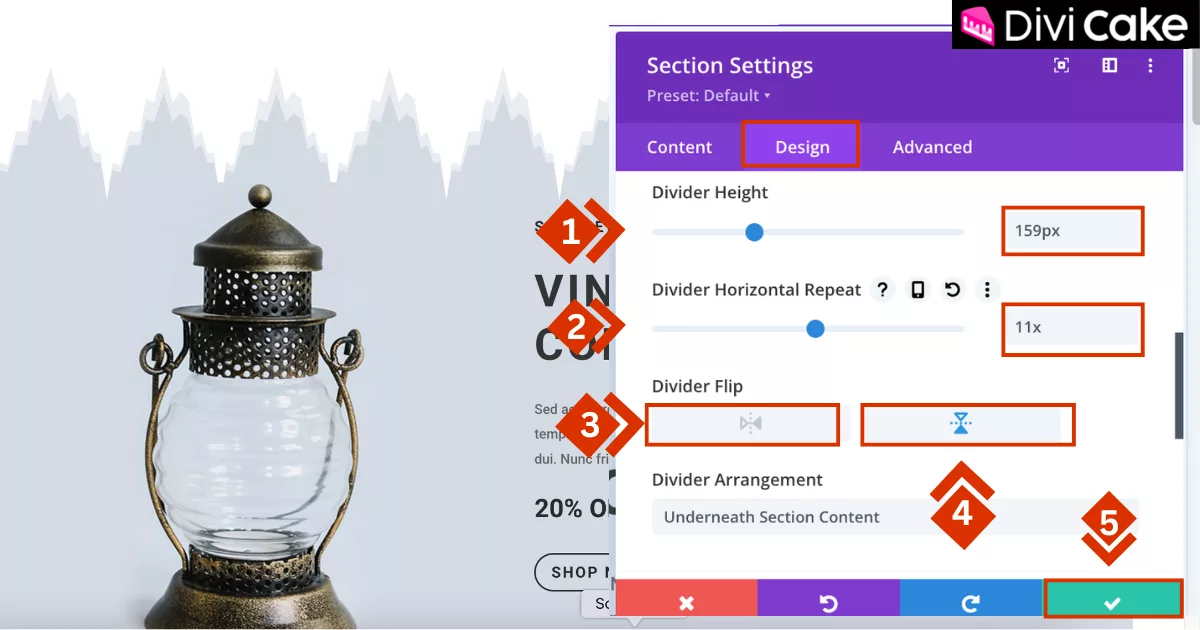
Now let’s fine-tune your Divider to get the look just right. In the same Divider settings panel, if you scroll down a bit more, you’ll see options like Height, Horizontal Repeat, and Flip settings.
Follow these steps to customize the Divider:
- Set the Divider Height to 159px if you want to match the design I’m using or choose a height that suits your layout.
- Adjust the Horizontal Repeat to 11x to stretch the shape nicely across the section.
- Use the Horizontal Flip toggle if you want to reverse the shape.
- You can also enable Vertical Flip to flip the Divider upside down.
- Once everything looks perfect, click the green checkmark to save your changes.
Final Result
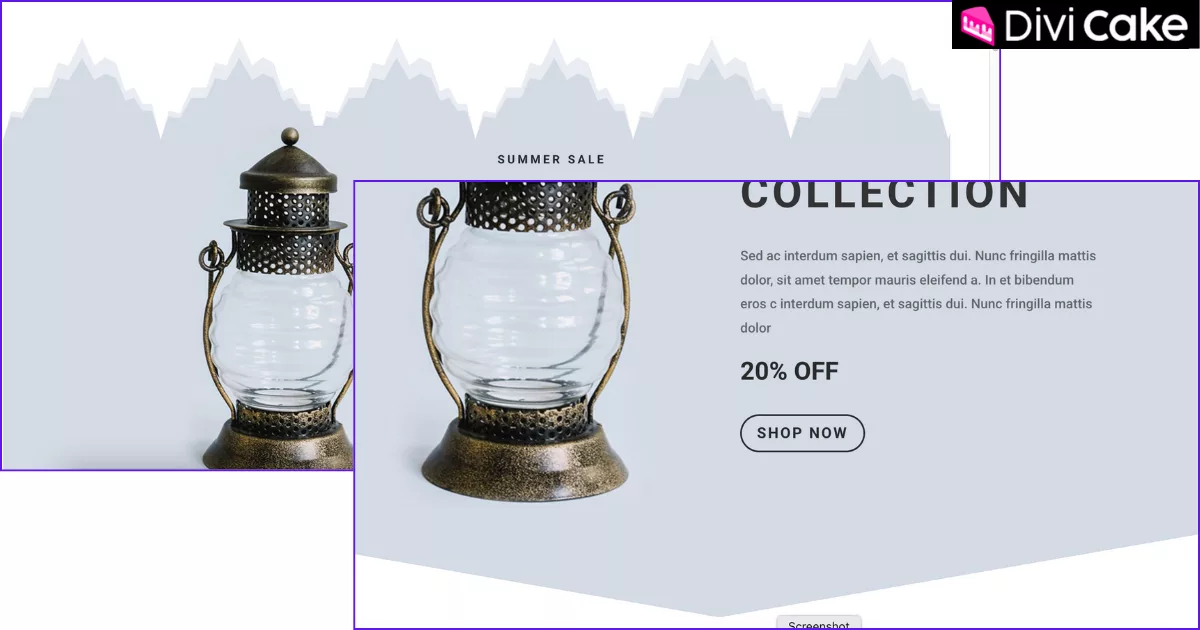
In the screenshot below, you can see how the Divider looks on both the top and bottom of the section. It really adds a clean and modern touch to your page design.
Conclusion
And that’s it! With just a few easy-to-follow steps, you’ve learned how to add stylish top and bottom dividers to your Divi sections using nothing more than Divi’s built-in settings. From selecting the right shape to customizing the color, height, and flip options, Divi gives you full creative control without the need to touch a single line of code. These small design elements may seem simple, but they can make a big difference in the overall look and feel of your website.
Adding dividers is a smart way to break up content, create visual interest, and guide your visitors through your page more smoothly. Whether you’re a beginner learning the ropes or a seasoned Divi user polishing up your layout, experimenting with dividers is a great way to give your site a fresh and professional touch. If this tutorial helped you, be sure to check out more of our Divi tips and tricks to take your WordPress design skills even further!
Learn More: WordPress with Divi: The Perfect Website Combination


Submit a comment
Comments are read before they appear. Your email is not published.
Thanks. Your comment is waiting for review and will appear here once it is approved.