
How to Build a Blog Page with Divi 5 Blog Module
We may earn a commission from affiliate links in this post. Disclosure policy
Are you struggling to build a blog page using the latest Divi 5 version? You’re not alone! With Elegant Themes introducing major changes in Divi 5, especially to the interface, even experienced Divi 4 users are finding it tricky to navigate. If you’re a beginner or a returning user, the new layout can feel overwhelming making it hard to design a proper blog post page for your website.
That’s exactly why we’ve put together this easy-to-follow, step-by-step guide. In this tutorial, you’ll learn how to use the Divi 5 Blog Module to create a stunning, responsive blog layout from scratch. Whether you’re building a homepage or a landing page, this guide is your perfect companion to mastering Divi 5 without any confusion. Keep reading you’re just a few clicks away from launching your dream blog!
Step 1: Creating Your First Page with Divi 5
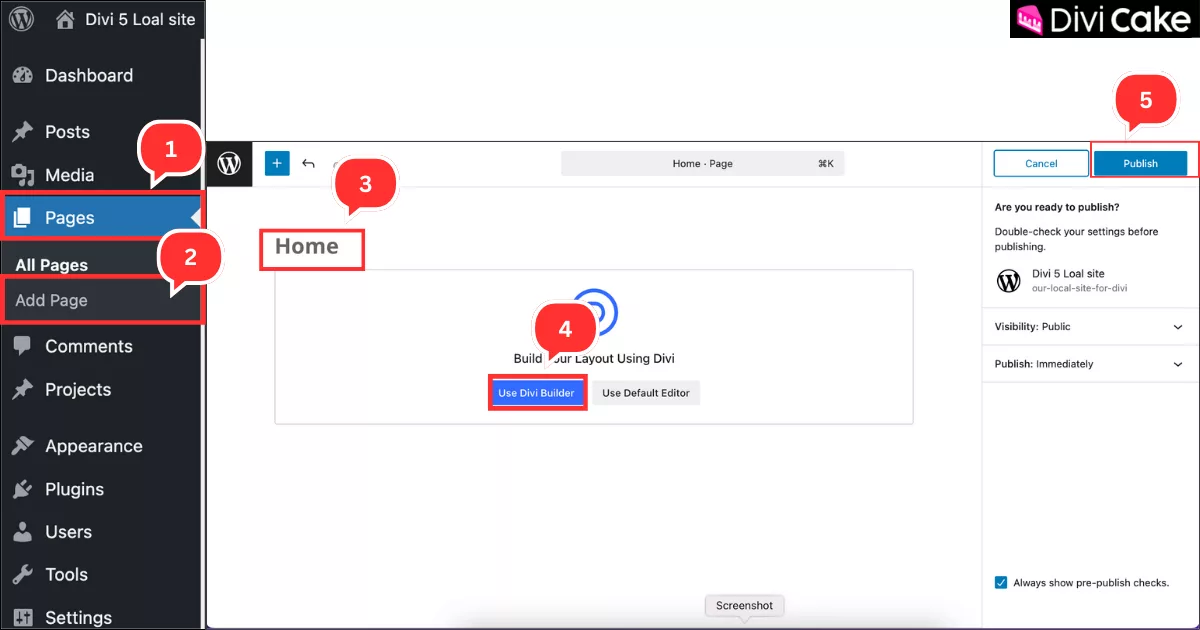
Creating a homepage in WordPress is easy. You’ll first create your page using the WordPress editor, and then use the Divi 5 Page Builder for designing and customization.
Follow these steps:
- Click on Pages in your WordPress dashboard.
- Click on Add New Page.
- Enter your Page Title.
- Click on Use Divi Builder.
- Finally, click Publish to save your page.
Step 2: Inserting Section and Heading with Divi 5
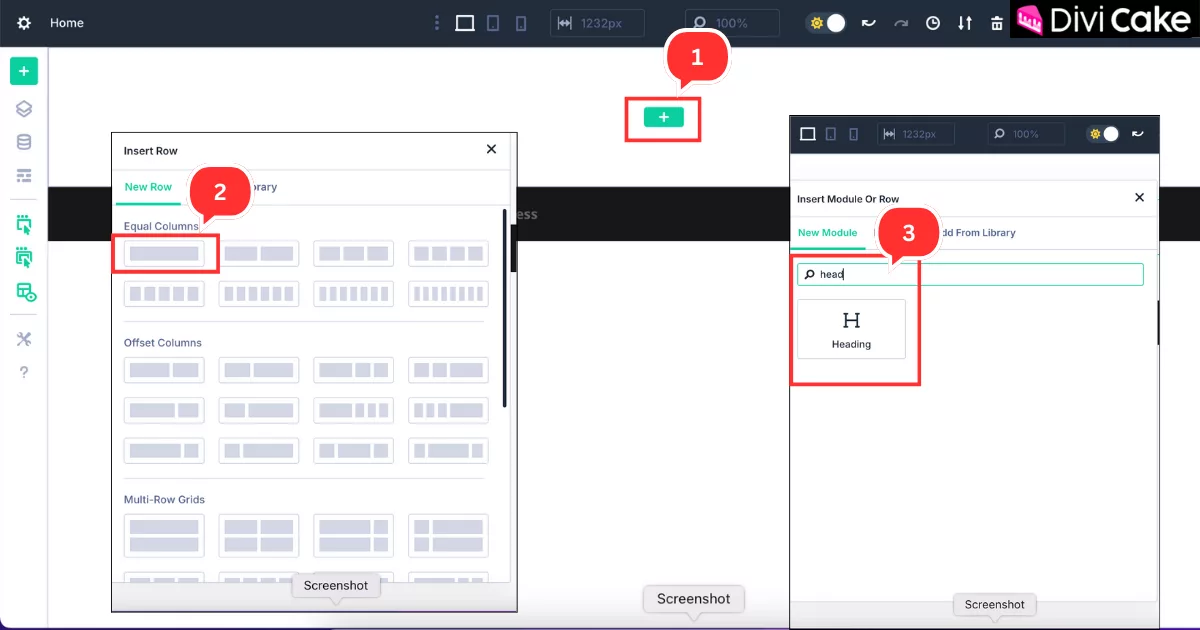
In the previous step, we opened the page using the Divi 5 Page Builder. Now, we’ll begin designing it as a blog post page with just a few quick and easy steps.
Follow these steps:
- Click on the Plus (+) icon button, as shown in the screenshot below.
- Insert a single row with a single column.
- Search for the Heading module and insert it into the section.
Step 3: Inserting Text Module
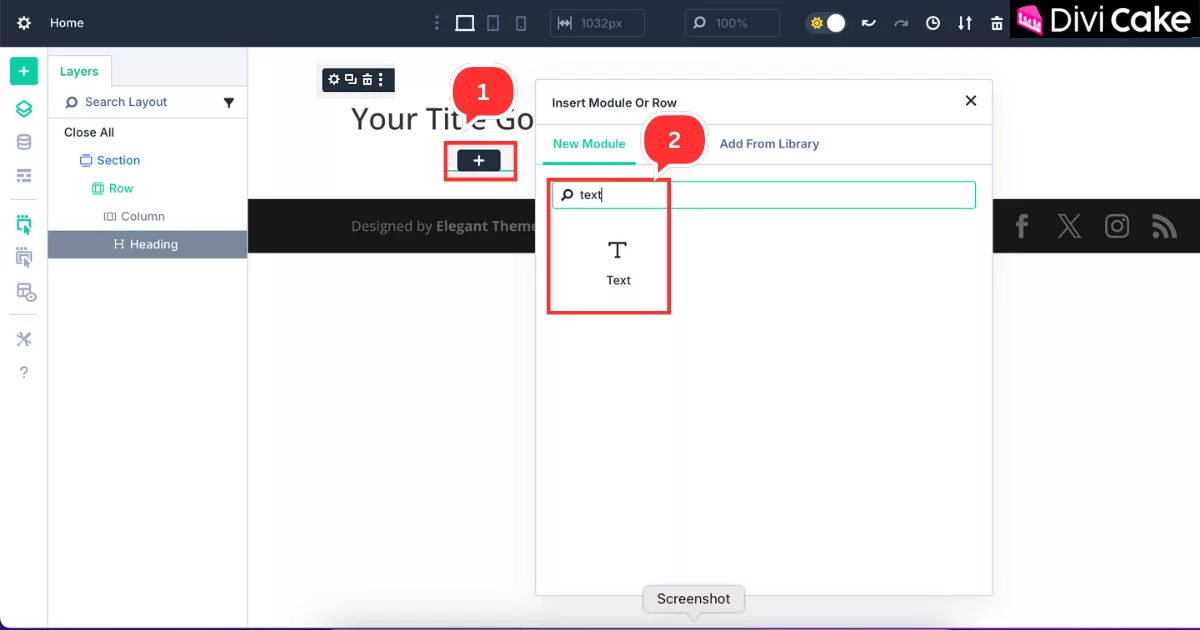
Now, just below the title, insert a Text module to explain the purpose of your website. This is a great place to give a brief introduction or overview for your blog visitors.
Follow these steps:
- Click on the Plus (+) icon located just below the Heading module.
- Search for Text, and insert the Text module as shown in the screenshot below.
Step 4: Customize the Heading Module
Now it’s time to style the heading to make it look more beautiful and visually attractive. This step will help your blog page stand out and leave a strong first impression.
Follow these steps:
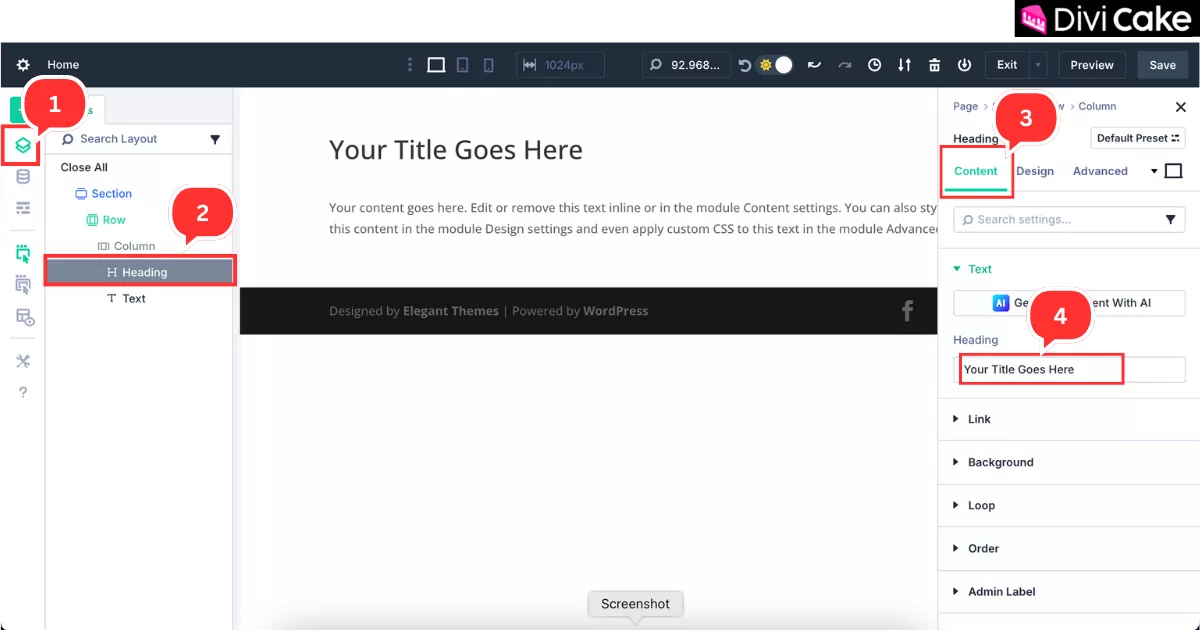
- Click on the Navigation button (Layer icon).
- Click on the Heading module.
- Go to the Content tab.
- Add your title to the Heading.
Step 5: Customize the Text Module
Now, go to the Design tab in Divi 5 to style the Heading module and give it a clean, professional look.
Follow these steps:
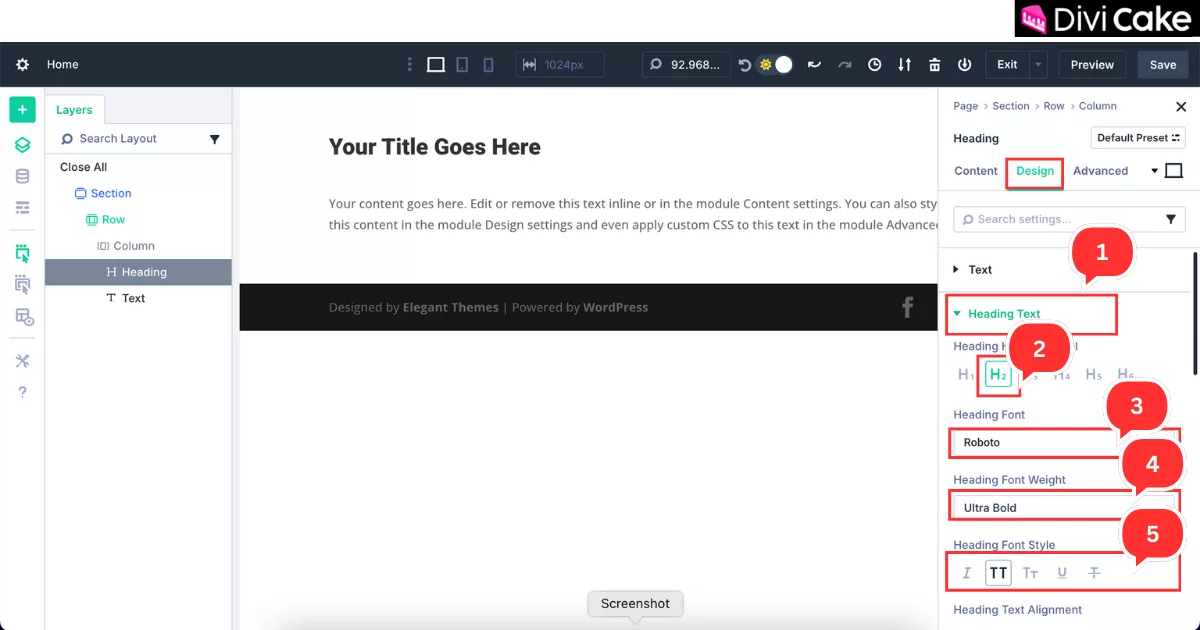
- Click on the Heading Text option under the Design tab.
- Select the appropriate heading level H1 or H2, depending on your layout.
- Set your Heading Font in our case, we chose Roboto.
- Adjust the Heading Font Weight to match your style.
- Choose a Heading Font Style, such as Italic or Uppercase, based on your preference.
Now, let’s continue styling the heading for a more refined and clean appearance.
Follow these steps:
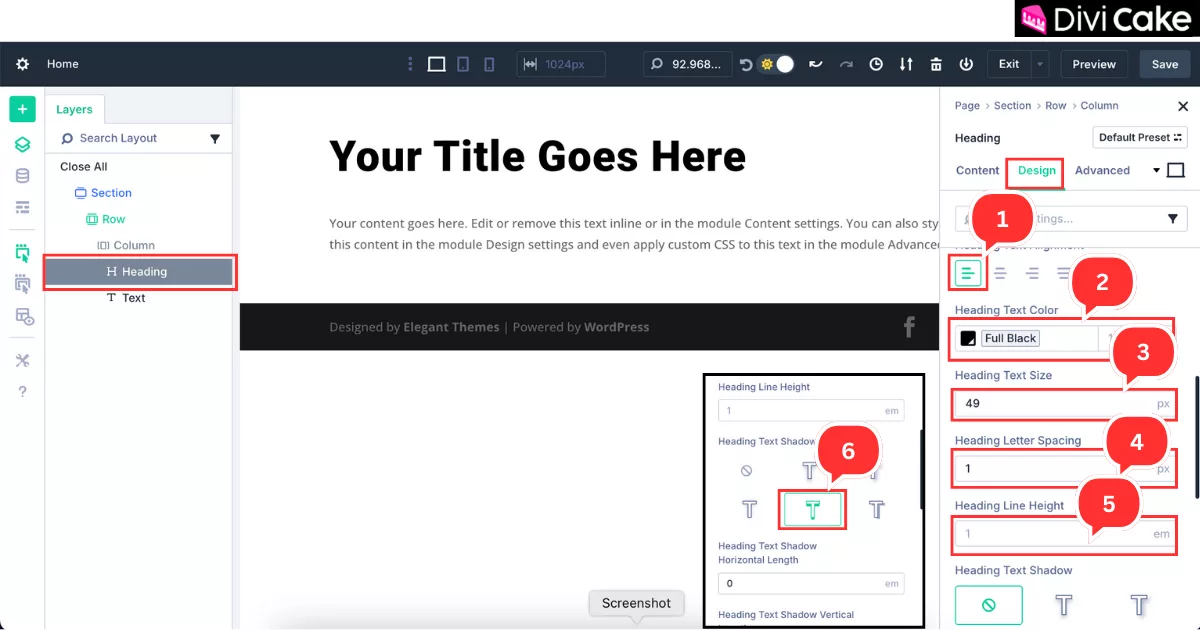
- Set the Alignment to the left side.
- Choose your Heading Text Color we’ve used black.
- Set the Heading Text Size we used 49px.
- Adjust the Heading Letter Spacing to 1px.
- Set the Heading Line Height according to your layout needs.
- Apply a Heading Text Shadow if desired, or leave it as None for a clean look.
Now it’s time to design the Text module using the Divi 5 Page Builder to enhance the look of your website description.
Follow these steps:
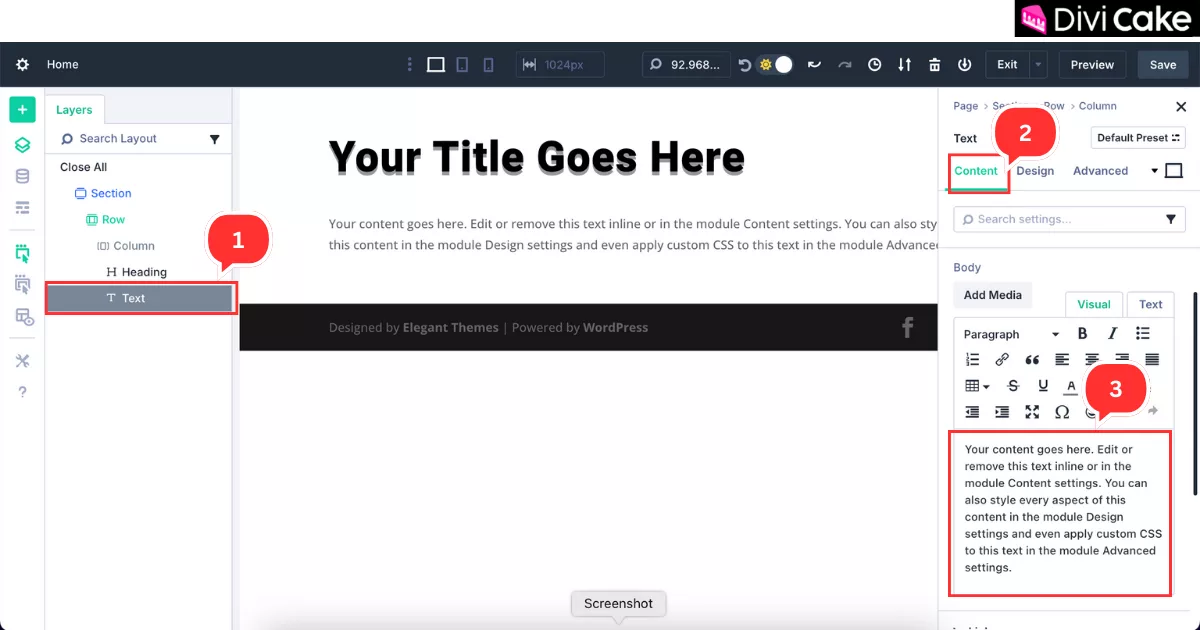
- Click on the Text module.
- Go to the Content tab.
- Replace the default text with your website description in the Body Text area.
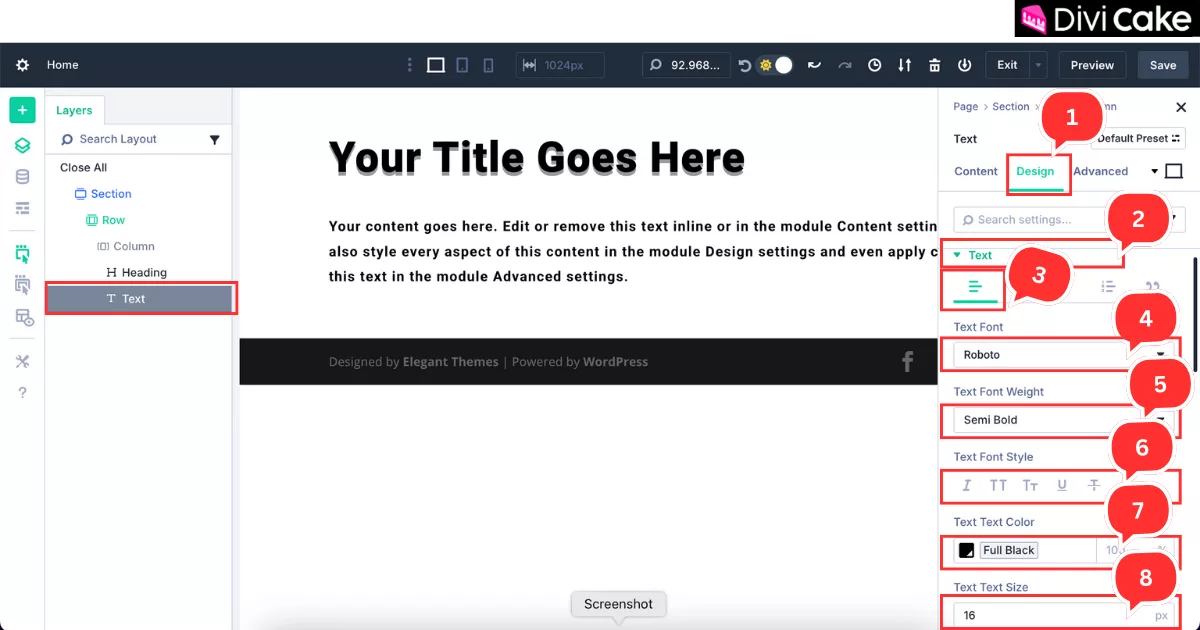
Now let’s style the Text module to match the overall look and feel of your blog page using the Divi 5 Design tab.
- Click on the Design tab of the Text module.
- Choose the Text option within the Design settings.
- Set the Alignment to the Left Side.
- Change the Font from default to your preferred typeface.
- Adjust the Font Weight to match your design.
- Choose the appropriate Font Style (like italic or uppercase).
- Add a Text Color (as shown in the screenshot below).
- Set the Text Size for example, we’ve set it to 18px for a clean and readable appearance.
Step 6: Add Background to Section
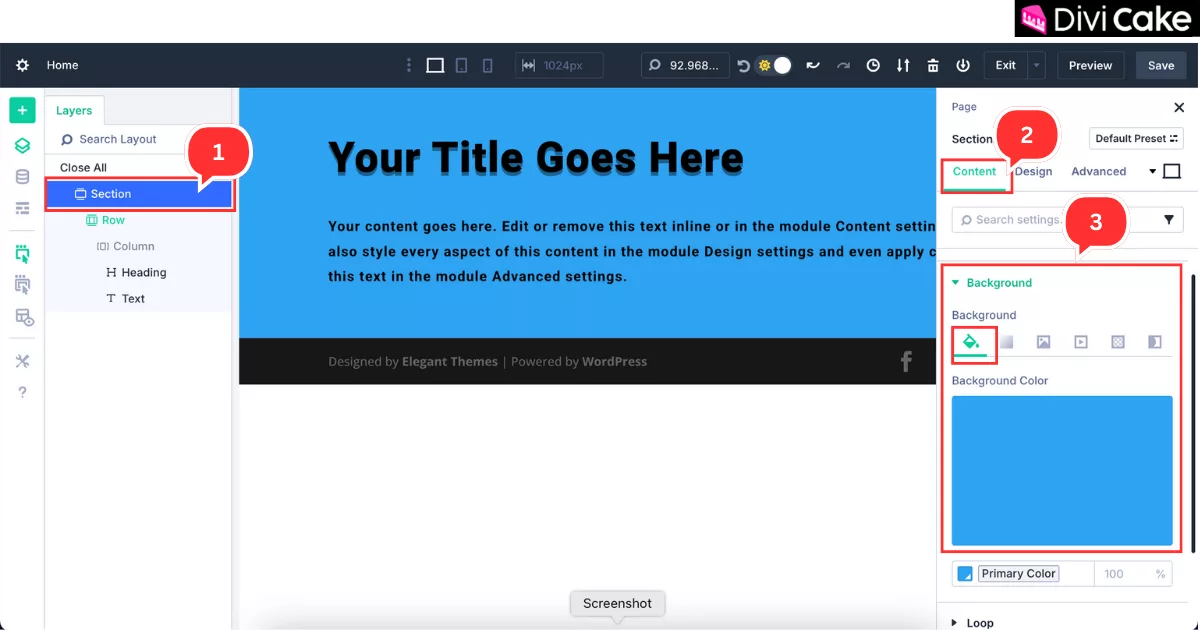
In this step add a background color to your section to give your blog a more professional and polished look.
- Click on the Section settings as shown in the screenshot below.
- Go to the Content tab.
- Click on the Background option within the Content tab and Choose a background color that matches your brand or theme style.
Step 7: Add Padding to Section
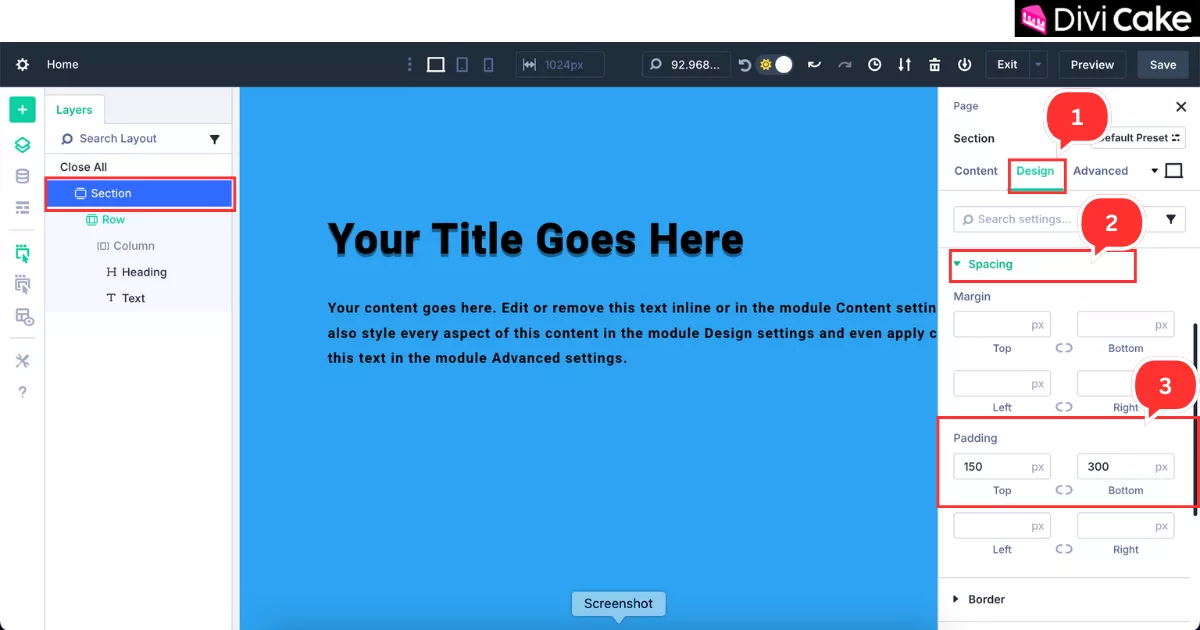
Now let’s add a bit of padding to the top and bottom of your section to create breathing room and make the layout look more balanced.
- Click on the Design tab in the Section Settings.
- Scroll down and click on Spacing.
- Set the Top and Bottom Padding values as shown in the screenshot below.
Step 8: Add Border Radius to Section
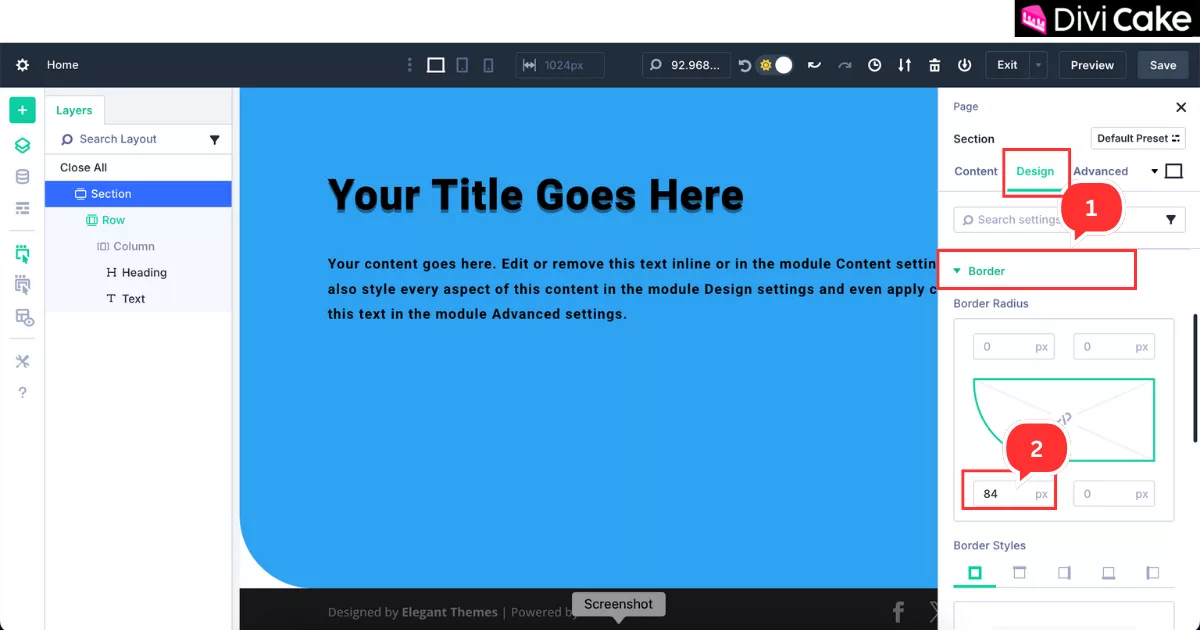
To create a smooth, rounded look at the bottom of your section, you can add a border radius like this:
- This time click on the Border in the Design tab.
- Scroll to the Bottom Left Corner and set the Border Radius to 84px.
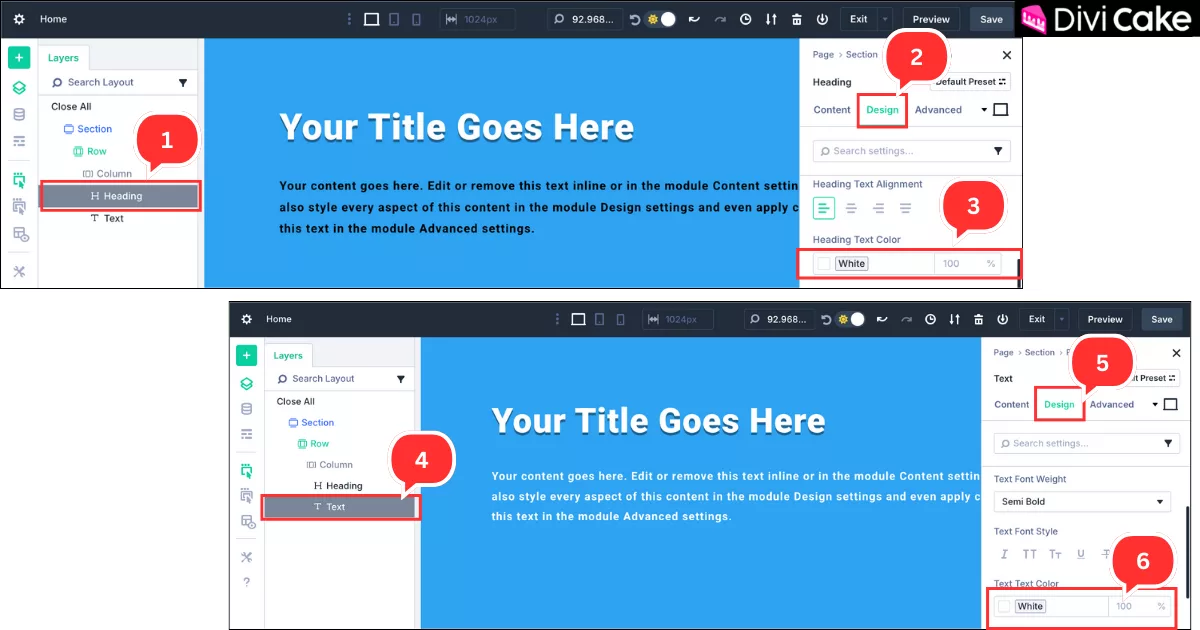
As we changed the background color, the heading and text now look a bit dim and don’t match well with the blue background. Let’s fix that by changing their colors. Just follow the steps below:
- Click on the Heading module as done in the previous step.
- Click on the Design tab.
- Change the Text Color to White (if you’re following our color theme).
- Click on the Text module this time, as shown in the screenshot below.
- Again, click on the Design tab inside the text module settings.
- Change the Text Color to White as well.
Step 9: Add a New Section for Blog Posts in Divi 5
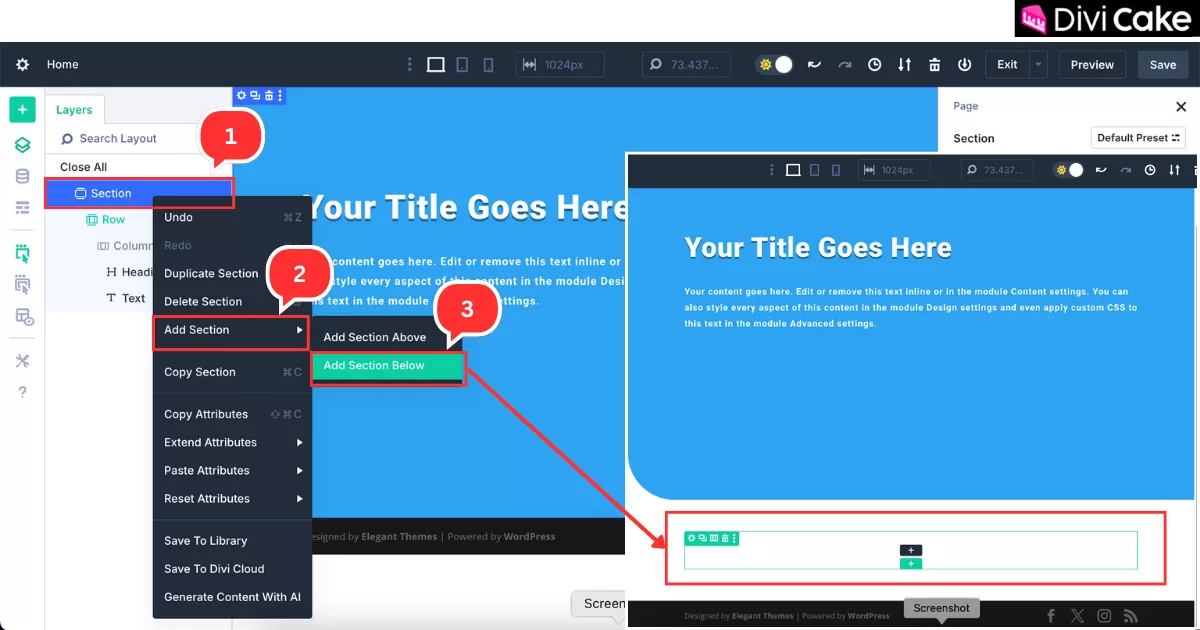
Now we are going to add a new section to display your blog posts in a grid layout. We’ll also insert a heading like “Our Latest Posts” and place the blog post module right below it. This time, we’re using a more advanced technique to add a section. Just follow the steps below:
- Right-click on the existing section from the Layer tab, just like in the screenshot.
- Hover your mouse over the Add Section option.
- Click on Add Section Below to insert a new section for your blog content.
Step 10: Insert a Heading Module into the New Section
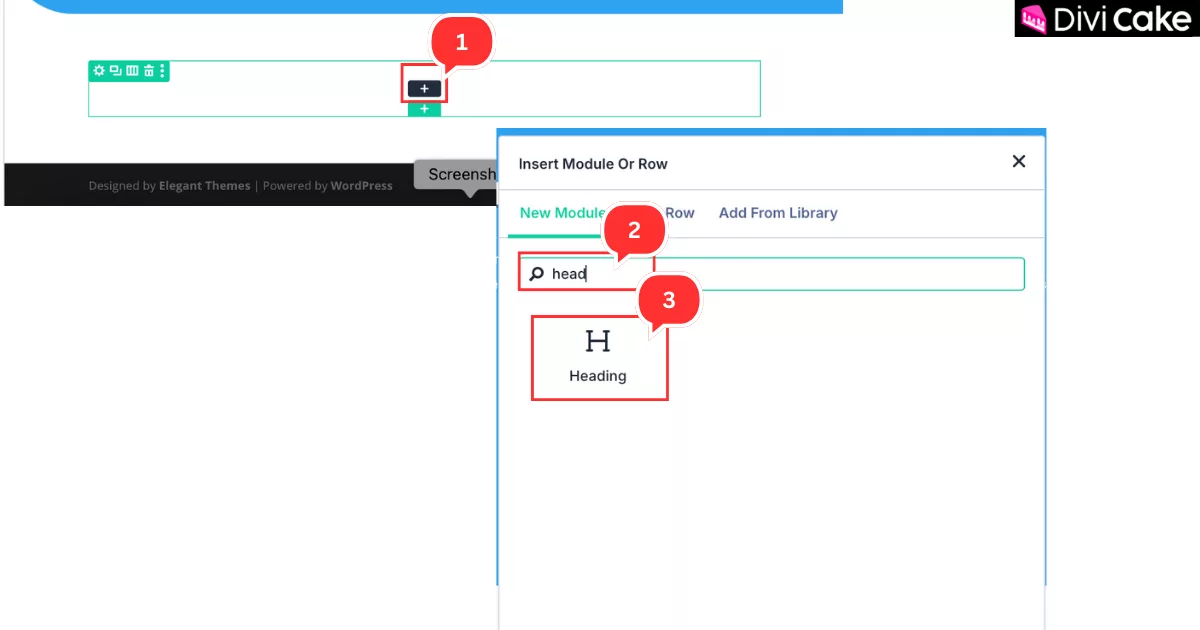
In the below screenshot, you can see the section has been added and it is currently blank. Now, we are going to add a heading to this section.
- Click on the Plus Icon button.
- Search for the Heading Module.
- Insert the Heading Module into the section.
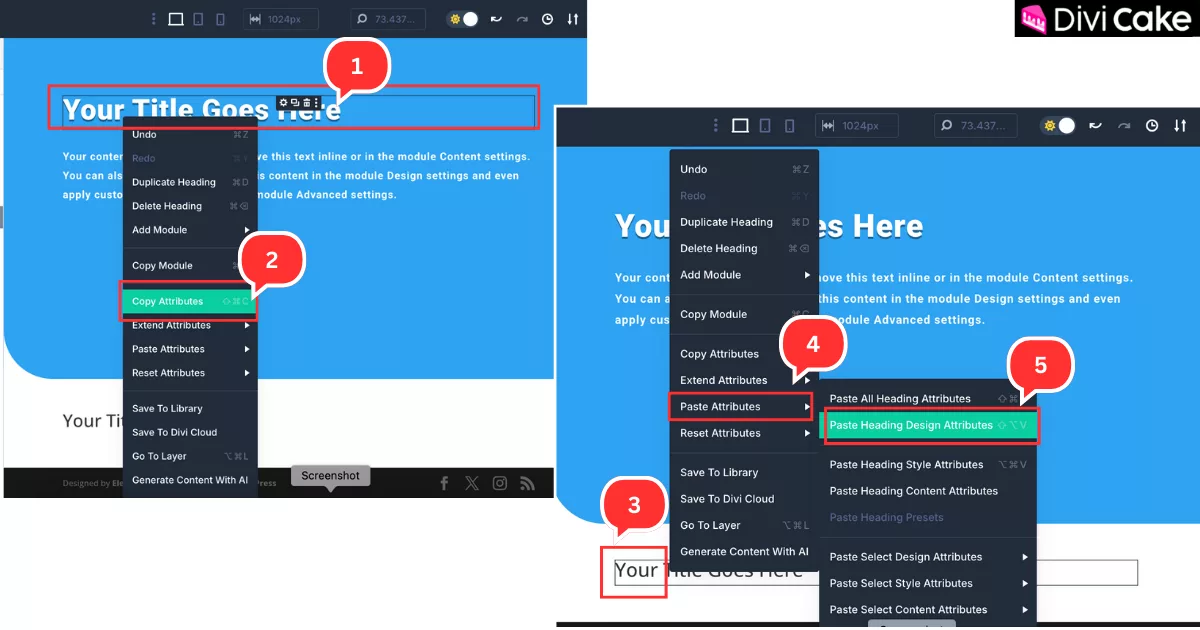
In this step, we are going to show how to copy and paste styles from one module to another module in Divi 5. Must see the screenshot also to better understand.
- Right click on the Heading Area.
- Click on the Copy Attribute.
- Again right click on the newly added Title area.
- Hover mouse over the Paste Attribute.
- Click on the Paste Heading Design Attribute.
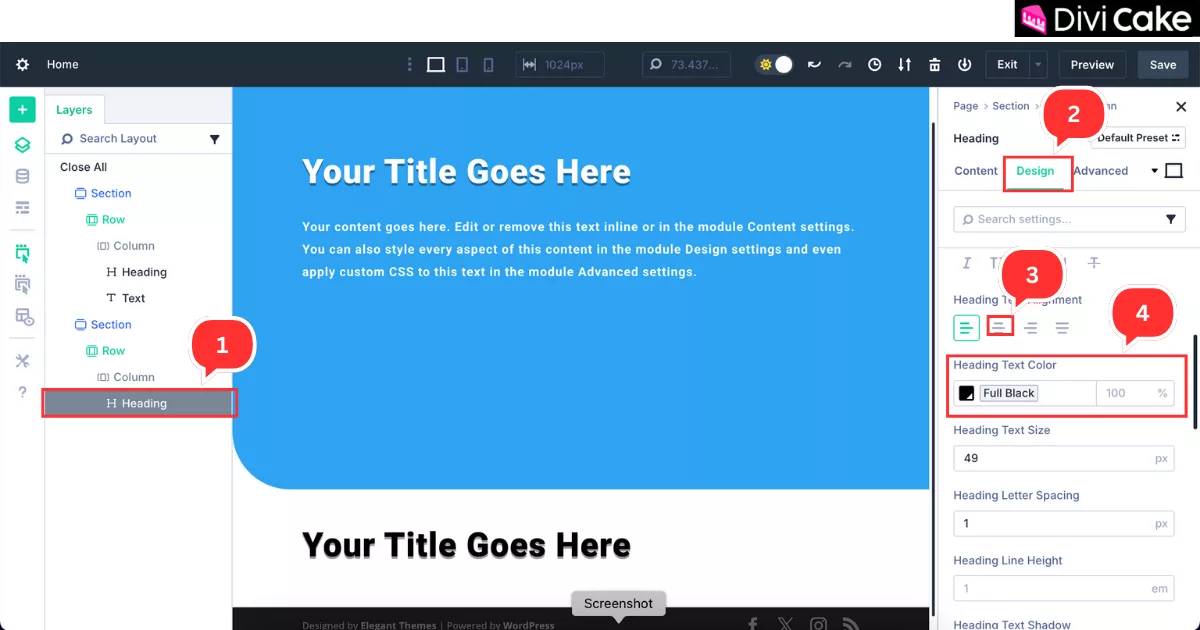
As we pasted the attribute style to another, the background color of the new heading became white, and its text color also changed to white. So, quickly change the color to black so it shows clearly on the white background.
- Click On the New Heading in the Layer tab.
- Click on the Design tab.
- Align to the Center.
- Change the Color to Black.
Step 11: Insert the Blog Module in Divi 5
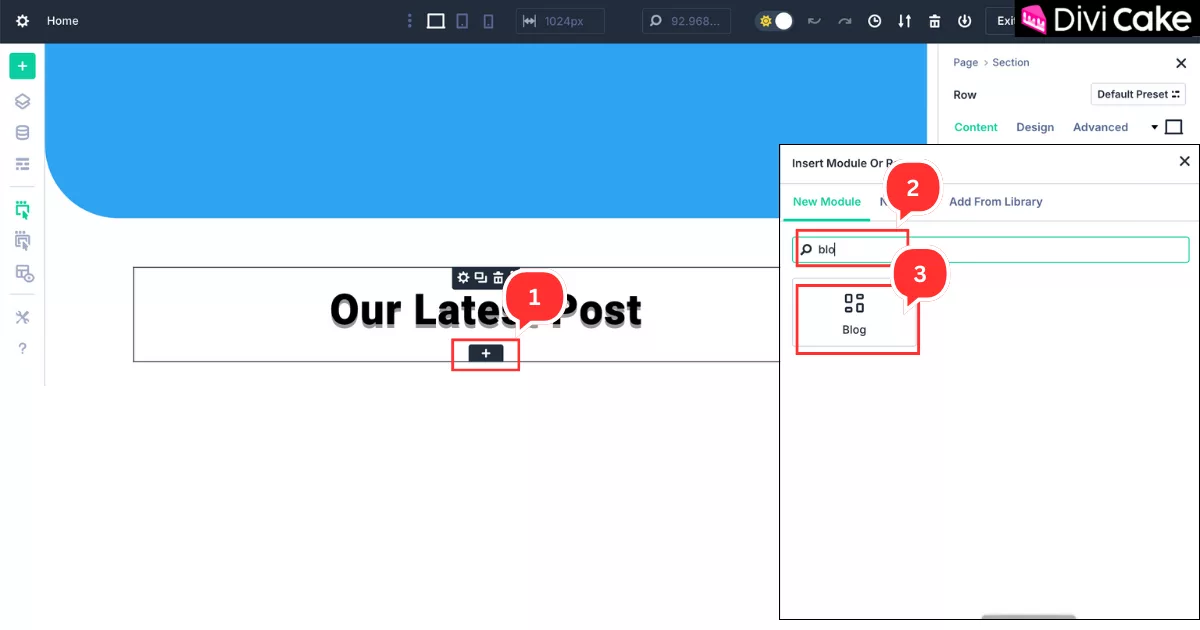
Now insert the blog post module below the heading as in the given below screenshot.
- Click on the Plus Icon button below the heading.
- Search for the Blog.
- Insert The Blog module.
Step 12: Customize the Blog Module Elements in Divi 5
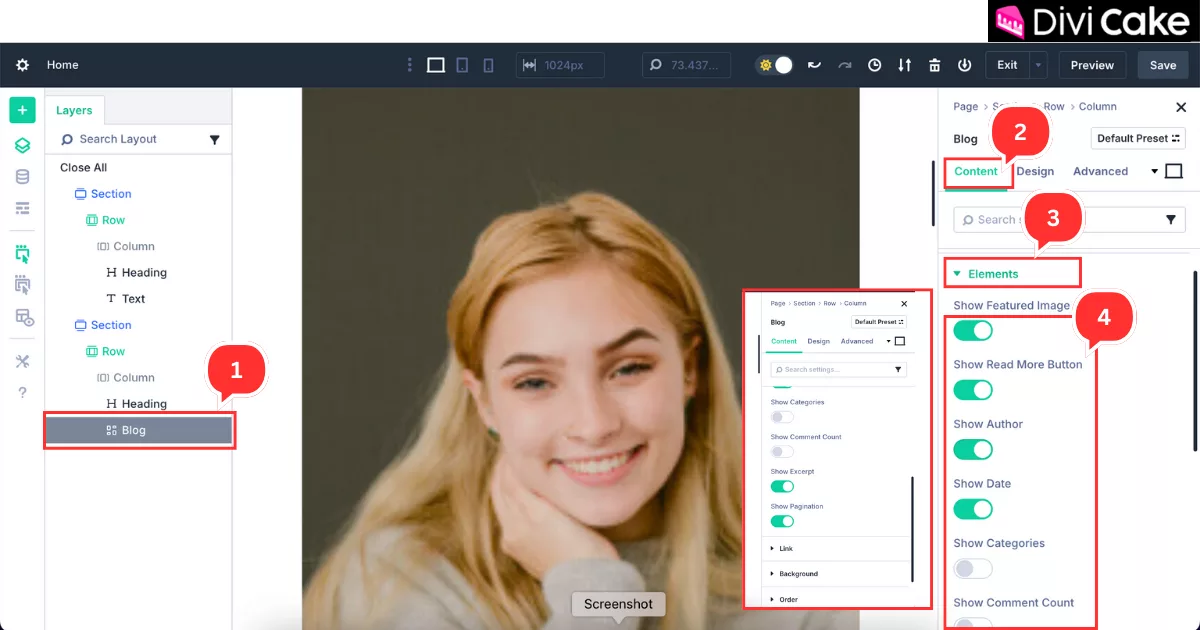
Now the Blog module is added. Now we are going to show you how to customize and design it beautifully using Divi 5 Page Builder.
- Click on the Blog in the Layer tab.
- Click on the Content tab.
- Click on the Elements.
- Enable the options shown in the below screenshot – it’s up to you which options you want to display in the blog grids.
Step 13: Set Blog Module Layout to Grid in Divi 5
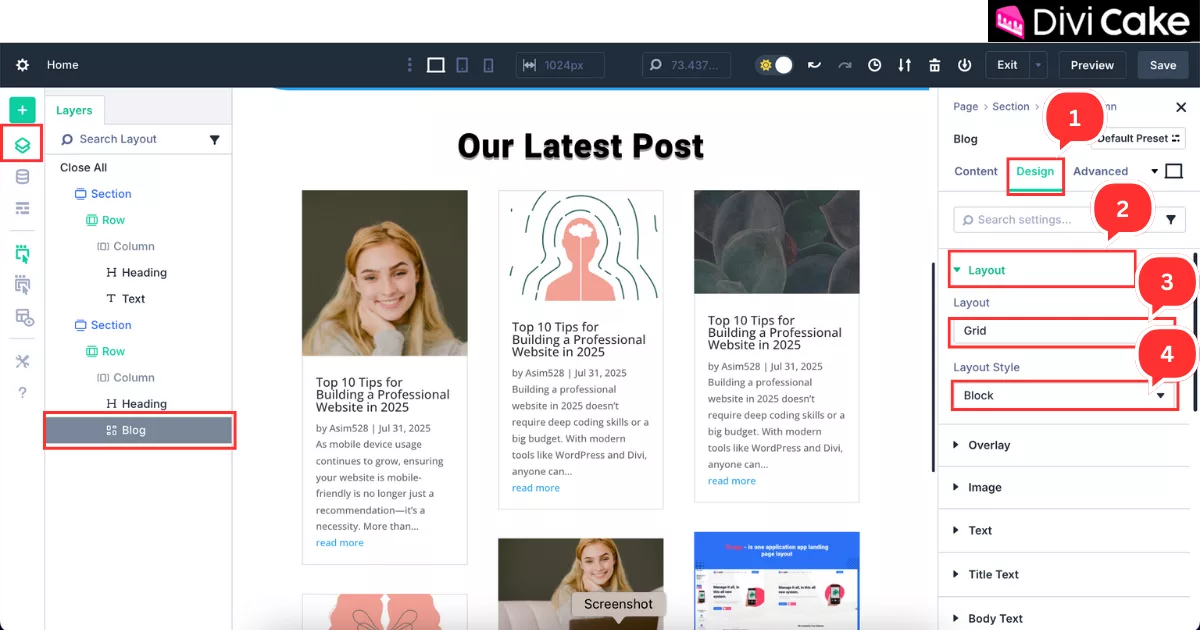
This time we are customizing the Blog module in the Design tab settings to give it a Grid look.
- Click on the Design tab.
- Click on the Layout option in the Design tab.
- Set Layout to Grid.
- Set Layout Style to Block.
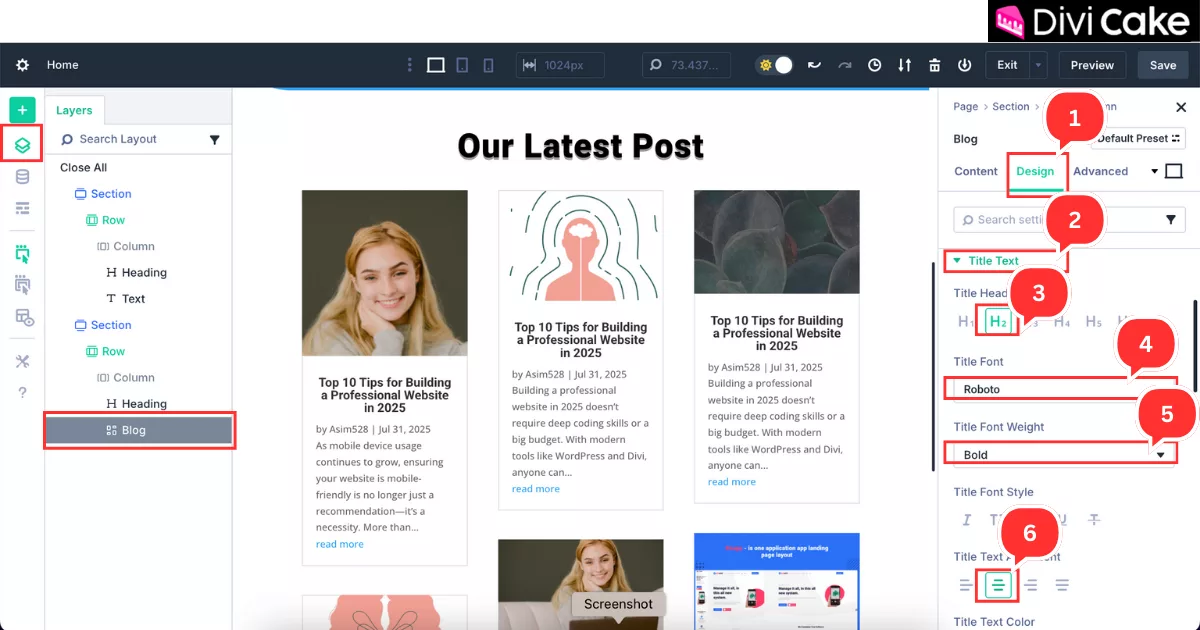
Step 14: Customize Blog Module Title Text in Divi 5
In this step we are customizing the title text of the Blog Post Module.
- Click on the Design tab.
- Click on the Title Text.
- Set the Title Heading to H2.
- Set Title Font into your website font (for better user experience, use one or two fonts throughout your website).
- Set Title Font Weight to bold or as per your preference.
- Align the Title Text to Center.
Step 15: Customize Blog Module Body Text in Divi 5
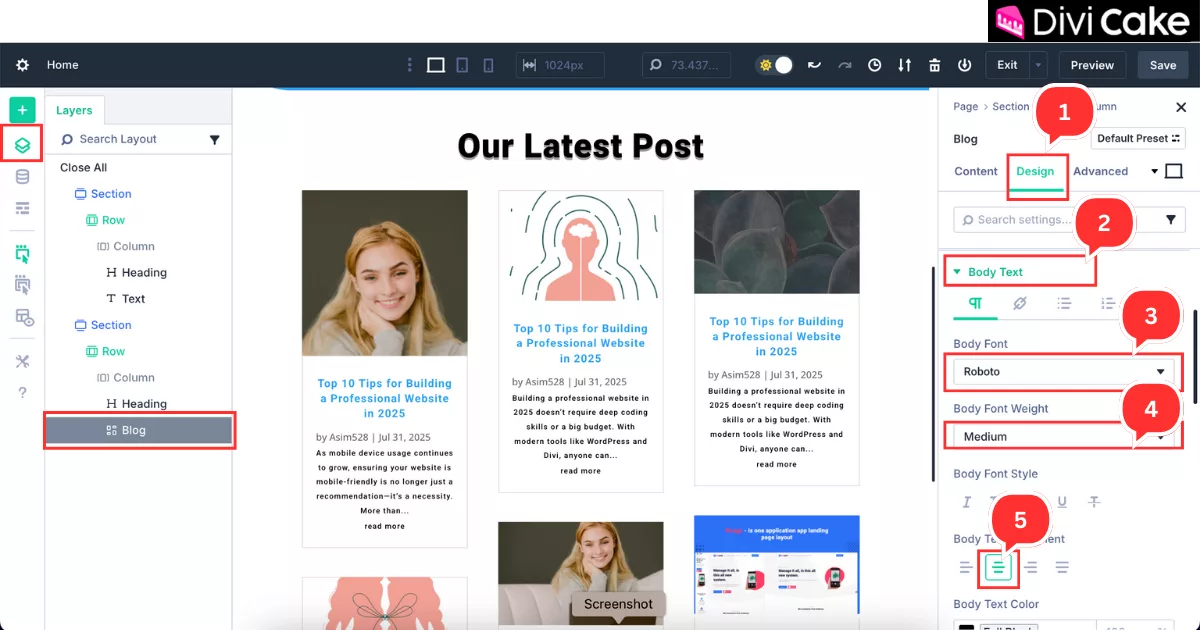
In this step, we will modify the Body Text, which refers to the description content displayed beneath the heading that explains the blog post. In this step, we’ll customize it to match your website’s design and overall style requirements.
- Click on the Design tab of the Blog Module.
- Click on the Body Text option.
- Change the Body Font according to your website.
- Change the Body Font Weight.
- Set the Body Text Alignment to Center for the Grid layout.
Step 16: Customize Blog Module Meta Text in Divi 5
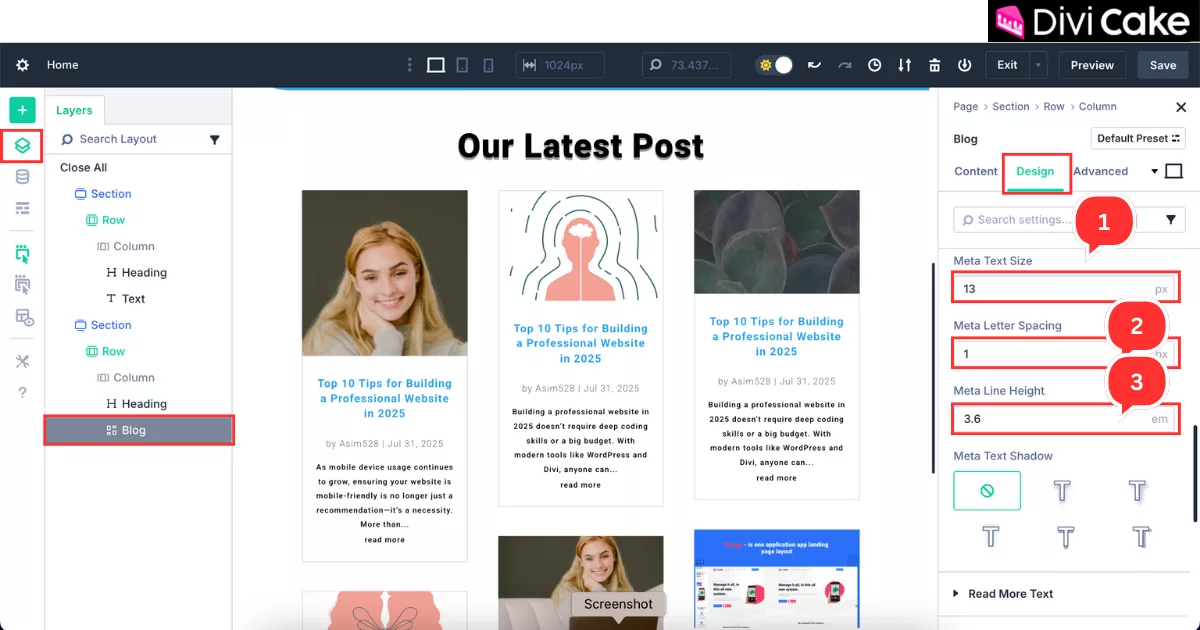
Now customize the Meta Text. Meta Text includes the Date, Author Name, Categories, and Subcategories, which appear between the blog heading and the description. So we are going to change it.
- Click on the Meta Text in the Design tab of the Blog Module and change its size to 13px.
- Set the Meta Letter Spacing if required.
- Set the Meta Line Height.
Step 17: Add Border to Blog Module Grid Layout in Divi 5
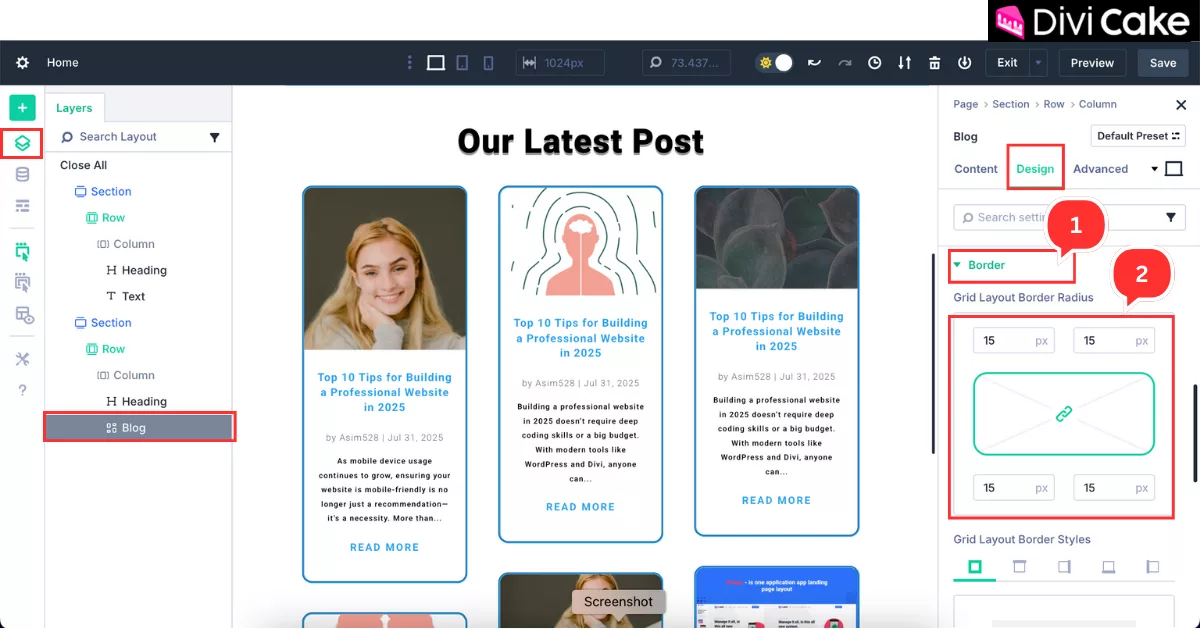
Now add a Border if required. This setting will apply to all the blog posts shown in the Grid layout. This option is optional you can keep it simple without a border, but with a border, it looks more attractive.
- Click on the Border in the Design tab.
- Set Grid layout Border Radius, as we set it to 15px for all sides.
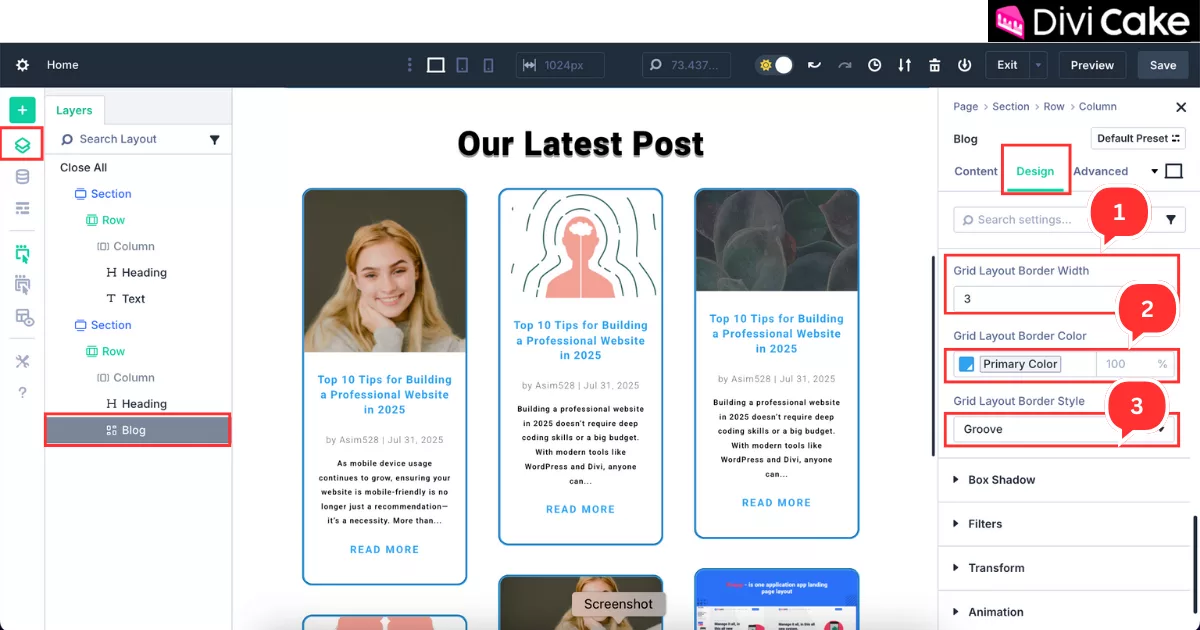
Continuing the Border setting further for the Grid layout, now we are going to set the border width, color, and style to make it more appealing.
- Set Grid Layout Border Width as we set it to 3px.
- Select your website matching color for the Grid Border, as shown in the below screenshot.
- Set the Border Style like Dotted, Solid, etc. here we used Groove.
Learn More: Divi Blog Grid Equal Height – How to Equalize the Posts’ Height
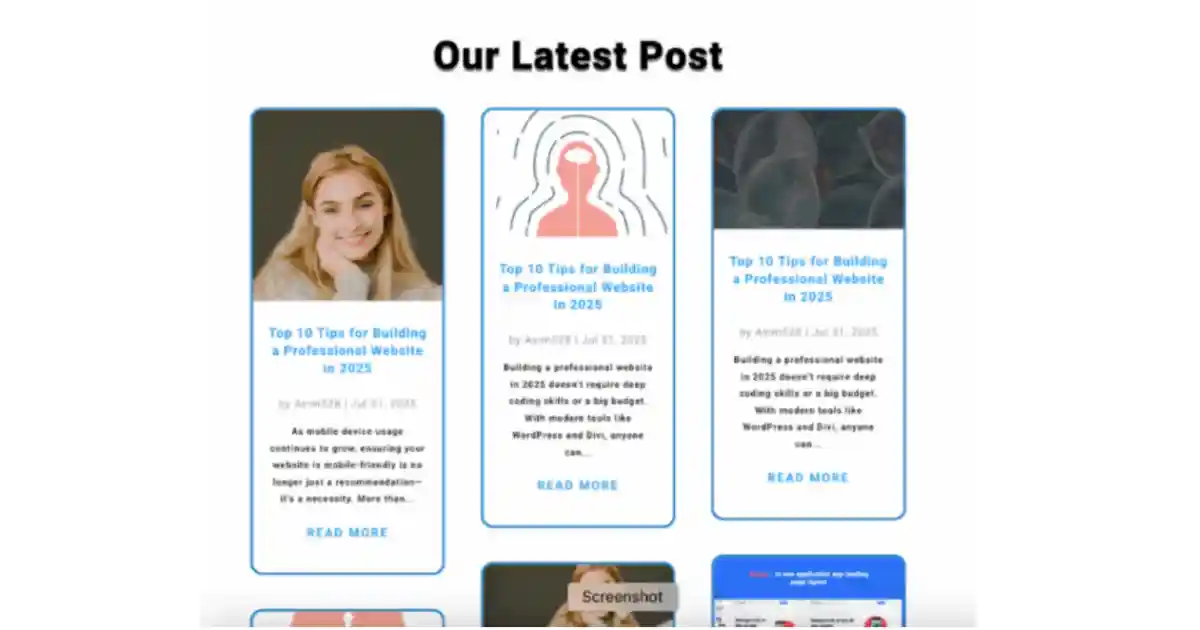
Final Result
The Screenshot below shows our successfully created blog post website landing page, built from scratch using Divi 5.
Conclusion
Creating a blog post landing page using Divi 5 might seem difficult at first, but by following these step-by-step instructions, you can easily build a beautiful and professional layout without any coding. From adding a blog module to customizing its design, we’ve covered everything in simple steps that anyone can follow even if you’re a beginner in WordPress and Divi.
Once your design is complete, don’t forget to set it as your home page so visitors see it first when they land on your site. This final touch helps give your website a strong, clean first impression. Keep exploring Divi 5 tools and layouts to make your website even more attractive and user-friendly.
Learn More: How To Create a Blog or News Website with Divi
Submit a comment
Comments are read before they appear. Your email is not published.
Thanks. Your comment is waiting for review and will appear here once it is approved.