
How to build a Divi 5 landing page with Claude or ChatGPT

You can describe a page in plain English and have Claude or ChatGPT build it on your Divi 5 site. The result is a draft made of real Divi modules, so you keep editing it in the Visual Builder like any page you built yourself.
This guide uses MCP for Divi 5, the plugin that connects the assistant to your site. The example is a made-up bakery, Crumb & Co, built on a test site.
What you need
- Divi 5.1 or later
- MCP for Divi 5, installed and activated
- A site that is reachable from the internet over HTTPS. claude.ai and ChatGPT connect from the internet, so a site that only runs on your computer will not work.
- A claude.ai or ChatGPT account.
Step 1: Install MCP for Divi 5
Upload the plugin under Plugins → Add New → Upload Plugin and activate it. Then open Divi → MCP for Divi 5. The setup screen walks you through your licence and a site check that confirms Divi 5, HTTPS and permalinks are right.
The install guide has the details.
Step 2: Connect claude.ai or ChatGPT
In the Connect your tool step, pick claude.ai or ChatGPT. The screen shows your site’s connector URL with a Copy button.
In claude.ai: open Settings → Connectors, choose Add custom connector, paste the URL and click Connect. WordPress opens in your browser. Sign in and click Allow. The Claude desktop app works the same way, under the same Settings → Connectors.
In ChatGPT: open Plugins, click Add and choose Add custom MCP server. Give it a name, paste the URL and keep OAuth as the authentication. Tick I understand and want to continue, click Create as a plugin, then Continue to MCP for Divi 5. WordPress opens in your browser. Sign in and click Allow. If Add custom MCP server is not in the menu, turn on developer mode in ChatGPT’s settings first.
There is no password to copy into either app. Connect your AI tool covers every tool the plugin supports.
Step 3: Write the prompt
A good prompt names the sections in order, the text on the main button, where the colours come from, and asks the assistant to check its work. This is the prompt we used, in claude.ai:
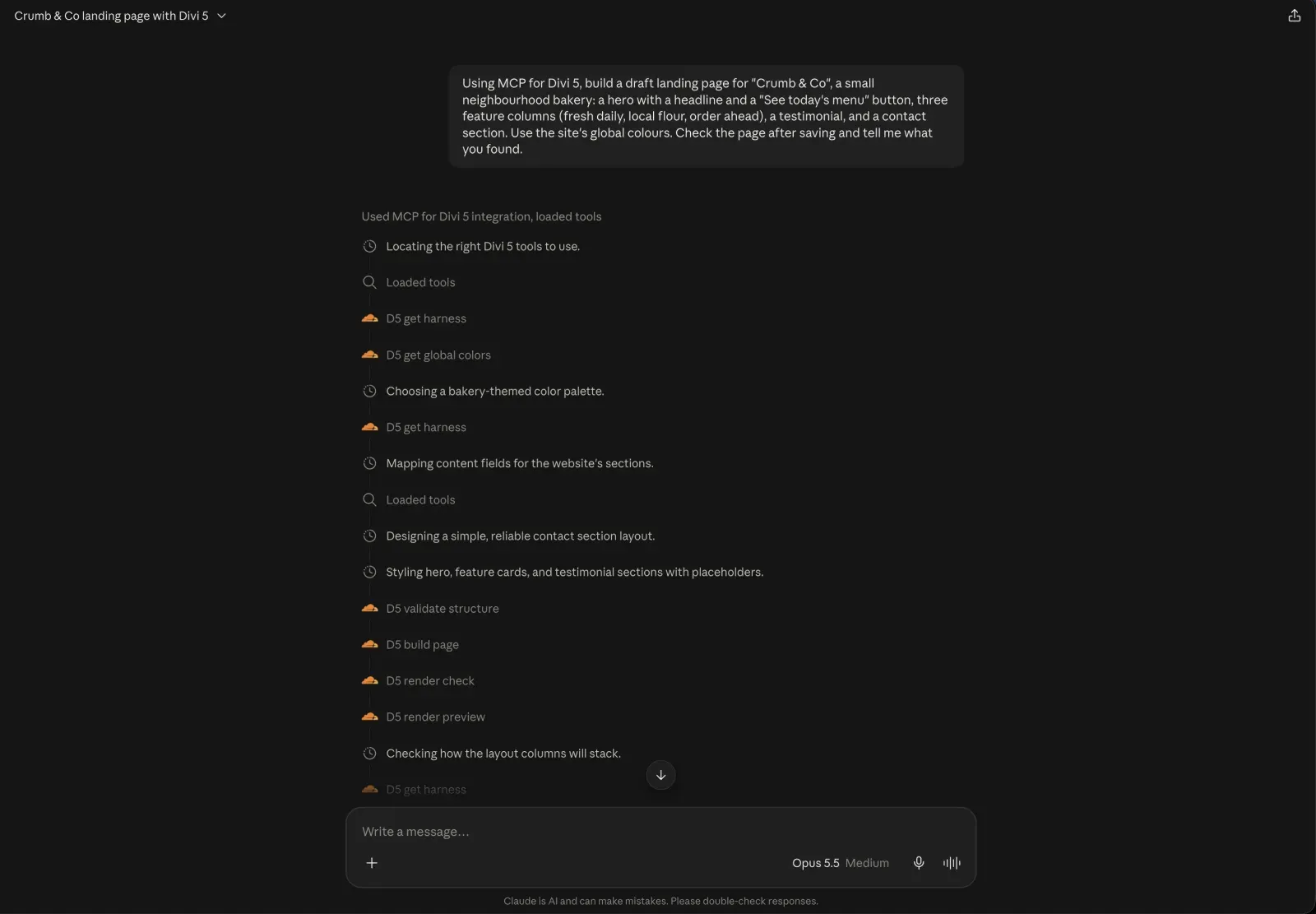
Using MCP for Divi 5, build a draft landing page for “Crumb & Co”, a small neighbourhood bakery: a hero with a headline and a “See today’s menu” button, three feature columns (fresh daily, local flour, order ahead), a testimonial, and a contact section. Use the site’s global colours. Check the page after saving and tell me what you found.
“Use the site’s global colours” matters. The page then follows your palette, and a later colour change reaches it too.
The page saves as a draft. Nothing goes live until you publish it.
Step 4: Read what comes back
While it works, Claude shows each step: it reads the plugin’s guide and your global colours, validates the structure, builds the page, then checks how it renders.
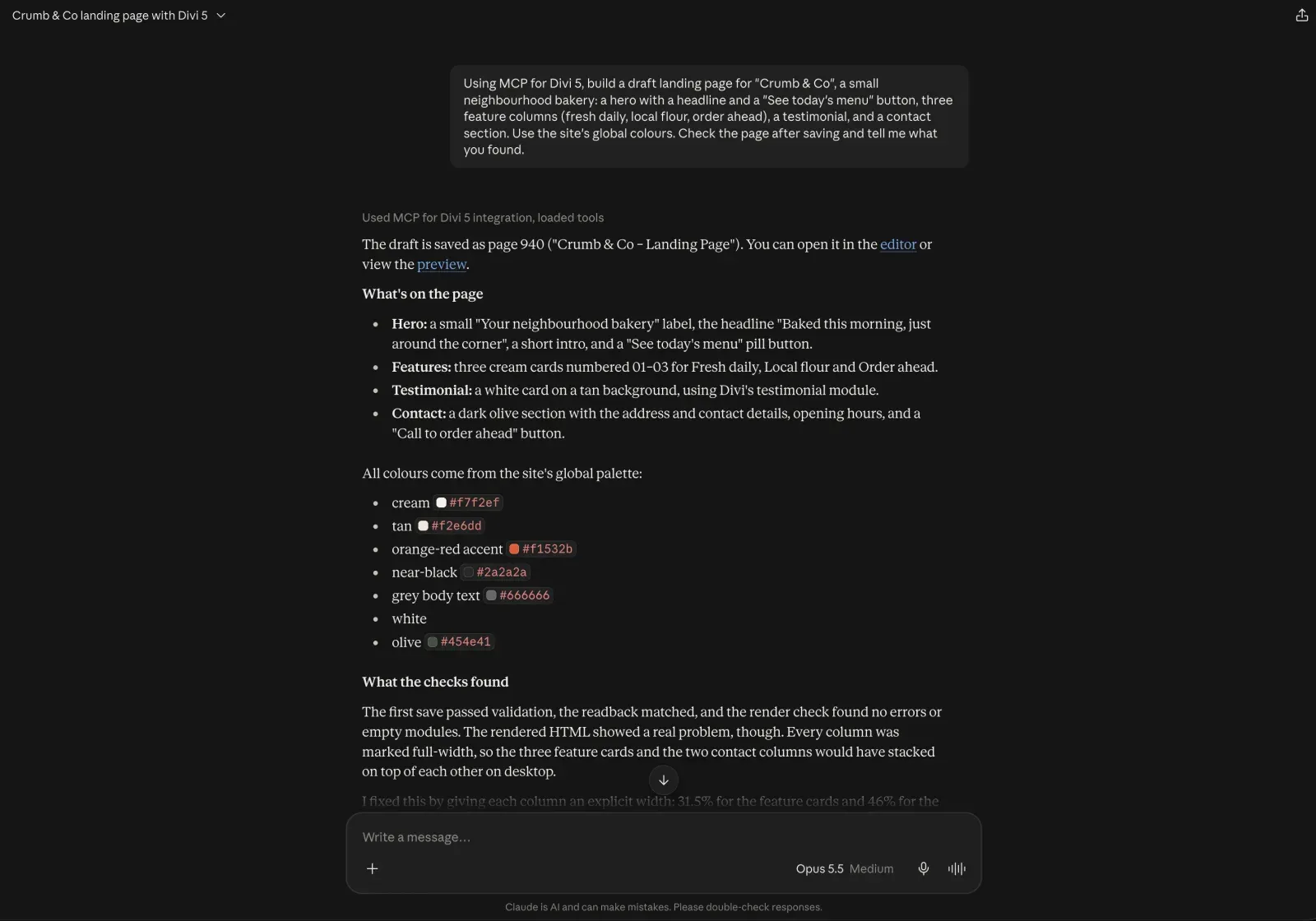
After about two minutes, Claude replied with the draft’s page ID, a link to open it, a list of the sections it built and the global colours it used.
Further down, it reported what the plugin’s checks found and what it could not know. The address, phone number and opening hours were left in brackets. It flagged the testimonial as invented, and it named the two links that had nowhere to go yet.
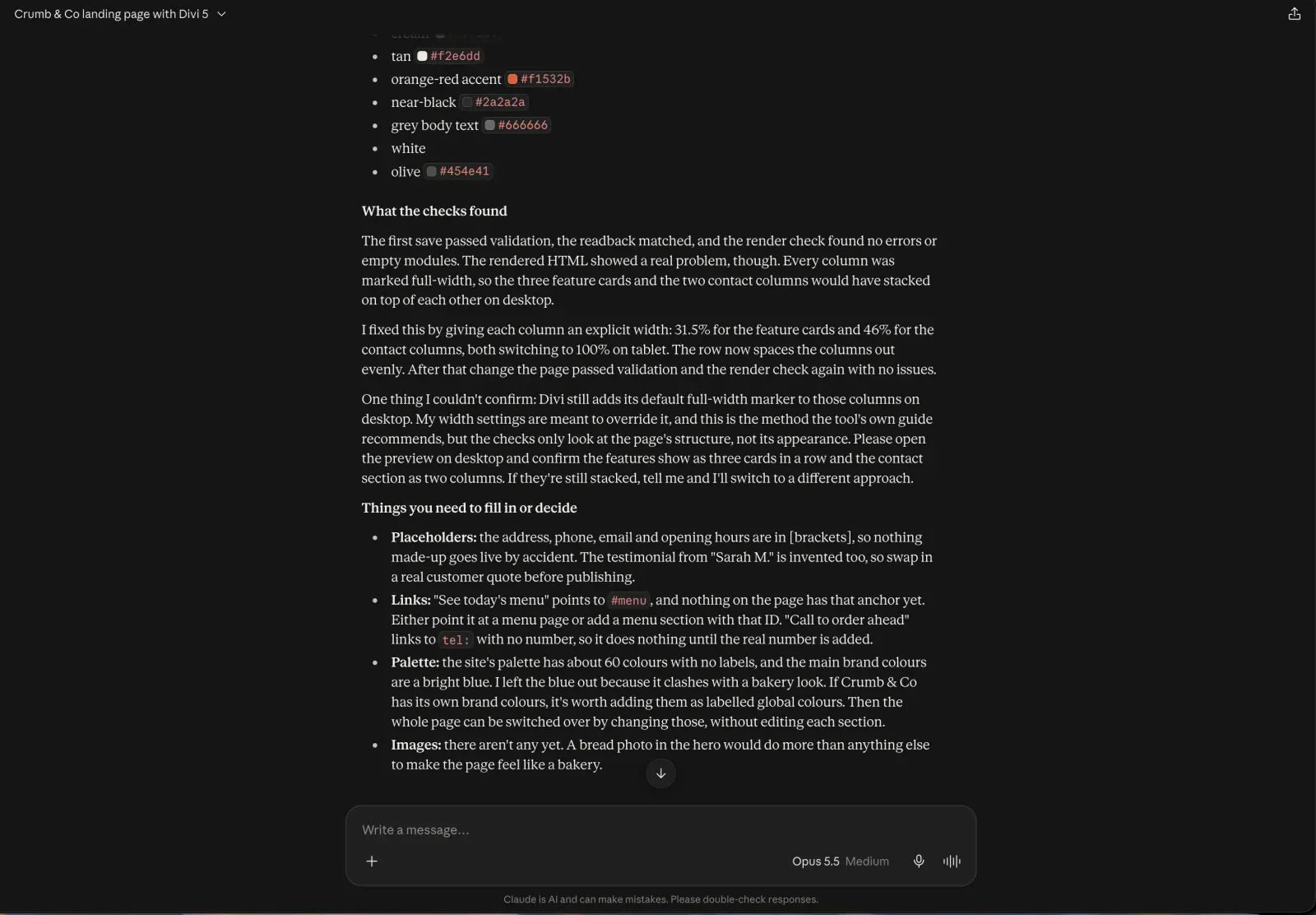
Treat that list as your to-do list before you publish.
Step 5: Check the page, then finish it in the Visual Builder
Preview the draft on desktop and on your phone.
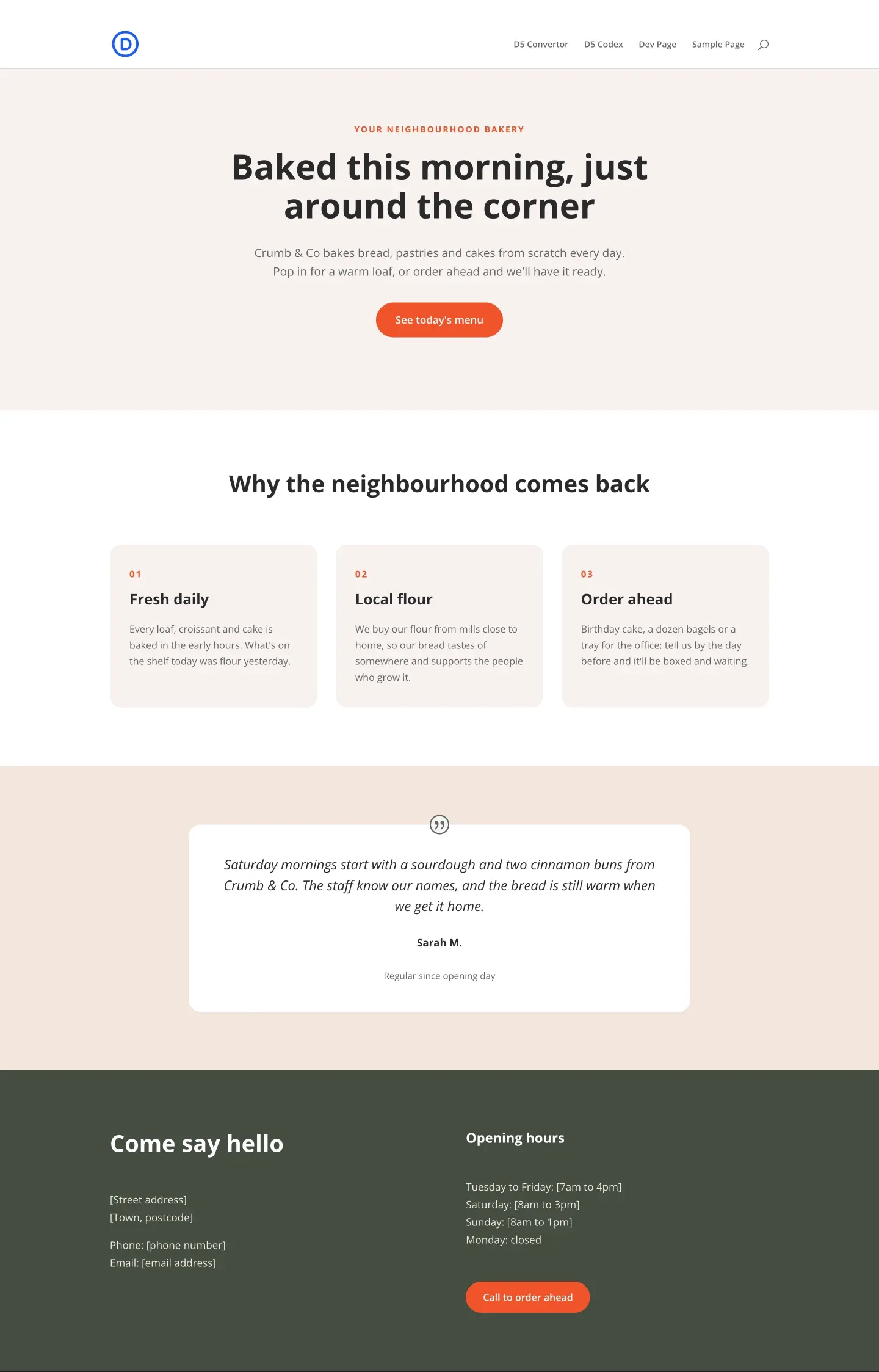
Every section is a normal Divi module. Open the page in the Visual Builder to swap in real photos, opening hours and a real customer quote.
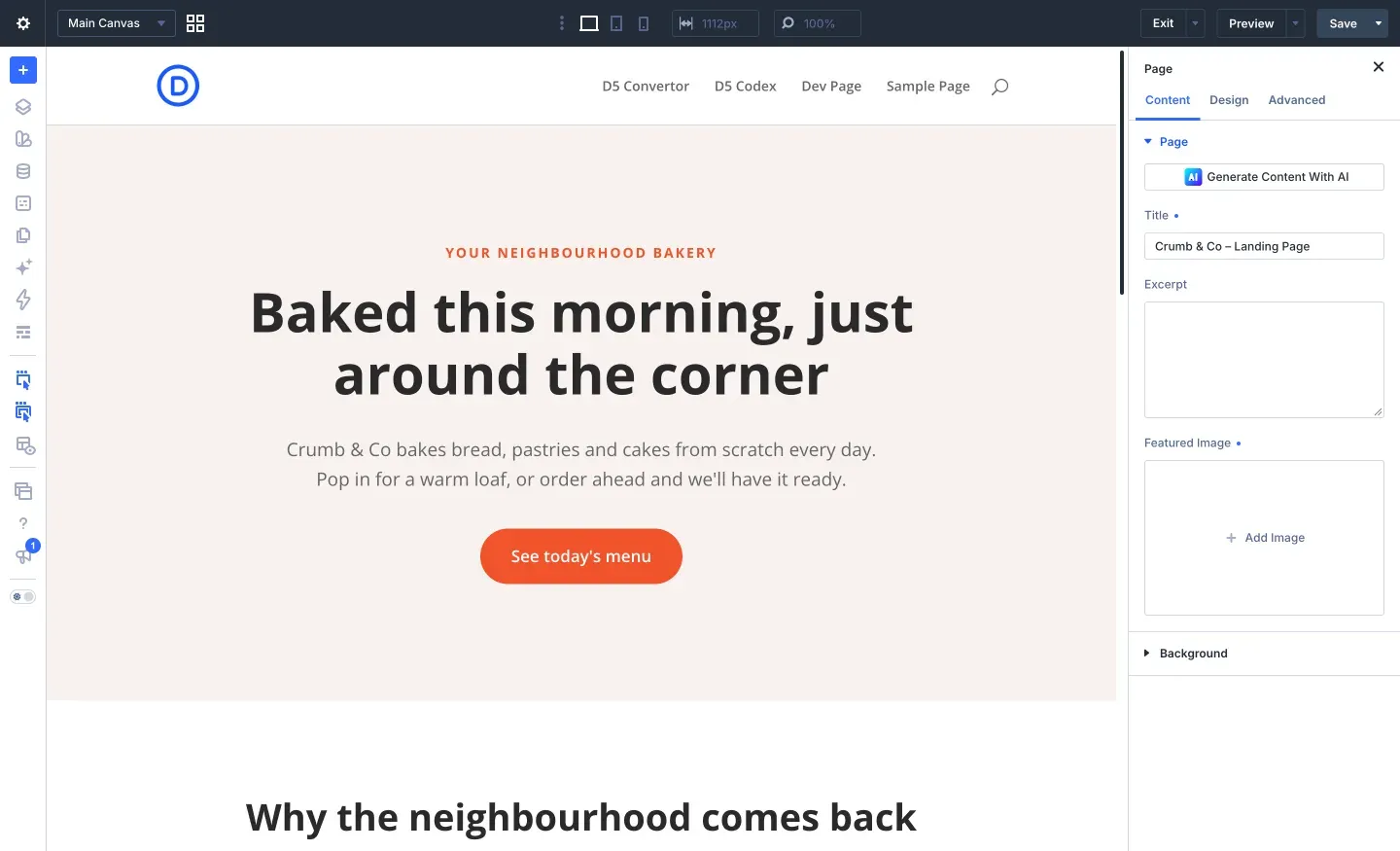
Then publish it.
Using ChatGPT instead
The steps are the same. We gave ChatGPT the same prompt, and it worked for just over two minutes before showing a build summary: 37 blocks saved, no validation warnings and no empty modules.
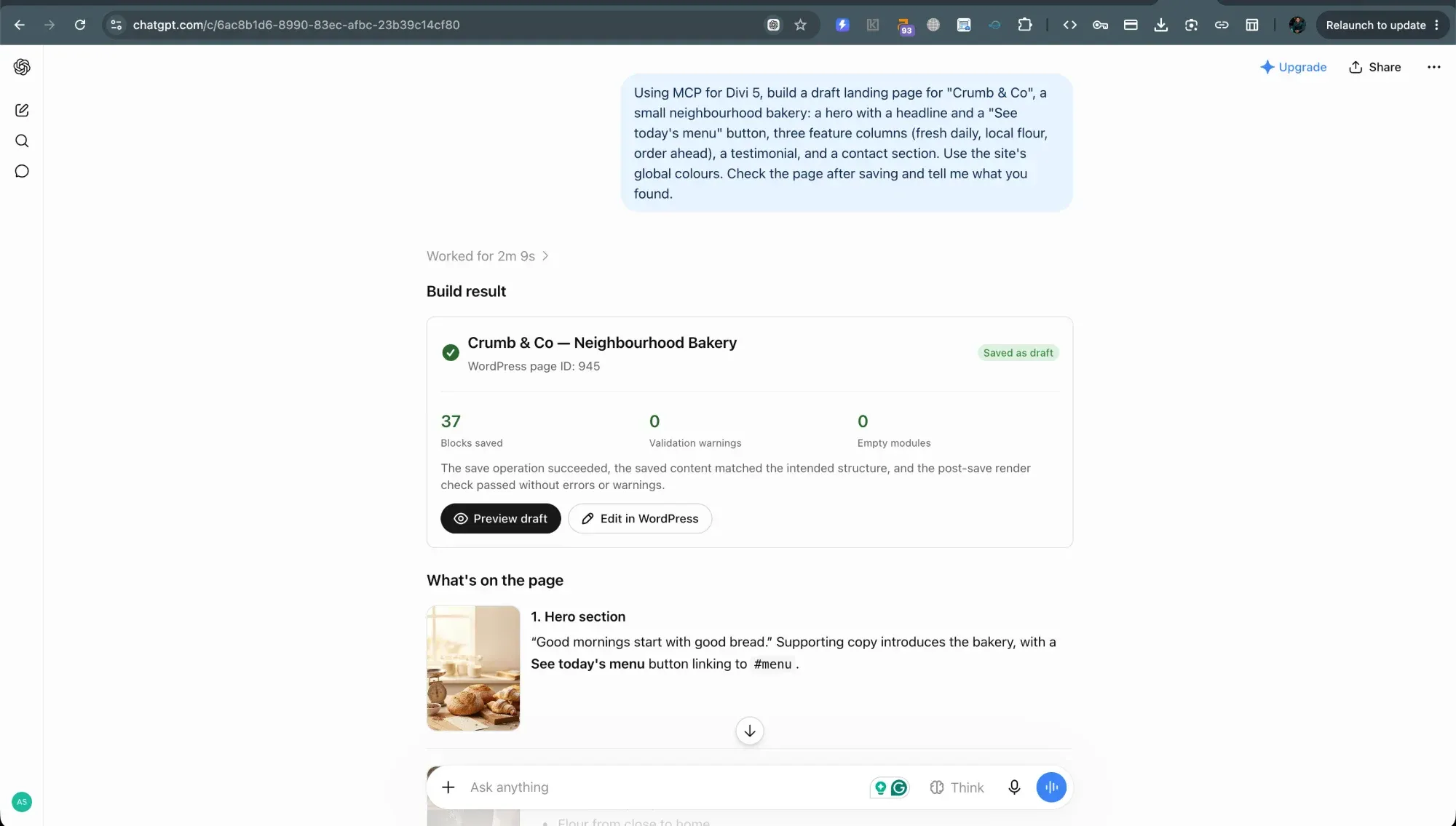
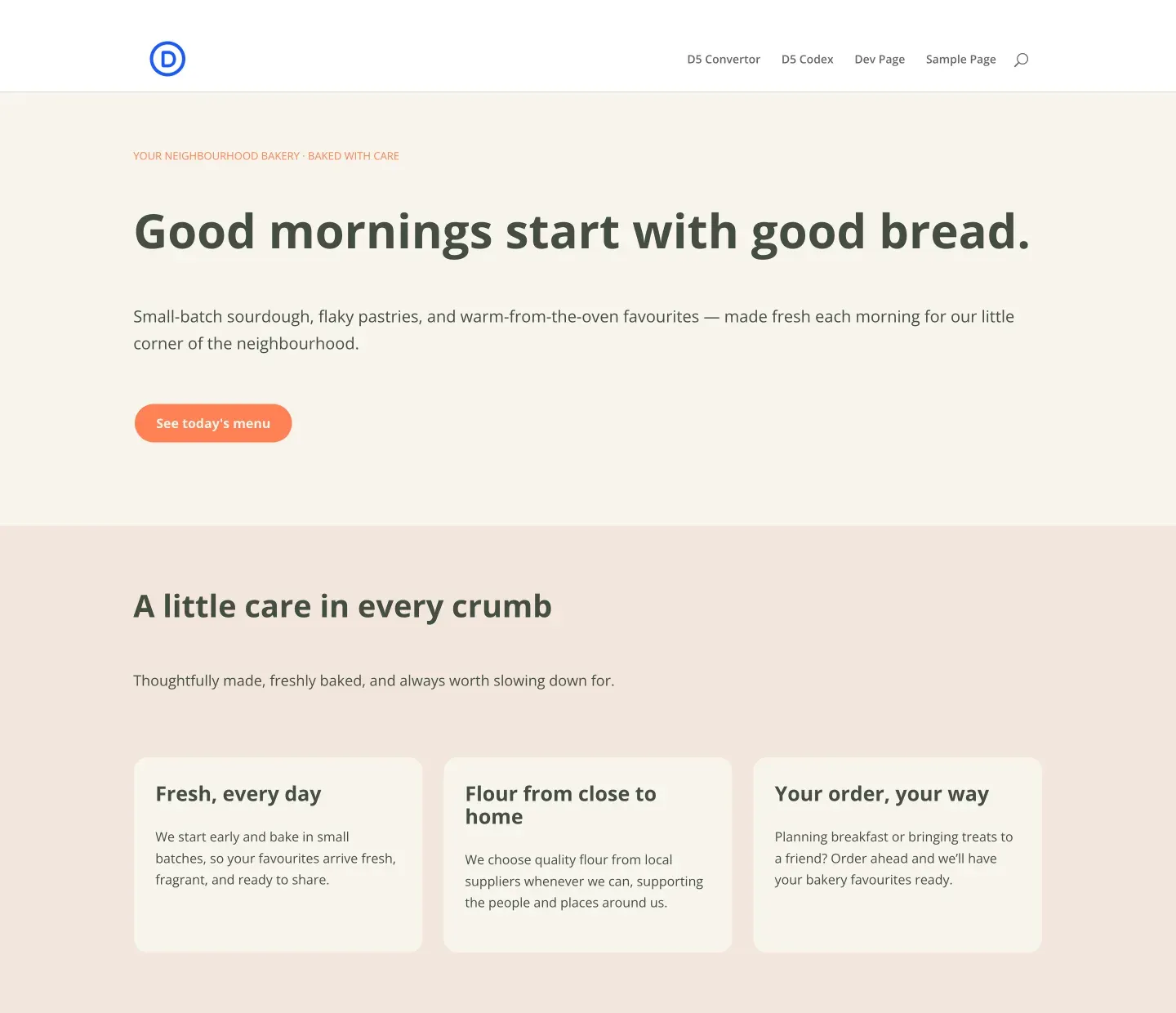
Each assistant writes its own copy and makes its own layout choices, so expect a different page from the same prompt.
Next steps
- Rewrite a page’s copy without changing the design
- Rebrand your site’s colours and button presets
- Undo anything the assistant changed
MCP for Divi 5 works from claude.ai and ChatGPT in the browser, with nothing to install on your computer. See how it works.


Submit a comment
Comments are read before they appear. Your email is not published.
Thanks. Your comment is waiting for review and will appear here once it is approved.