
How to rebrand a Divi 5 site with AI: global colours and button presets
A rebrand on a Divi site is rarely one change. It’s a colour in the global palette, then every button preset that should follow it, then a hunt for the ones you missed. An AI assistant connected to your site can make all of those changes together, and show you the list before it touches anything.
This guide uses MCP for Divi 5 with claude.ai. ChatGPT works the same way. The example is Crumb & Co, a made-up bakery on a test site, moving from orange-red to deep green.
Before you start
Connect claude.ai or ChatGPT to your site with MCP for Divi 5. How to build a Divi 5 landing page with Claude or ChatGPT covers the setup.
Step 1: Ask for a dry run first
A preset change reaches every page that uses it, so ask to see the changes before they are made:
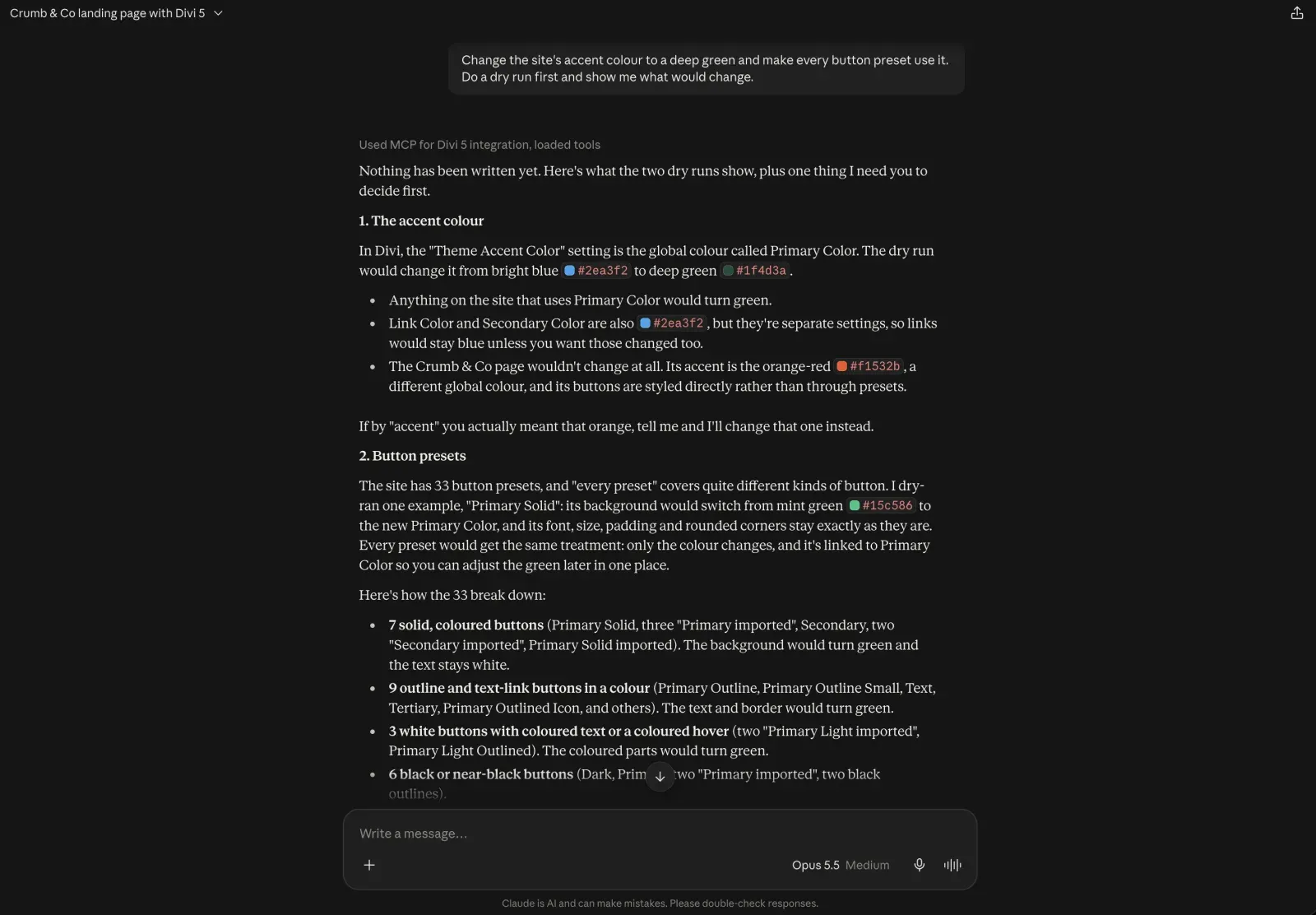
Change the site’s accent colour to a deep green and make every button preset use it. Do a dry run first and show me what would change.
Step 2: Answer its questions
Nothing was written. Claude came back with two questions we hadn’t thought to answer.
First, “accent” was ambiguous. Divi’s theme accent colour was blue, but the Crumb & Co page used an orange-red. It asked which one we meant.
Second, the site had 33 button presets, and “every preset” would have turned the white buttons meant for dark sections green too. It grouped them, recommended changing 19 plus the default, and left the black and white ones alone.
Step 3: Apply it
Answer in the same chat and tell it to go ahead:
Change the orange-red #f1532b to a deep green instead, and apply your recommended 19 button presets plus the default. Then apply it.
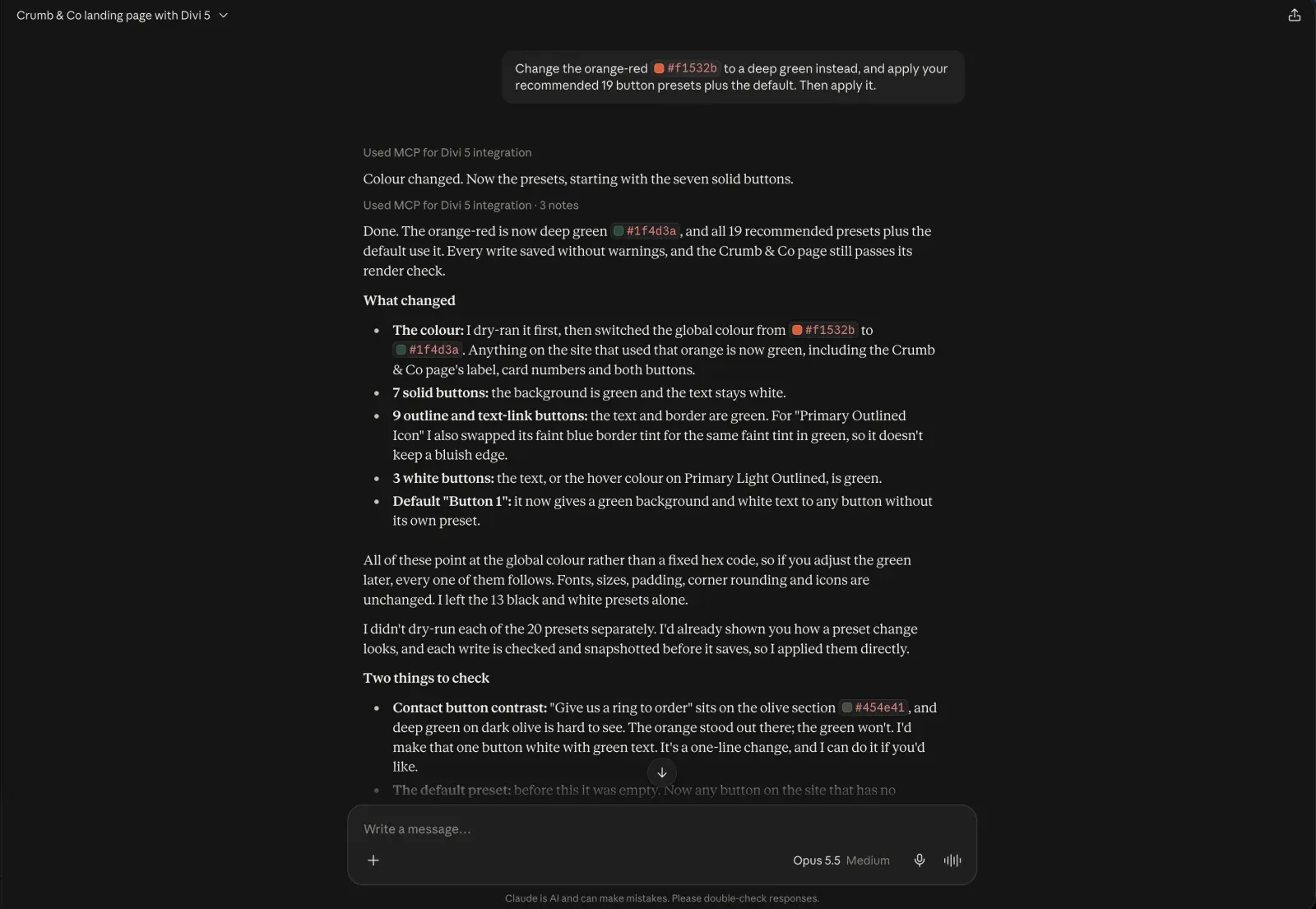
One global colour changed, from orange-red to deep green. Twenty button presets now point at that colour, not a fixed hex code, so if you adjust the green later, every one of them follows. Fonts, sizes, padding and corners stayed as they were.
Step 4: Check the result
Open a page that uses the colour.
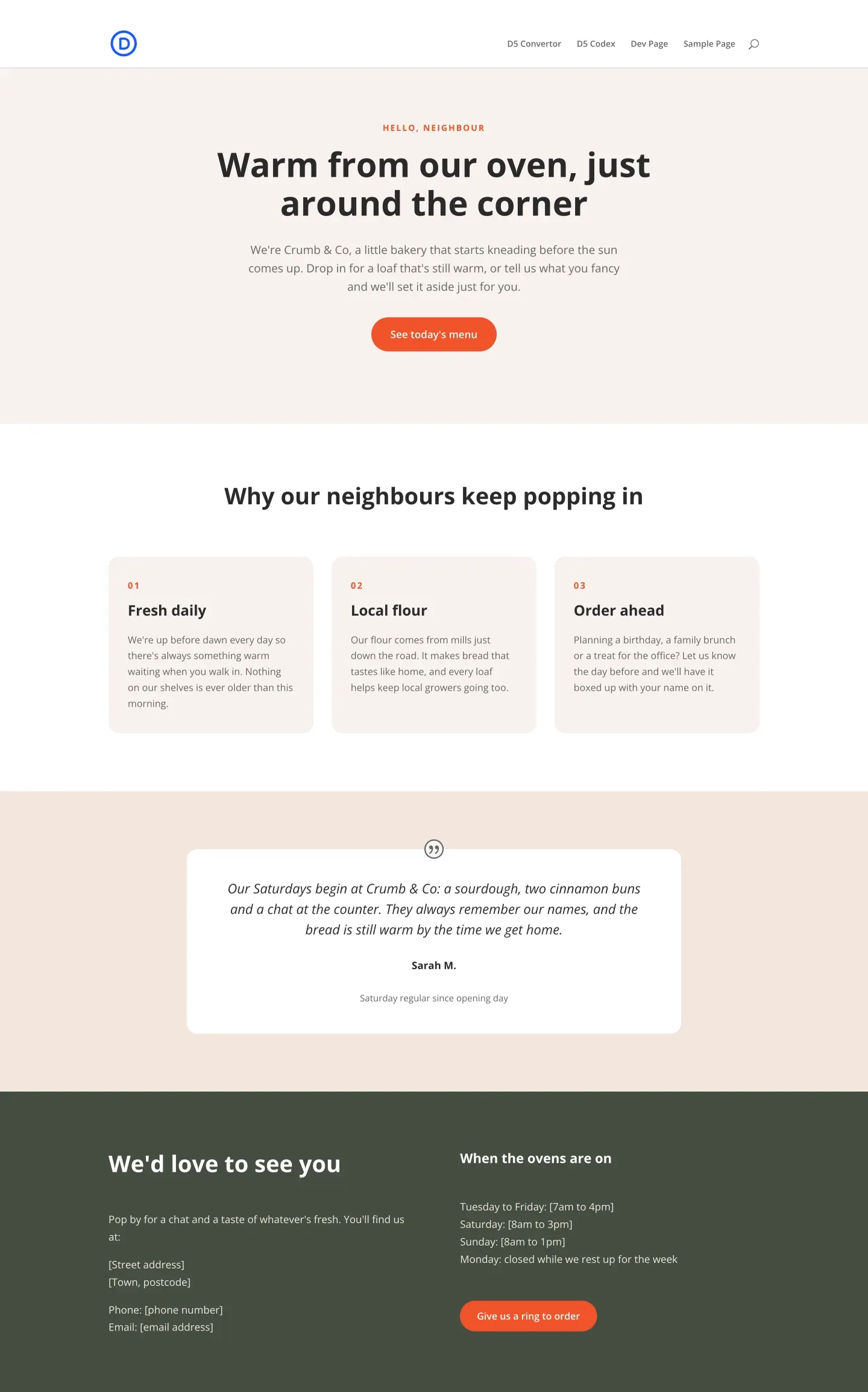
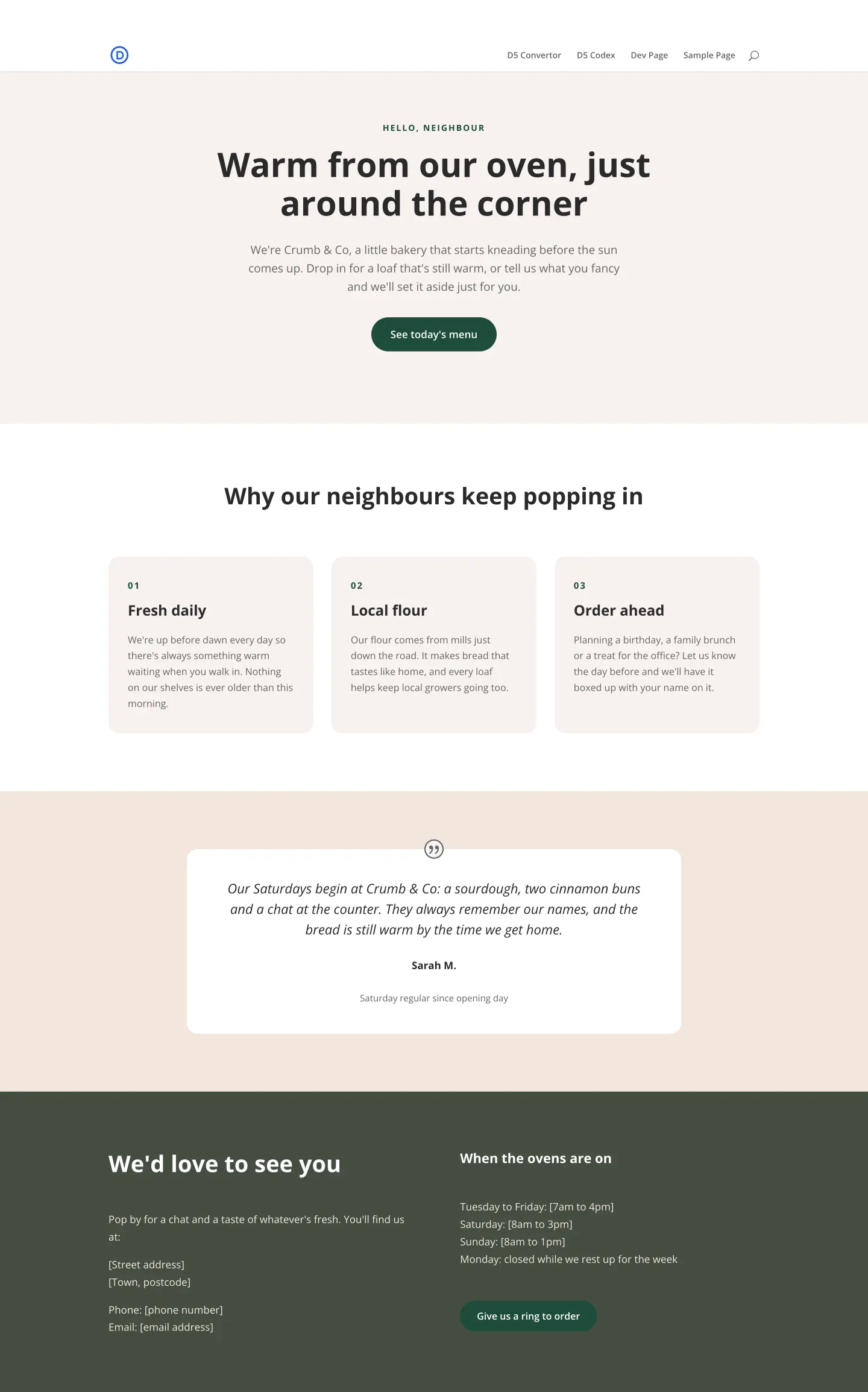
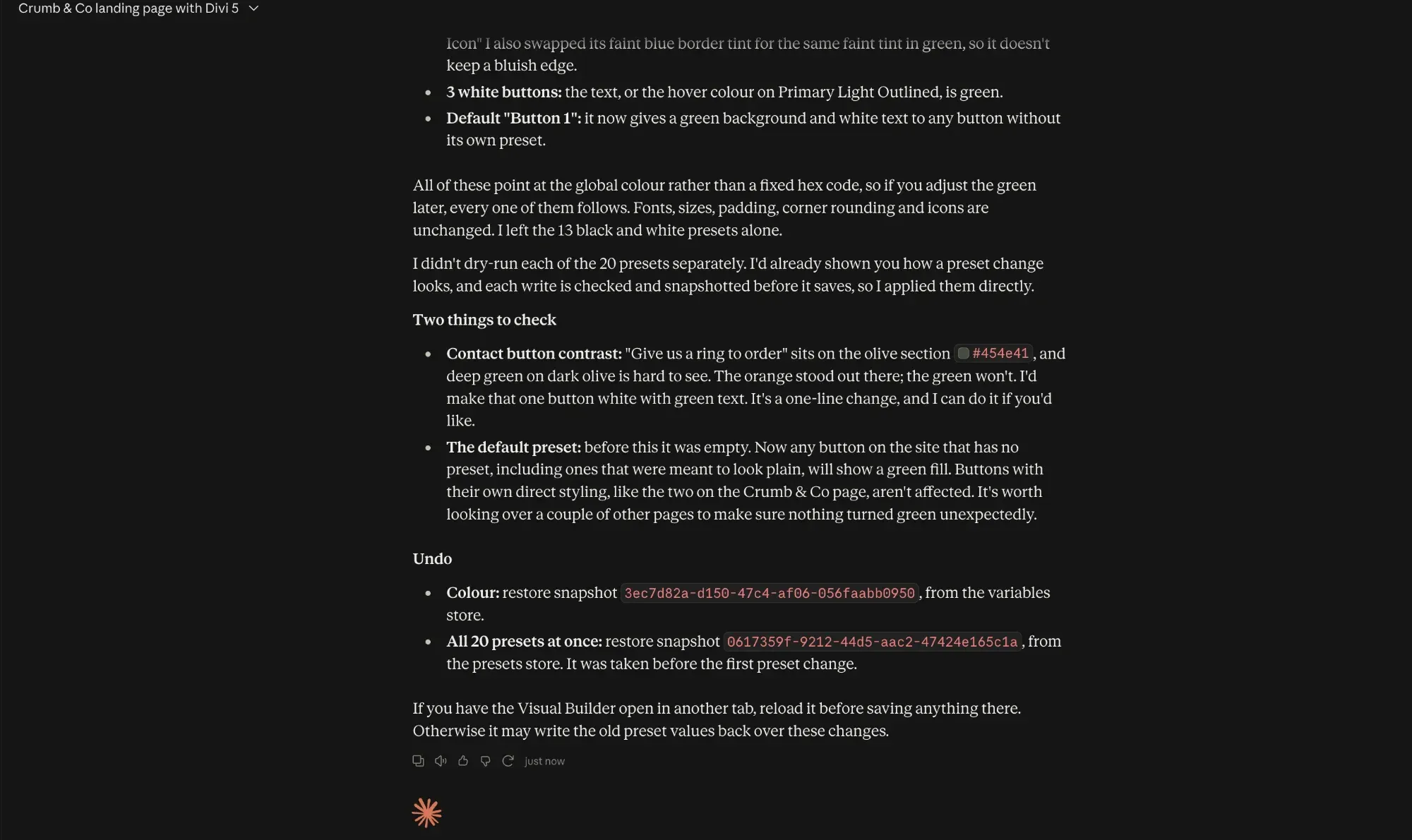
Read the notes at the end of the reply too. Claude flagged a button on the dark olive contact section, where green on olive is hard to read, and suggested a fix without applying it.
If you change your mind
Before any change to presets or colours, the plugin saves a copy of how they were, so the whole rebrand can be undone in one step. How to undo AI changes on a Divi 5 site shows how.
Submit a comment
Comments are read before they appear. Your email is not published.
Thanks. Your comment is waiting for review and will appear here once it is approved.