
How to undo AI changes on a Divi 5 site
The first question about letting AI edit a site is the obvious one: what if it gets it wrong? With MCP for Divi 5, every change the assistant makes can be undone, by asking the assistant or from WordPress itself.
This guide uses claude.ai. ChatGPT works the same way. The example undoes the green rebrand from How to rebrand a Divi 5 site with AI.
What can be undone
- Design changes: presets, global colours and variables, and Theme Builder templates. Before any change to them, the plugin saves a copy of how they were. Copies are kept for 7 days, always at least the newest 20 and at most 100. Changing many presets at once counts as one copy, so a whole rebrand undoes in a single step.
- Pages: every page the assistant edits gets a WordPress revision, marked as an AI edit, so you can see which versions it made.
Step 1: Ask the assistant to undo it
In the same chat, or a new one, say what to put back:
Undo the colour change and all the preset changes you just made.
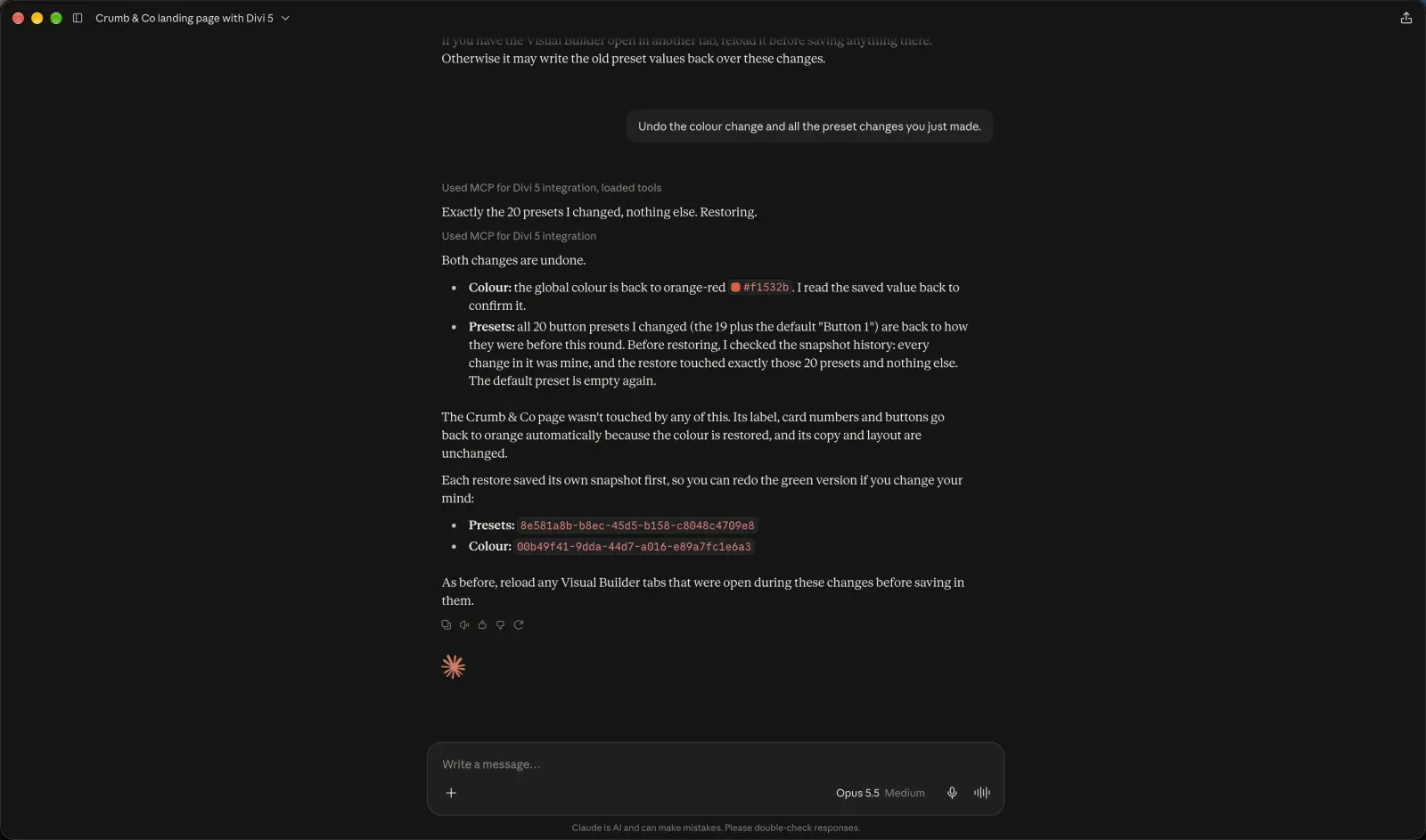
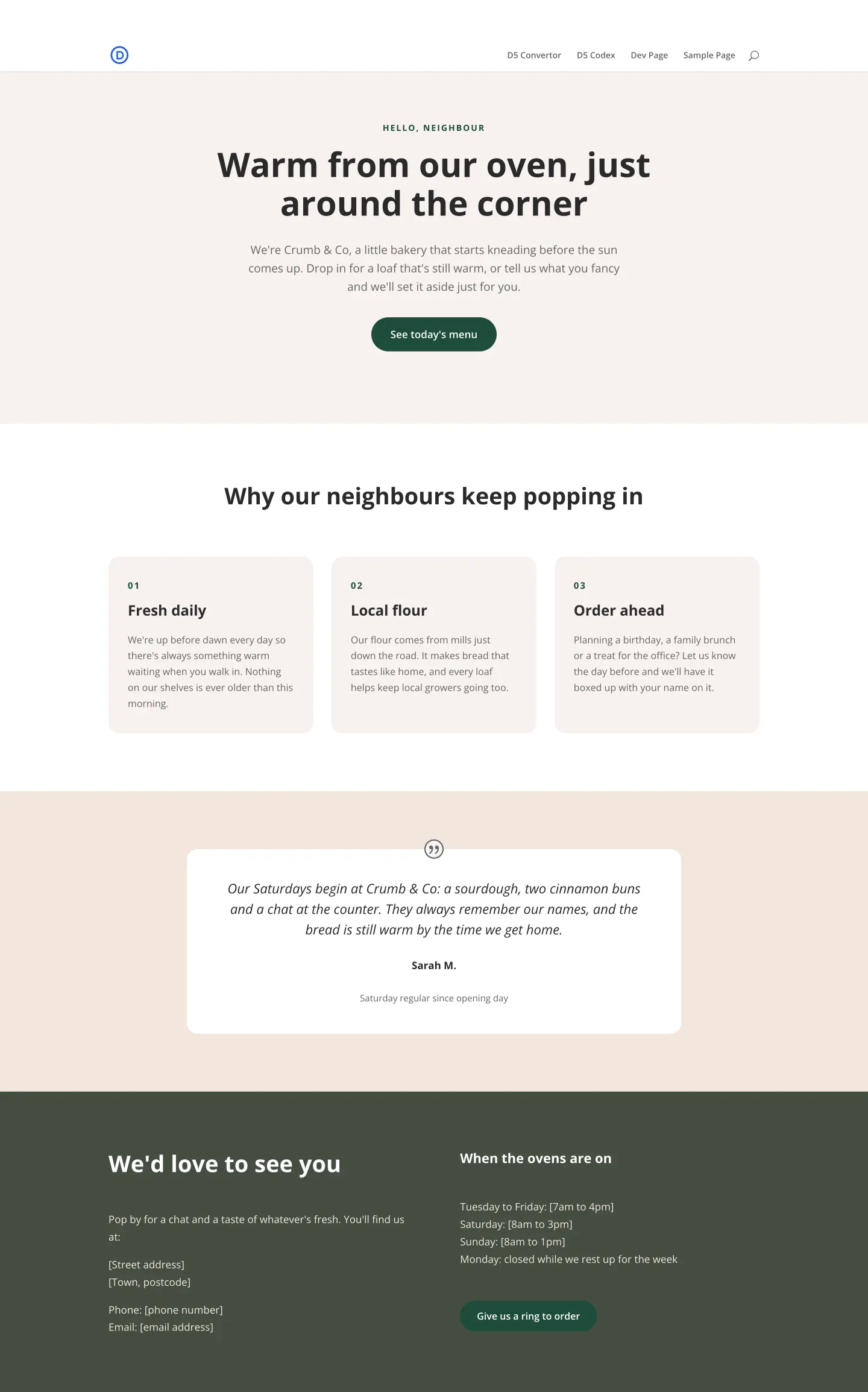
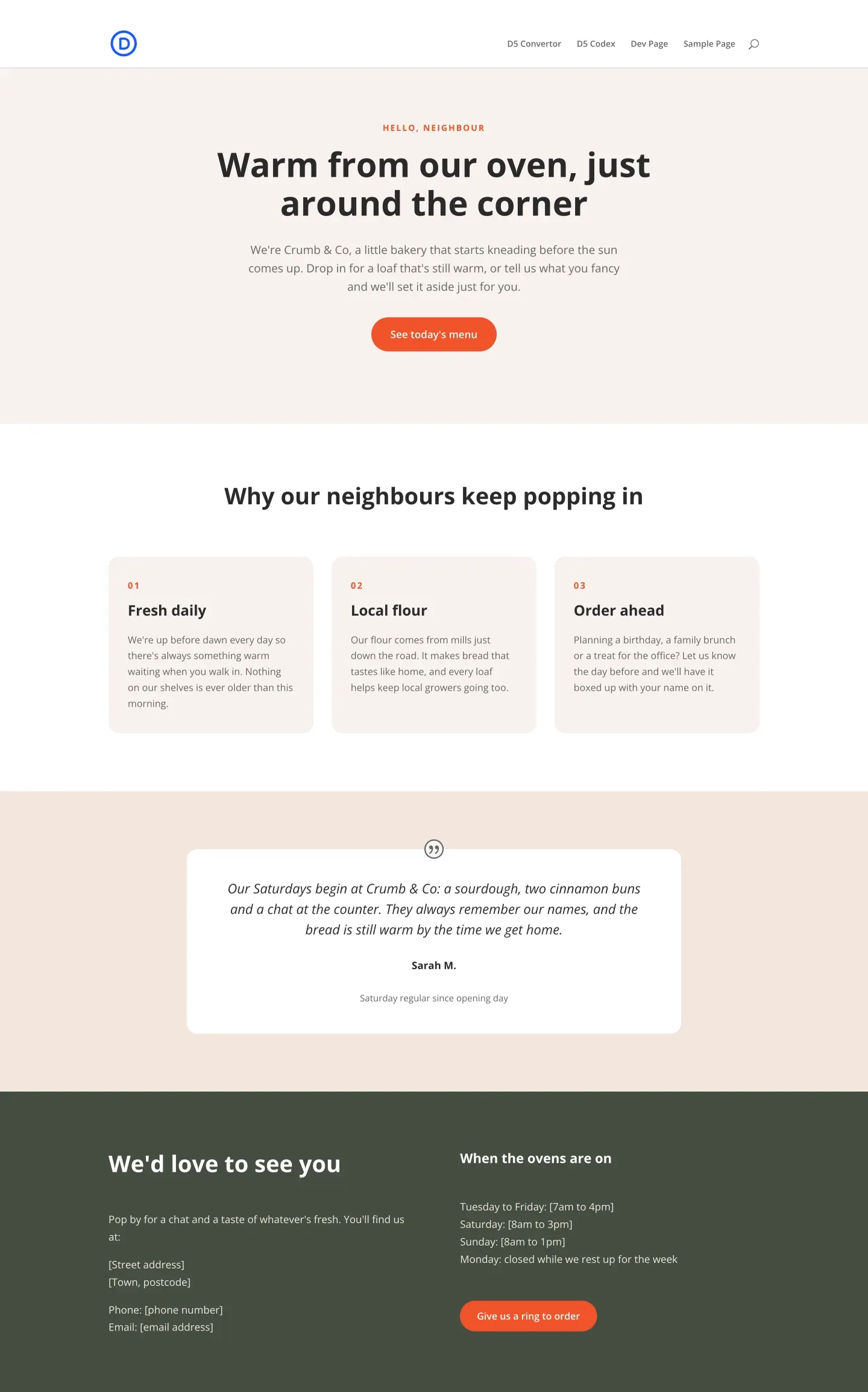
Claude checked the history first and confirmed every change in it was its own. Then it restored both: the global colour went back to orange-red, and all 20 button presets went back to exactly how they were before the rebrand, including the empty default.
Step 2: Check the page
Step 3: Undo a page edit without the assistant
For pages, you don’t need the assistant at all. Open the page in WordPress, go to its Revisions screen and restore the version you want. The assistant’s edits are among them.
Changed your mind again?
A restore saves its own copy first, so the undo can be undone too. The green version was still one prompt away.
The undo guide in the docs has the full details.
Submit a comment
Comments are read before they appear. Your email is not published.
Thanks. Your comment is waiting for review and will appear here once it is approved.