
How to Equalize Column Height in Divi 5 (Fix Row/Module Height Issues)
We may earn a commission from affiliate links in this post. Disclosure policy
If your website’s columns are not equal height in Divi 5, you’re not alone.In Divi 4, there was a separate option for equal column heights, but in Divi 5 the setting is handled differently. That’s why many users think the feature is missing or not working.
In this tutorial, we’ll show you the latest Divi 5 method to make columns the same height and also fix the issue where buttons/content are not aligned evenly inside each column.
Why Columns Become Unequal Height in Divi 5
Columns usually become uneven because each column has a different amount of content.
For example:
- One column has more text
- Another column has less text
- Buttons and content end up at different vertical positions
This makes the row look unbalanced.
In the steps below, we’ll fix both:
- Equal column height
- Equal content/button alignment inside columns
Before You Start (What the Issue Looks Like)
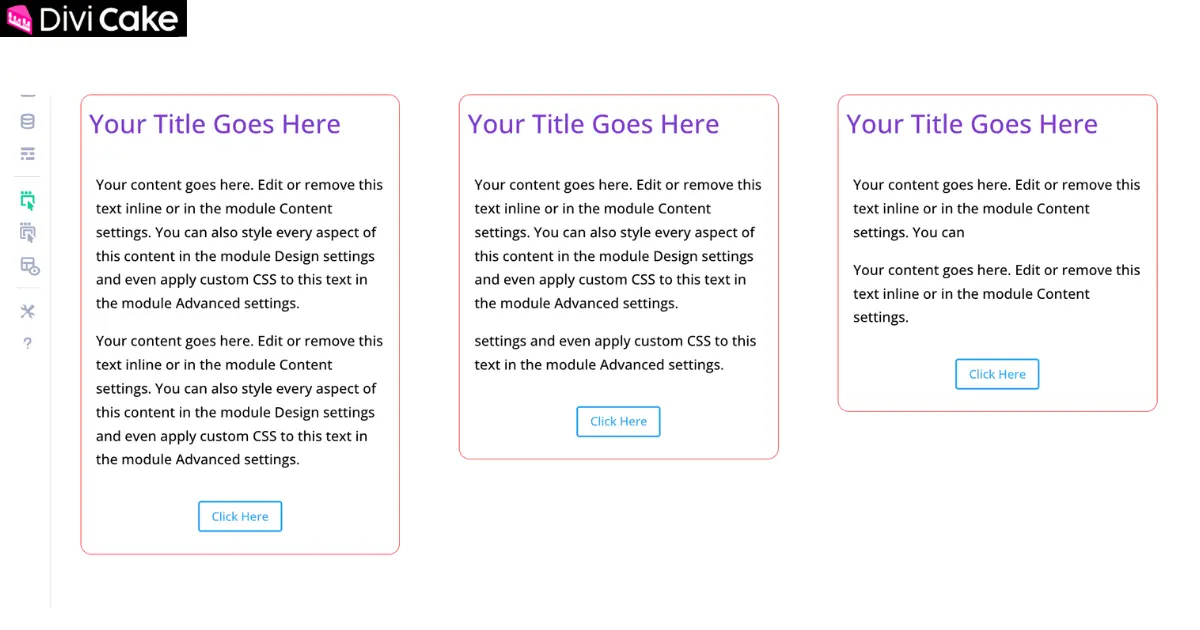
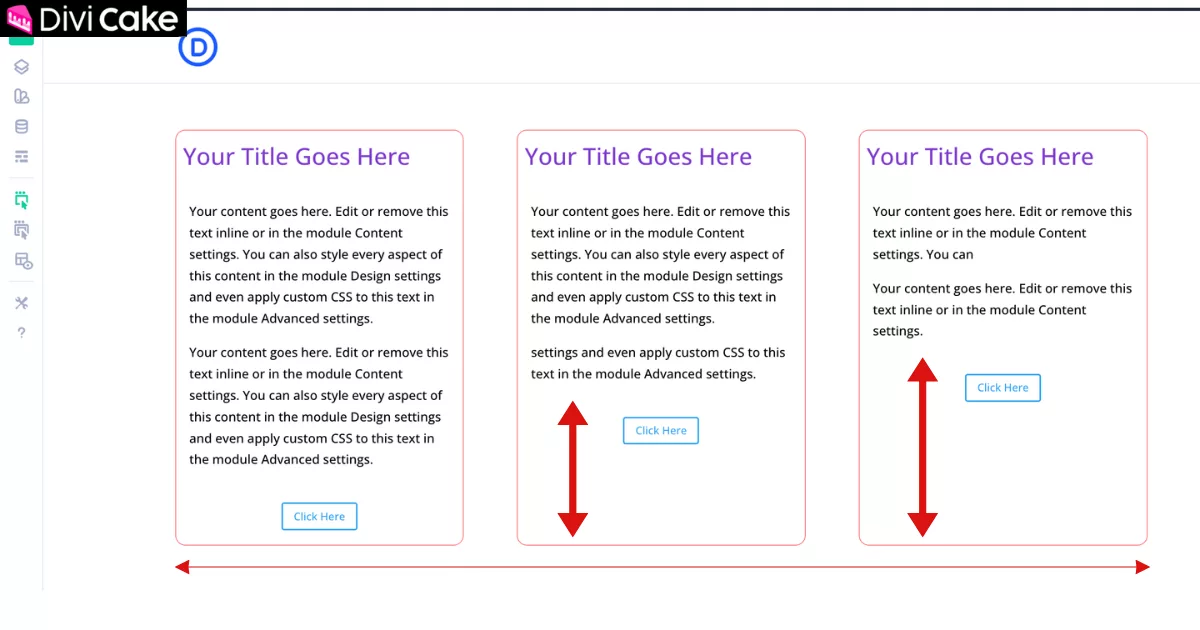
The screenshot below shows unequal-height columns. This usually happens when the text length is different in each column. As a result, the columns and buttons do not line up properly.
Step 1: Open the Row Settings
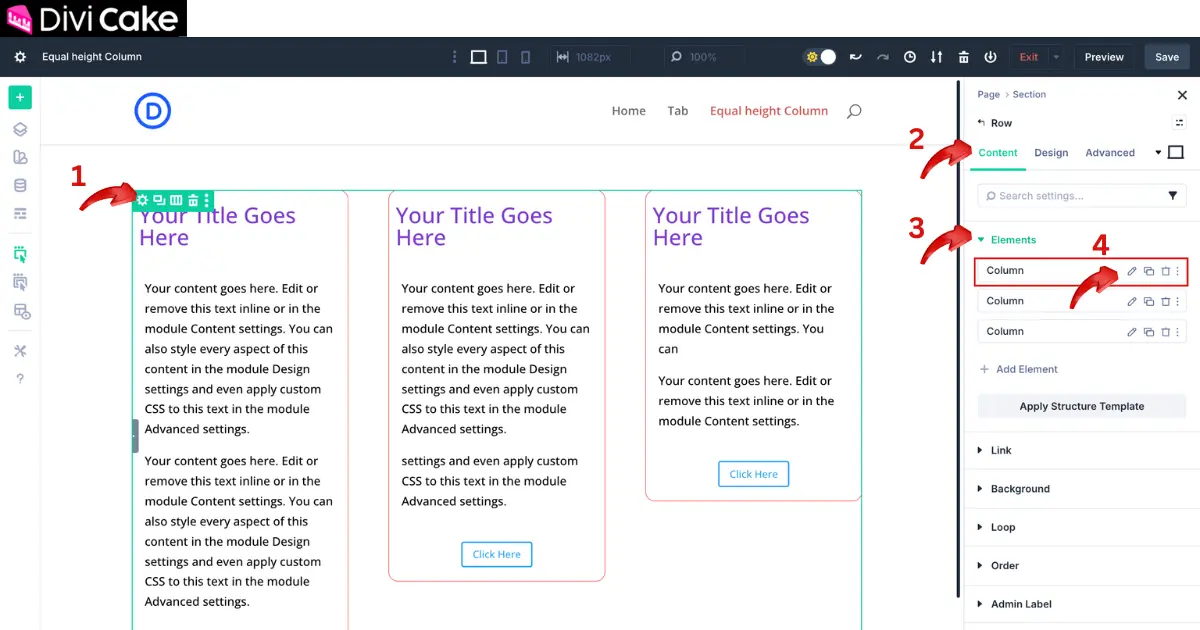
First, open the row where your unequal columns are located.
Steps:
- Hover over the row and Click the Row Settings icon.
- Open the Content tab.
- Click Element (inside the Content tab).
- Click the Edit (pen icon) button for the first column.
Step 2: Set the Column Height (Stretch)
Now we will apply the setting that makes the column stretch properly.
Steps:
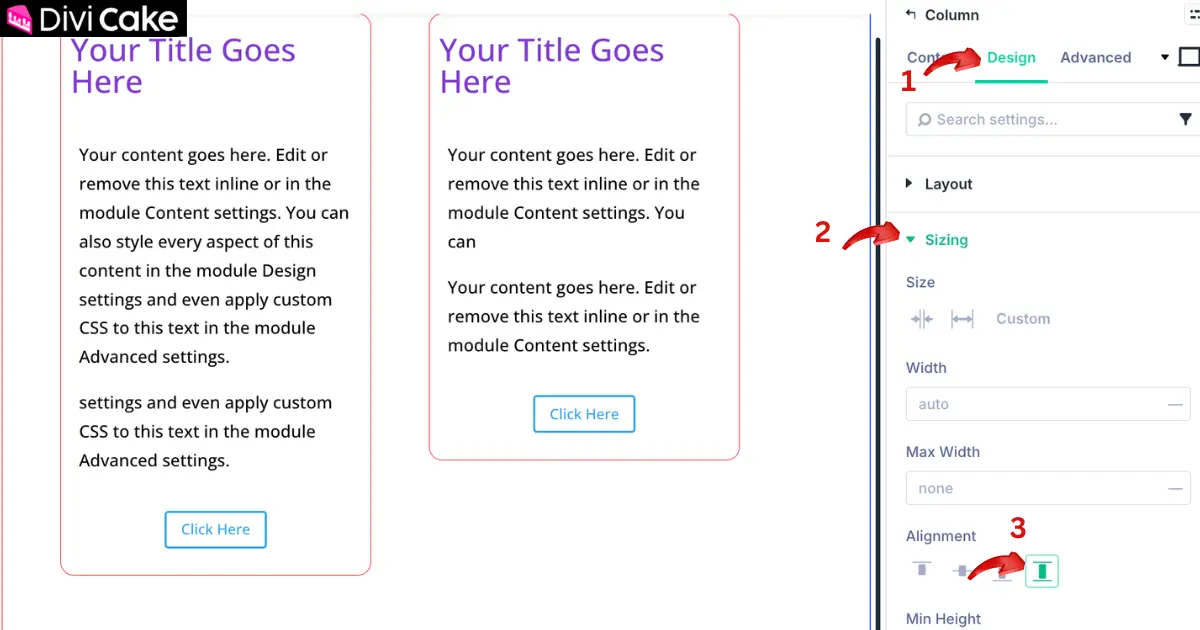
- In the column settings, click the Design tab.
- Open Sizing.
- Enable/click Stretch.
This helps the column expand and match the height behavior needed for equal columns.
Step 3: Repeat for Each Column in the Row
Now repeat the same process for every column in that row.
Important:
You must apply the same setting to all columns (not just the first one). After doing this, your columns should now appear equal in height.
However, if the buttons or content inside the columns are still not aligned as in the below screenshot, continue to the next step.
Step 4: Enable “Grow to Fill” for the Content Module
Even when columns are equal height, the content inside them (like text and buttons) may still sit at different positions.
To fix this, use Grow to Fill on the module inside each column (such as the Text Module).
Steps:
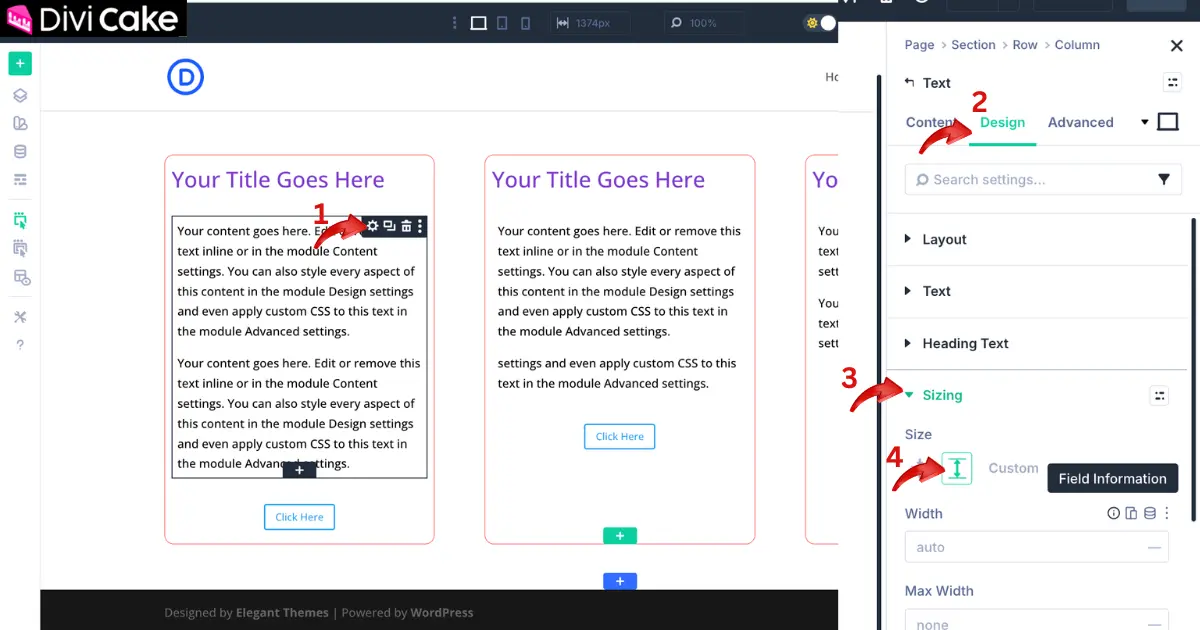
- Hover over the first content module (for example, the Text Module) inside the column and Click the Module Settings icon.
- Open the Design tab.
- Open Sizing.
- Enable Grow to Fill.
This helps the content fill the available column space so layouts look more balanced.
Step 5: Repeat for All Columns/Modules
Now repeat the same Grow to Fill setting for the corresponding content modules in all columns.
Once done, your:
- Columns will be equal height
- Content blocks will be better aligned
- Buttons will sit more evenly across the row
Learn More: How to Make Divi 4 Blog Grid Posts Equal Height (3 Ways)
Final Result
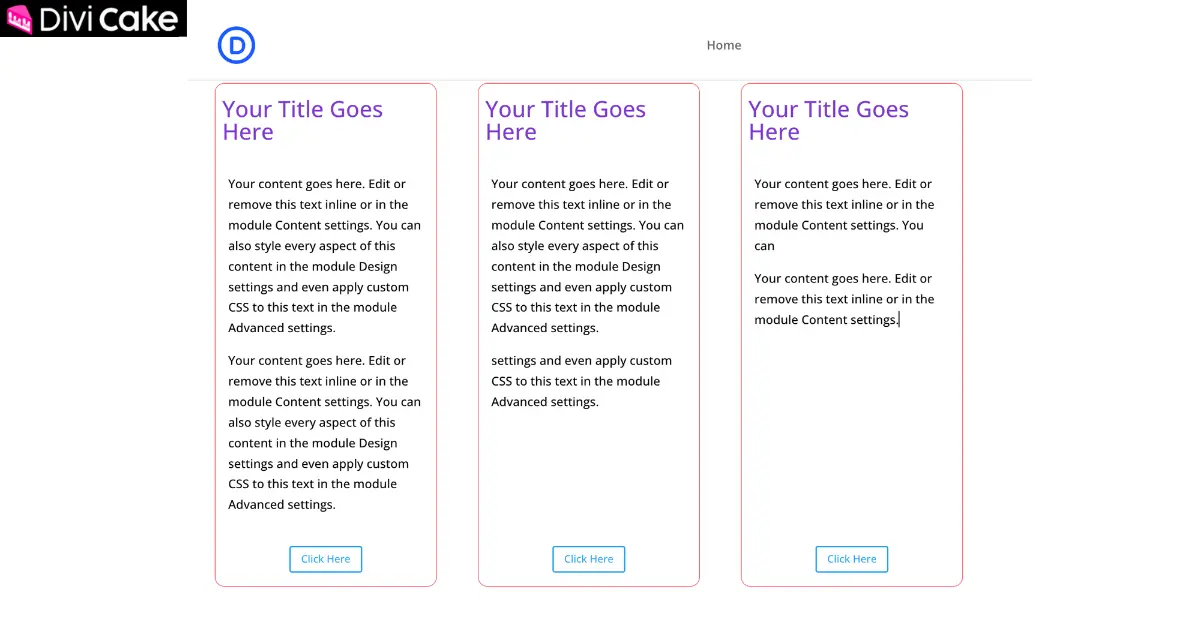
That’s it! You’ve successfully fixed equal column height in Divi 5.
This is one of the easiest ways to make your Divi 5 layouts look cleaner and more professional, especially for: Pricing sections, Service cards, Feature boxes, Team member layouts, Product columns.
Conclusion
And that’s it your Divi 5 columns are now equal height and your layout looks much cleaner, more balanced, and professional.
If you were confused because the old Divi 4 equal height option is no longer visible, don’t worry in Divi 5, the combination of Stretch (for columns) and Grow to Fill (for modules) gets the job done perfectly.
This small fix can make a big difference in sections like service boxes, pricing tables, feature cards, and call-to-action rows, where uneven columns can make the design look messy.
Try this method on your next Divi 5 layout, and you’ll instantly notice the improvement in alignment and visual consistency.
If this tutorial helped you, you can also bookmark it for later whenever your Divi 5 column heights are not working again.
Learn More: Divi Blurb Equal Height: Make Blurbs the Same Height Easily

Submit a comment
Comments are read before they appear. Your email is not published.
Thanks. Your comment is waiting for review and will appear here once it is approved.